
G Suite device management – User and Account setting for iOS


In G Suite, users can set up the device features, network features, and user features that you need to access via your device. In this blog, we will learn how to set up users and account set up on iOS devices for G Suite users.
Required tools:
Things needed?
G Suite subscription
Steps to configure User and Accounts
Step 1 : User and Accounts
These settings are applicable for both Work Profile and company owned device configurations unless explicitly specified.
Select options as per your requirements.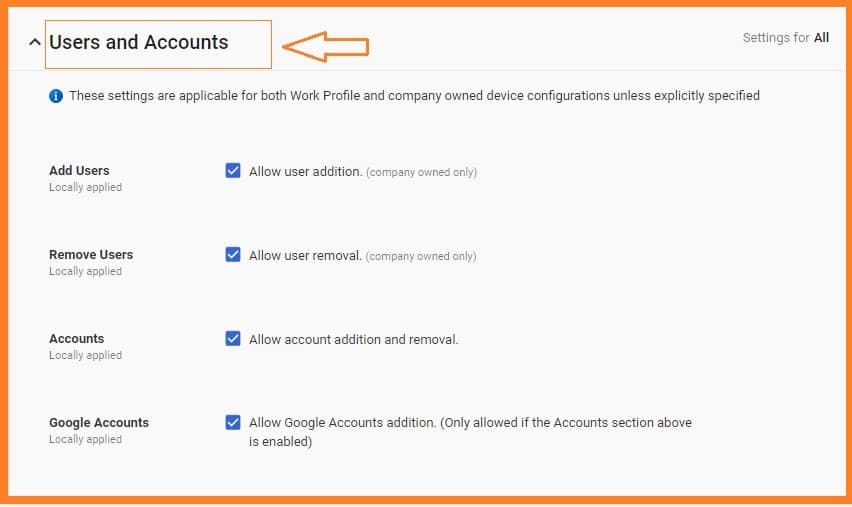
Step 2 : Networks
These settings are applicable only for company owned device configurations
Select options as per your company requirements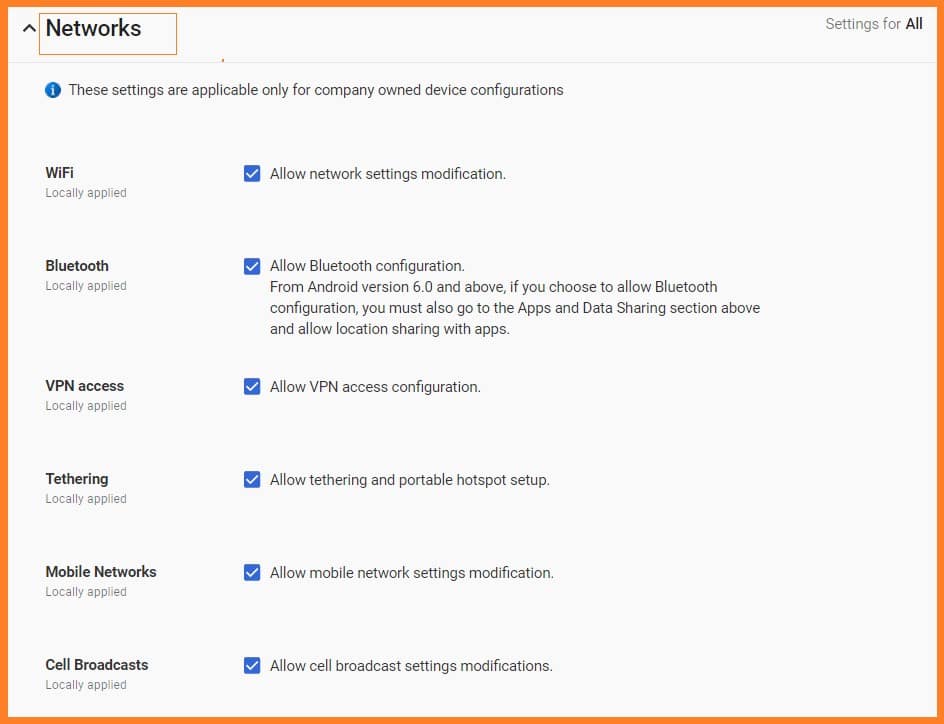
Step 3 : Device Features
These settings are applicable only for company owned device configurations
Select options as per your company requirements
Step 4 : Lock Screen
Select options as per your requirements.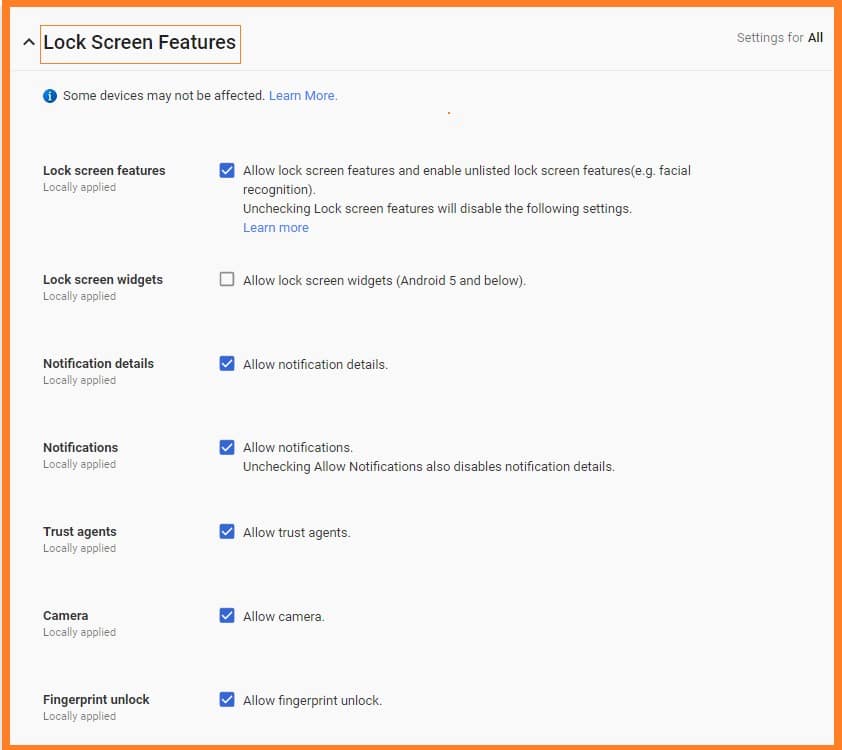
Step 5: iOS Setting
Go with “IOS Setting”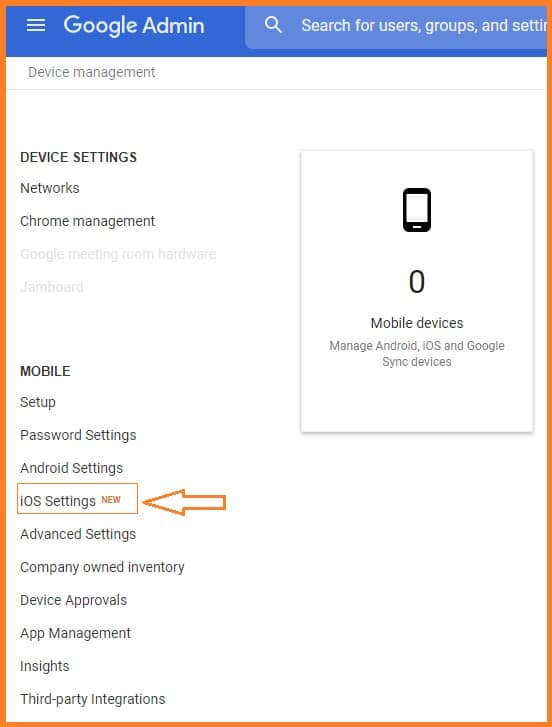
Step 6: Set Requirement
Select options and edit as per your requirements.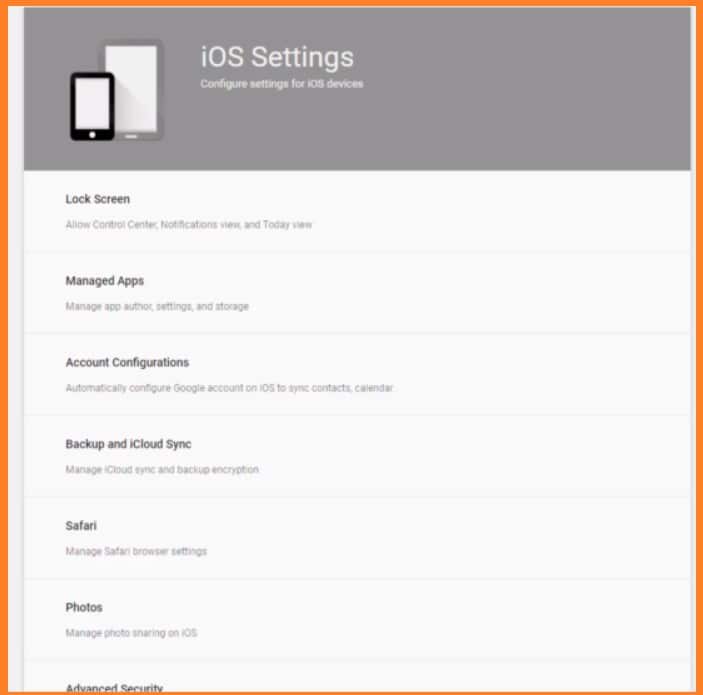
Conclusion:
Hope this step-by-step guide help you to learn how to configure G Suite device management- user and account setting. If you have any doubts our G Suite experts will be there to help you.
Read Here: How to Set up Content Compliance in G Suite for Gmail?
Topics
Sreenivasa Reddy G
Founder & CEO • 15+ years
Sreenivasa Reddy is the Founder and CEO of Medha Cloud, recognized as "Startup of the Year 2024" by The CEO Magazine. With over 15 years of experience in cloud infrastructure and IT services, he leads the company's vision to deliver enterprise-grade cloud solutions to businesses worldwide.
