
How to personalize your G Suite domain – Changing the user images


3 Steps to G Suite personalize user avatar
G Suite offers a lot of personalization options for the users. Personalized User image is one of them. Based on your professional or personal requirement, G Suite domain gives the users the freedom to customize the accounts. In this guide, you can learn how to change the user images as intend to.
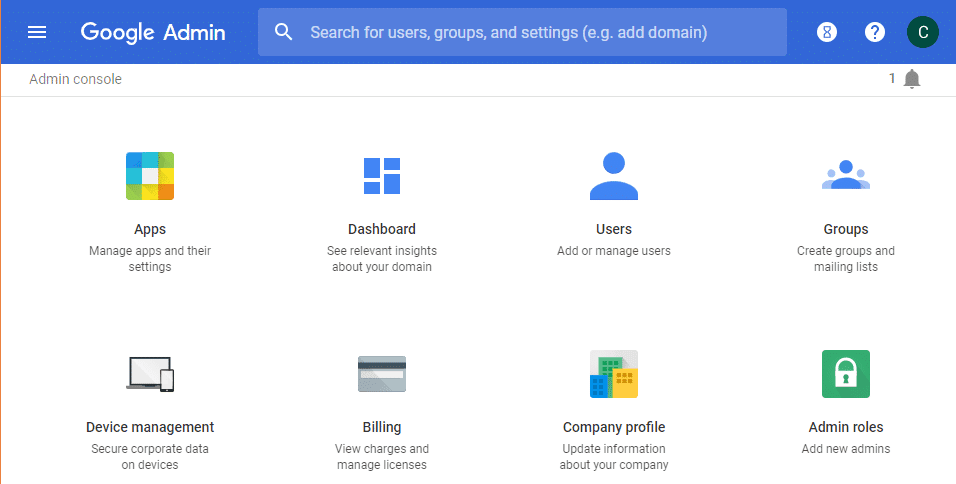
Total Time Needed: 5 Minutes
Required tools:
– A Computer.
– Internet Connection.
– G Suite admin access
– G Suite Domain
Things needed?
– G Suite subscription
Steps to Personalize your G Suite domain – Changing the user image
Step 1 : Log in to admin console
Go to Admin console and click on users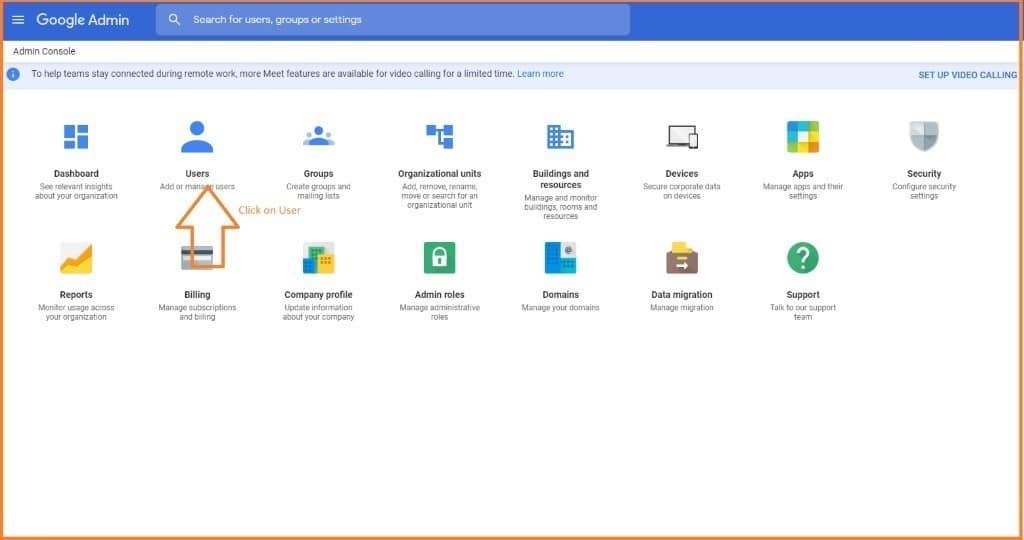
Step 2 : Change User Image
Click on username to change the image.
After clicking on username click on image icon to change the user image as shown in the screenshot given below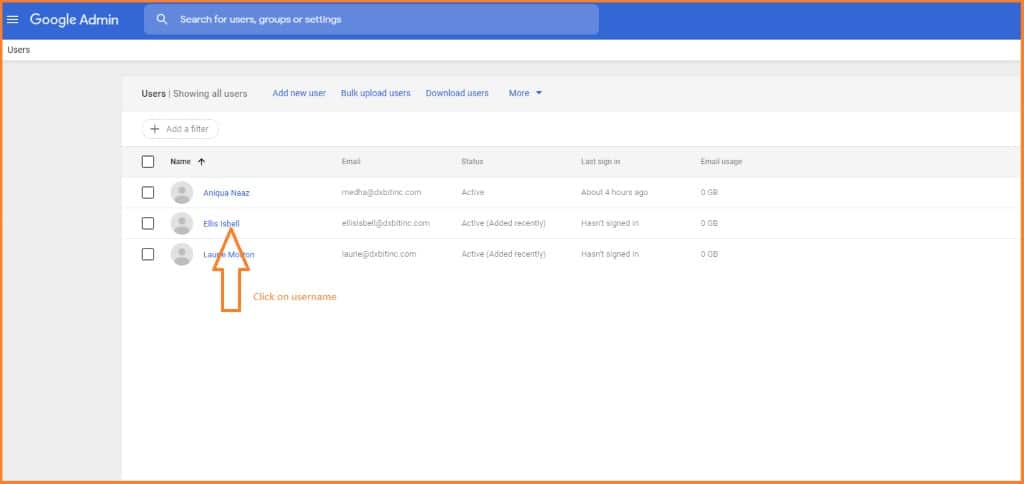
Step 3. Adding Image
Click on the User Image and upload an appropriate image of you as you wish!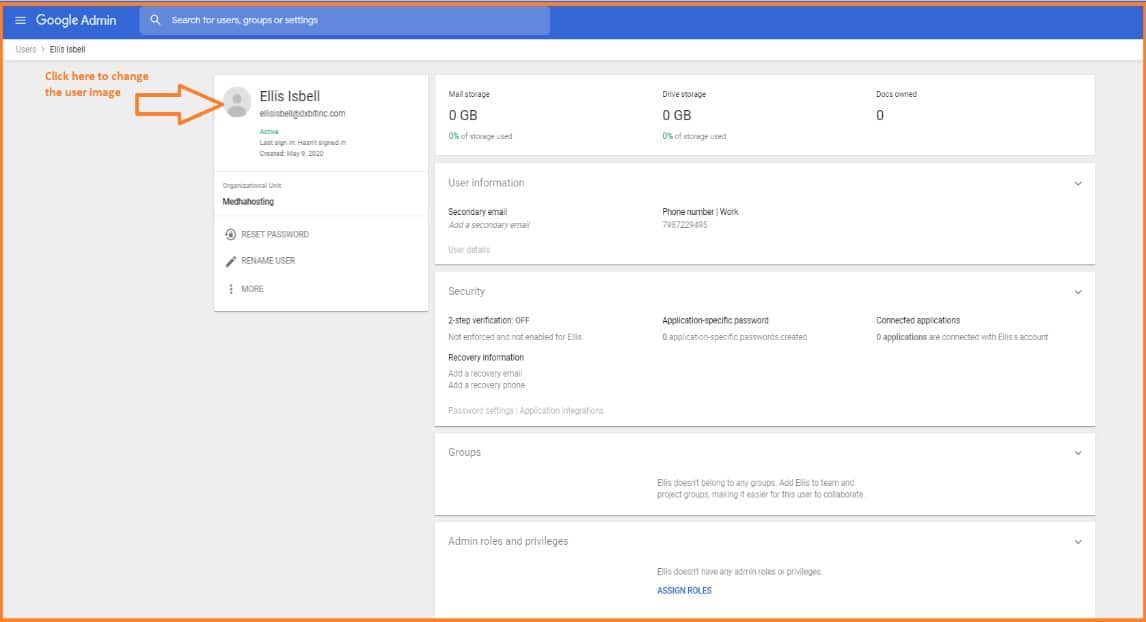
Step 4: Conclusion
This is how you can change your user image in the G Suite domain. It gives you a more professional and personalized experience. Try to follow this guide and modify your profile image as you wish.
Topics
Sreenivasa Reddy G
Founder & CEO • 15+ years
Sreenivasa Reddy is the Founder and CEO of Medha Cloud, recognized as "Startup of the Year 2024" by The CEO Magazine. With over 15 years of experience in cloud infrastructure and IT services, he leads the company's vision to deliver enterprise-grade cloud solutions to businesses worldwide.
