
How to configure G Suite Mail Flow – Default Routing?


In this blog, we are going to talk about how to configure GSuiet mail flow- default routing. In G Suite, users/admin can set domain-wide mail flow setting such as split mail/dual mail delivery, etc. Admins can set criteria to reject, route messages as well.
Required tools:
Things needed?
G Suite subscription
Steps to configure G Suite Mail Flow – Default Routing
Step 1: Enter the How-to Schema title you want.
Log in to admin.google.com and click on Apps.
Click on G Suite.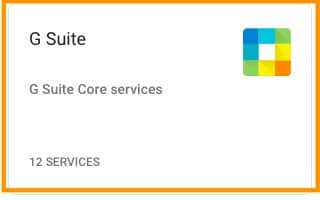
Click on Gmail.
Step 2: Default Routing
Scroll down to Default routing and click on it.
Scroll down to Default routing and click on it.
Step 3: Specify Compliance Configuration:
To specify Single user, Select Single recipient from the dropdown menu.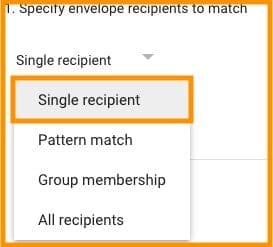
Enter the email address.
Step 4: Set Pattern Match
To route mails having a particular pattern, Click on Pattern match from the dropdown and enter the regular expression. Click on “Learn more” to know more about adding Regular expression.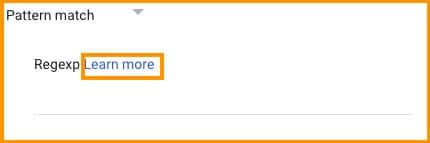
To select groups, Select Group membership, and click on Select groups.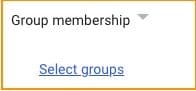
Click on All recipients to Select All recipients.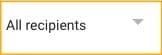
Step 5: Mail Rejection Setting
If the mails match the above criteria, you can choose to modify or reject the mail. To reject the mail Select Reject from drop down menu.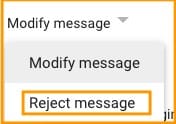
Add a rejection message, which will be sent to the sender.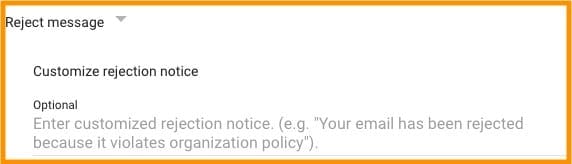
Step 6: Modify Message
To modify messages that matches the above criteria, Select Modify message.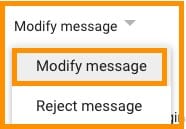
You can choose the modifications by selecting options below to Add headers, prepend Subject, Change route, Remove attachments etc.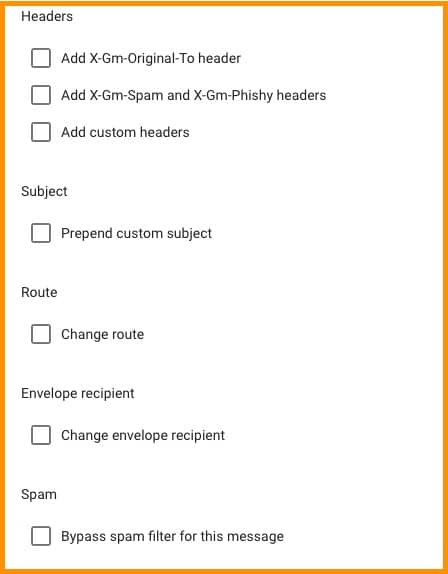
Step 7: Set the action
Finally, select an option below to perform this action to either recognized or non-recognized mails.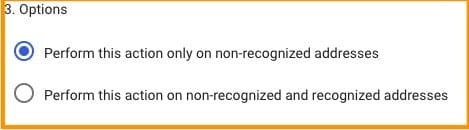
Click SAVE.
Conclusion:
This is how you can configure G Suite Mail Flow – Default Routing. Follow the steps and try to set your default mail flow setting. If you have any doubt, please reach Medha Hosting.
Read Here: How to configure G Mail Compliance Rules for Objectionable Content?
Topics
Sreenivasa Reddy G
Founder & CEO • 15+ years
Sreenivasa Reddy is the Founder and CEO of Medha Cloud, recognized as "Startup of the Year 2024" by The CEO Magazine. With over 15 years of experience in cloud infrastructure and IT services, he leads the company's vision to deliver enterprise-grade cloud solutions to businesses worldwide.
