How to set up Google Drive – Features and Applications?


Google Drive is an essential tool for all G Suite users. However, in an organization, Google drive means a lot and enable the smooth functioning of business from anywhere. It gives a lot of options to go mobile yet without losing business data control and security compliance as well. In this blog, let's check how to set up Google drive (features and applications).

Total Time Needed: 30 Minutes
Required tools:
G suite admin access
Things needed?
G Suite subscription
Steps to set up Google Drive – Features and Applications
Step 1 : Log in to Admin Console
Log in to admin.google.com and go-to apps.
Go to G-Suite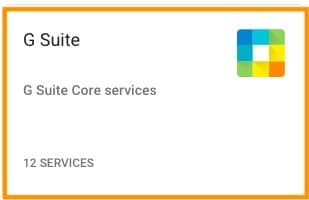
Click on Drive and Docs.
Step 2 : Features and Application
Go to Features and Applications.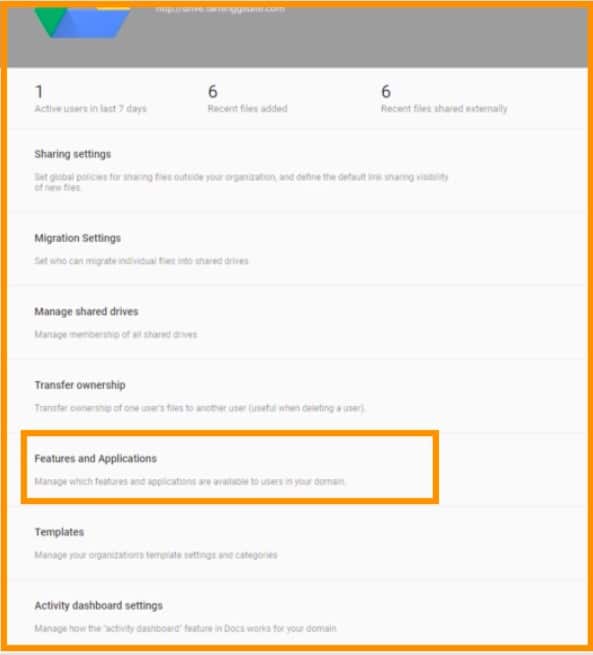
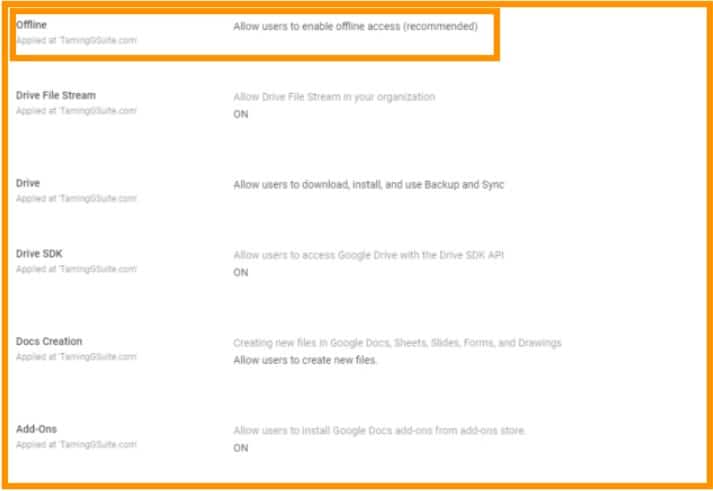
Step 3 : Offline Setting
To enable offline settings, Click on Offline





To allow users to enable offline access, Check the second circle, and Click Save.

Step 4: Setting Drive file stream
For settings related to DRIVE FILE STREAM, Go to Drive file stream and check the boxes as required and click SAVE.
For Drive related settings like allowing download, install, use the backup. Go to Drive and check the required circles and click SAVE.
Step 5: Google Drive API
To allow users to access Google Drive with the Drive SDK API. Go to Drive SDK, Check the first box and click SAVE.
For Settings related to document creation, i.e., to allow or block users from creating new files. Go to Docs Creation and check the required circles and click SAVE.
Step 6: Install Add-ons
Finally, to allow users to install add-ons from the store, Go to Add-ons and check the first box and click SAVE.
Conclusion:
Following these steps, you can set up Google Drive – Features and Applications. If you have any doubts, please contact Medha Hosting.
Read Here: How to configure G Suite Mail Flow – Default Routing?
Topics
Roshan R Poojary
Cloud Licensing Specialist • 6+ years
Roshan is a Cloud Licensing Specialist with deep expertise in Microsoft 365 and Google Workspace subscription management. He helps businesses optimize their cloud licensing costs and assists help desk teams in resolving complex subscription issues.