
Device management in G Suite (Advanced set-up)


G Suite offers you by default the basic device management features. Through this feature, the users can access their professional accounts and works files on their mobile devices securely. However, if organizations need advanced mobile device management in G Suite, they can get it separately from Google G Suite
Required tools:
Things needed?
G Suite subscription
Steps to set up Device management in G Suite
Step 1 : Log in to Admin Console
To start the Device management process, we have to log in to the admin console
Click on “Devices” and go with “advance setting” from the device setting options.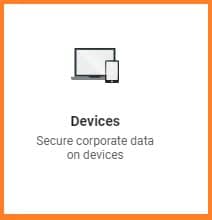
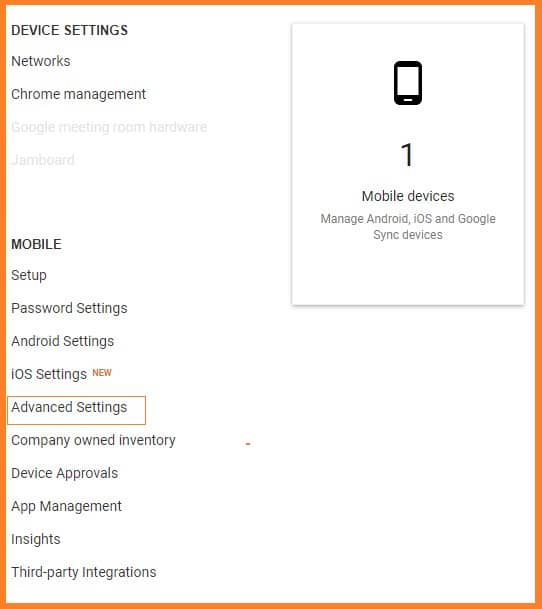
Step 2 : Advanced setting
Let's go now to the advanced setting there we have three options here: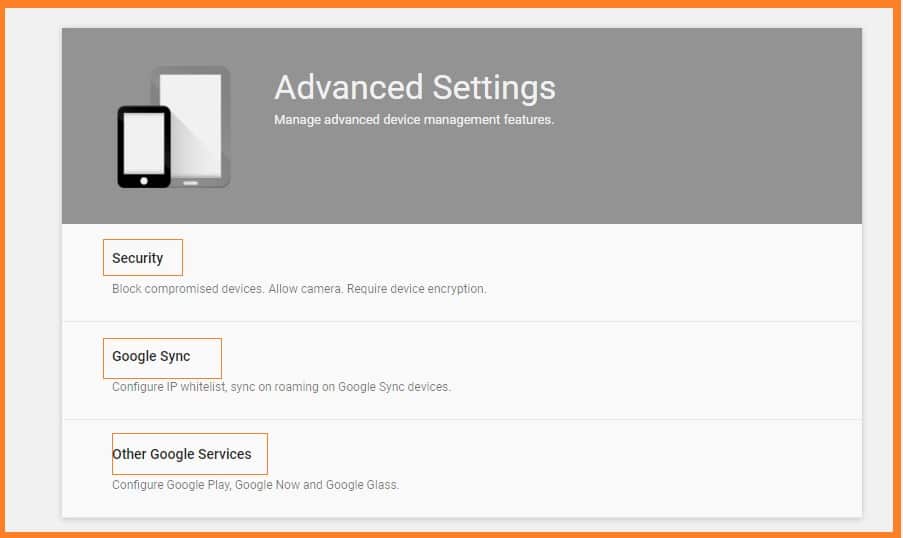
Step 3 : Security
Please remember that you can set all of these for different users on the left-hand side chat.
Depending on your company's policy, you can obviously block those two, the next set has CTO is.
Other options you can select as per your company policies.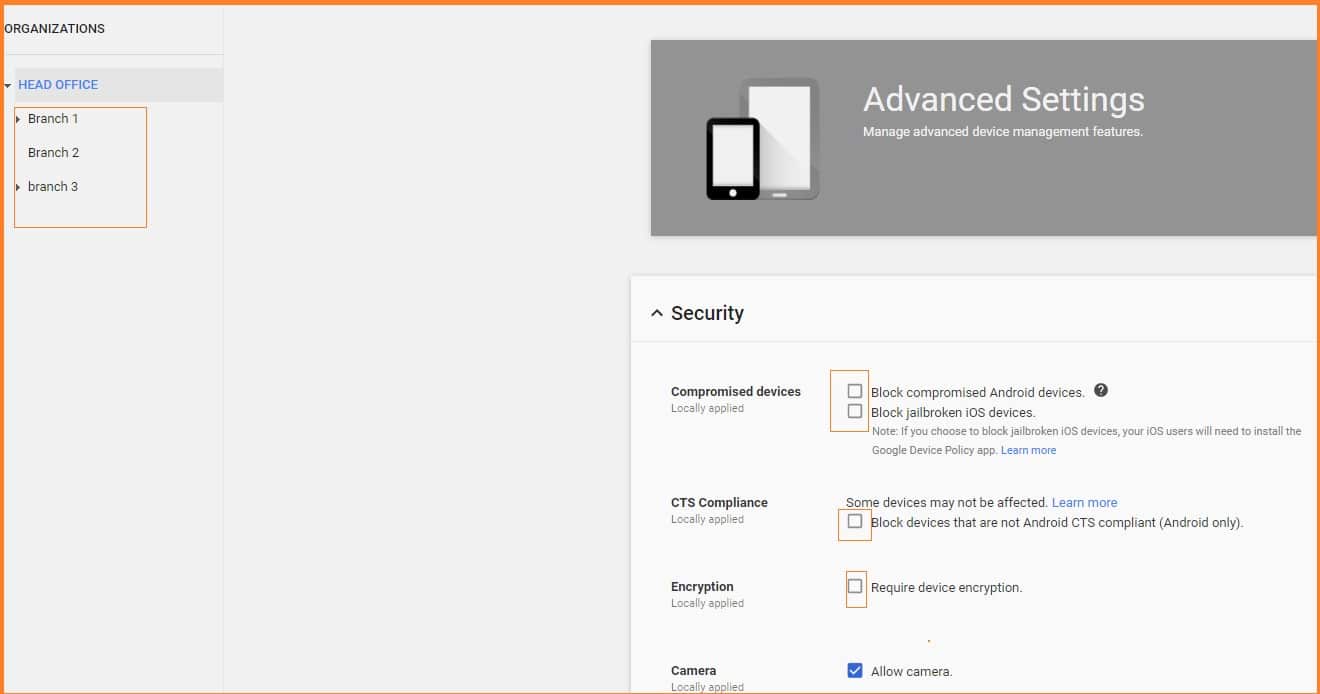
Step 4 : Google Sync
You can have IP watch lists of where they are allowed to synchronize their phone from
So, if you don't allow them to synchronize if they of a VPN or if they are not synchronized on the mobile data, then you can put in the "white listed IP address."
So, if you don't want to say just archive, you can say delete emails trash and allow sinking while rhyming perfect and then other Google services Google play private apps.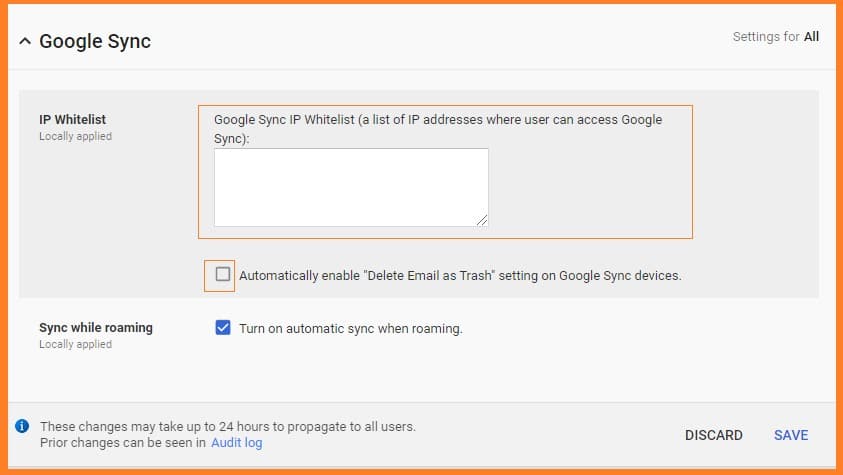
Step 5 : Other Google Services
You can get some more features in device management from “Other Google Services”.
Select the options as per your requirements.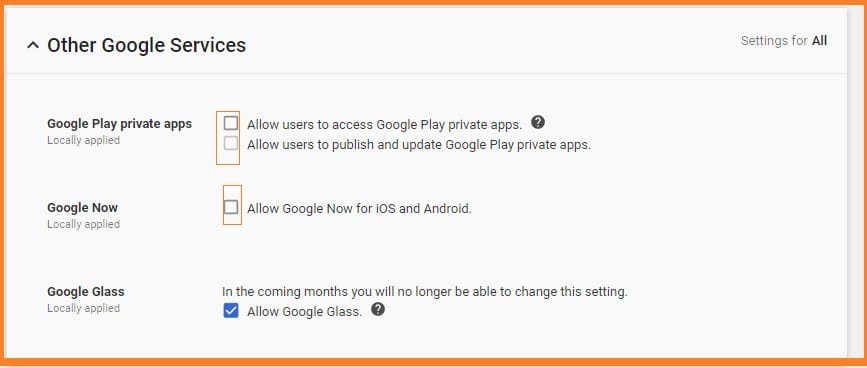
Step 6 : Company-owned Inventory
In company owned inventory- you can add your companies device inventory and manage quite easily.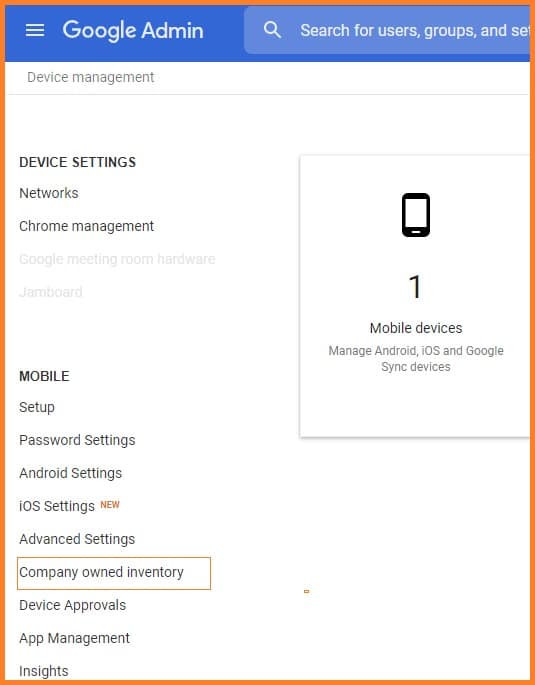
You can import company inventories here to Android, Mac, Windows desktop.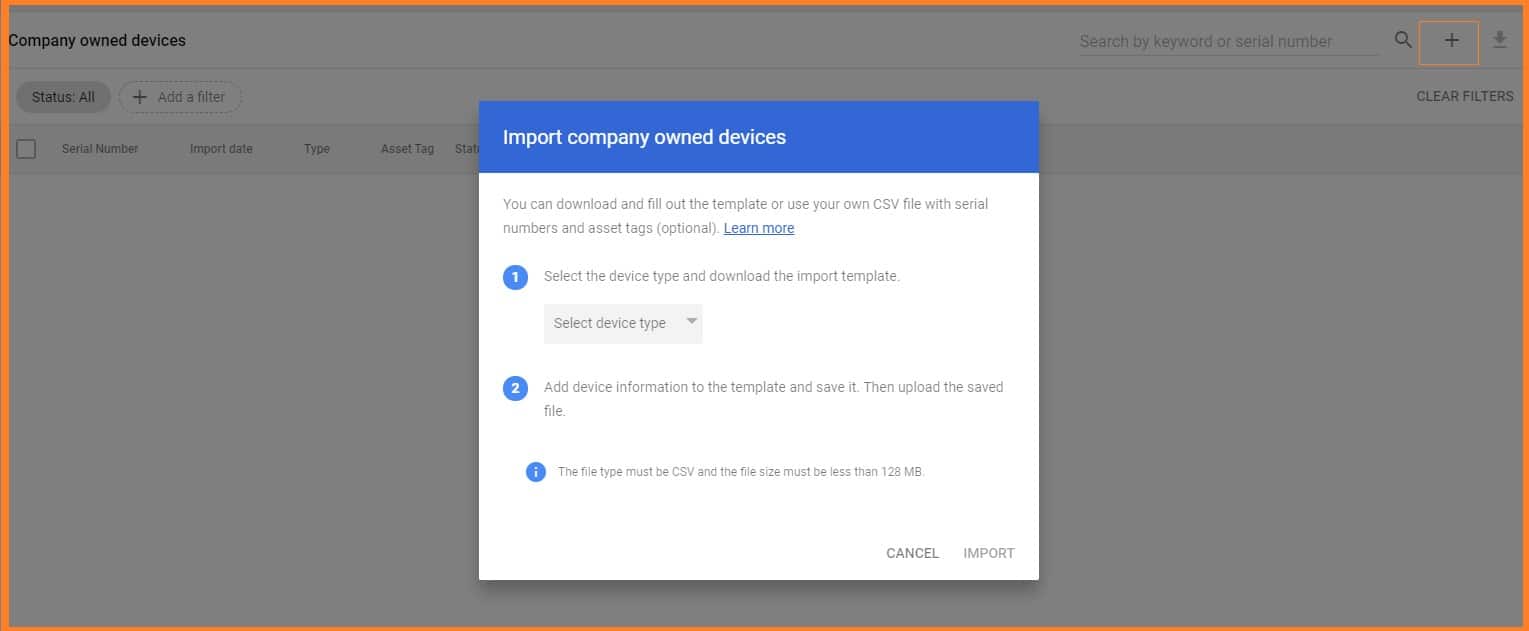
You can import company inventories here to Android, Mac, Windows desktop.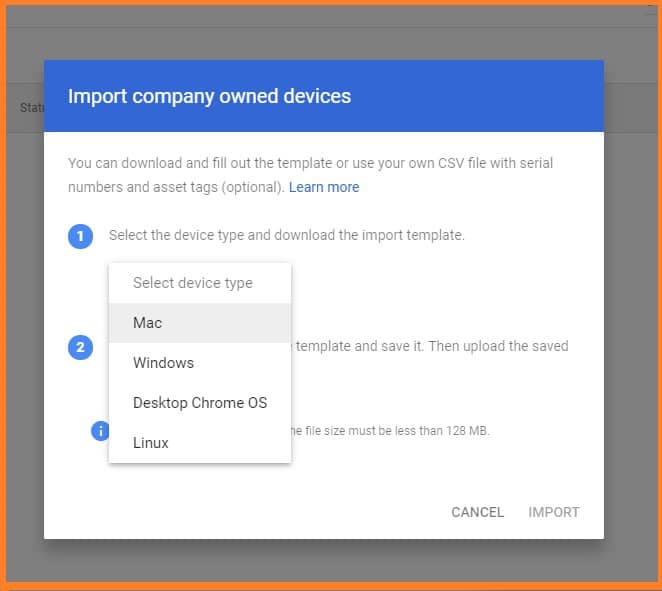
Step 7 : Import template and upload
Click "Download import template" and fill the data and upload the file ("Upload File").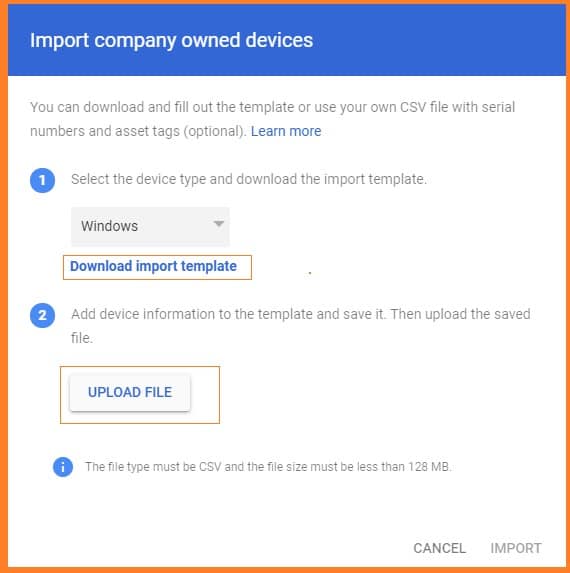
Step 8 : Device approvals
Depending on how you set this up, if you want to set up, you need to approve devices for your staff,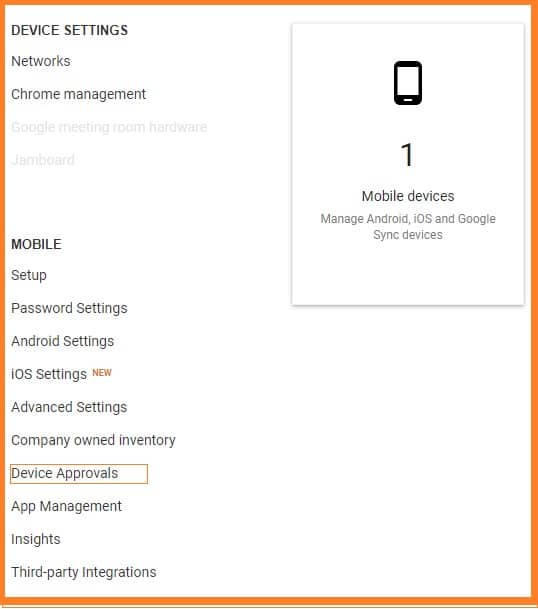
Step 9 : App management
From "App management" you can download required app for Operating platforms. Click " App management" from the options.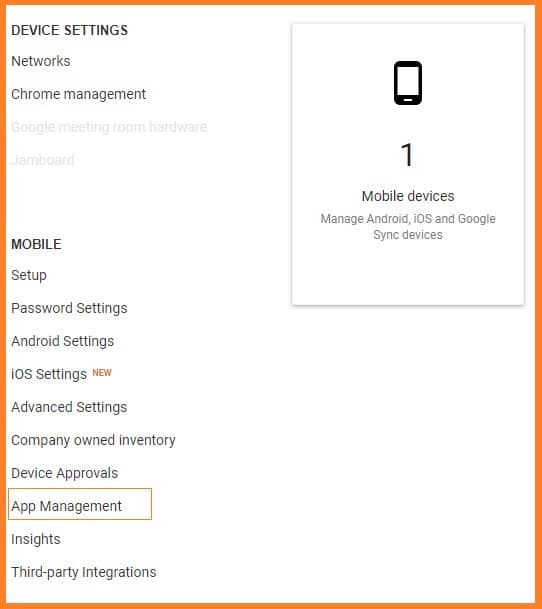
Step 10 : Download App
Download app for iOS and Android devices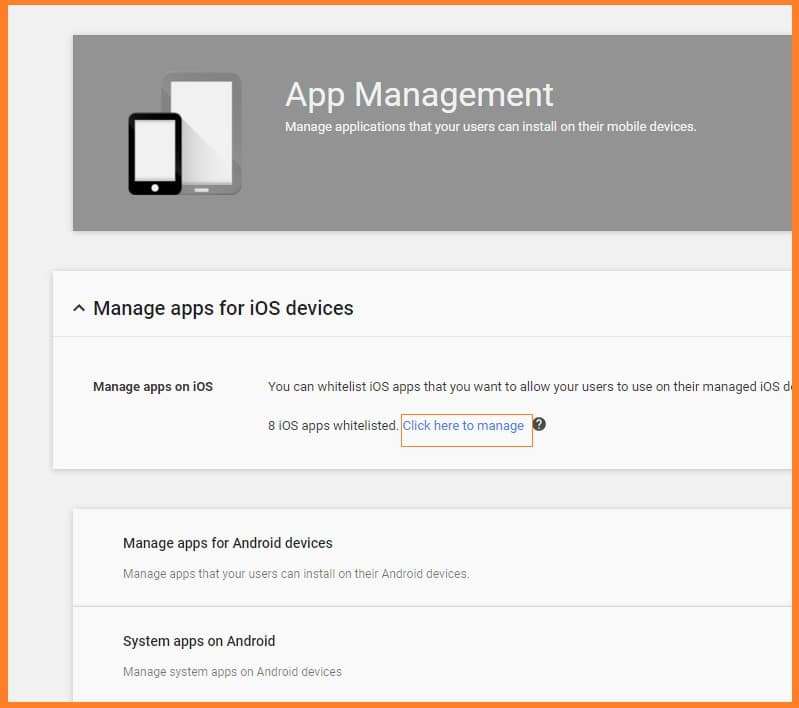
Click on the "plus" and search app to download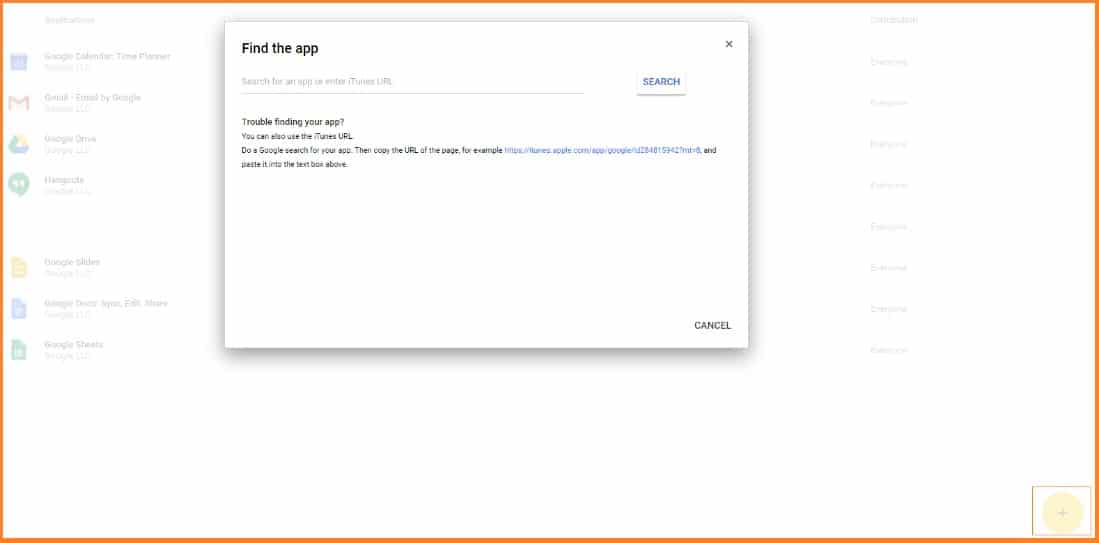
Conclusion:
Hope you understand the set up advanced device management in G Suite. If you got any doubts, please feel free to reach us anytime. Our G Suite experts will help you to sort out things pretty quickly.
Read Here: What Is Google Apps Manager (GAM) – An Introduction
Topics
Sreenivasa Reddy G
Founder & CEO • 15+ years
Sreenivasa Reddy is the Founder and CEO of Medha Cloud, recognized as "Startup of the Year 2024" by The CEO Magazine. With over 15 years of experience in cloud infrastructure and IT services, he leads the company's vision to deliver enterprise-grade cloud solutions to businesses worldwide.
