
Block Users from Sending E-mails


In today’s digital landscape, controlling email communication is vital for maintaining security, compliance, and productivity within an organization. Blocking specific users from sending emails can help mitigate risks associated with data leaks, spam, or other malicious activities. This guide will walk you through the steps to block users from sending emails in Microsoft 365, ensuring you can maintain a secure and compliant email environment.
Why block users from sending E-mails?
Blocking users from sending emails may be necessary for several reasons:
- Security concerns: If a user’s account has been compromised or is suspected of sending malicious emails, blocking their sending ability can prevent further damage.
- Policy violations: Sometimes, users may violate company policies related to communication. Blocking their ability to send emails can serve as a corrective measure.
- Temporary restrictions: In certain situations, organizations may need to temporarily block a user from sending emails due to ongoing investigations or other compliance-related reasons.
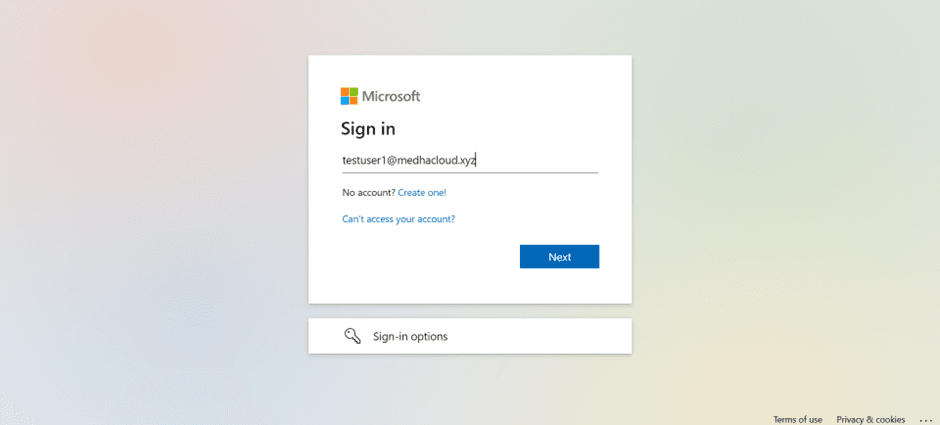
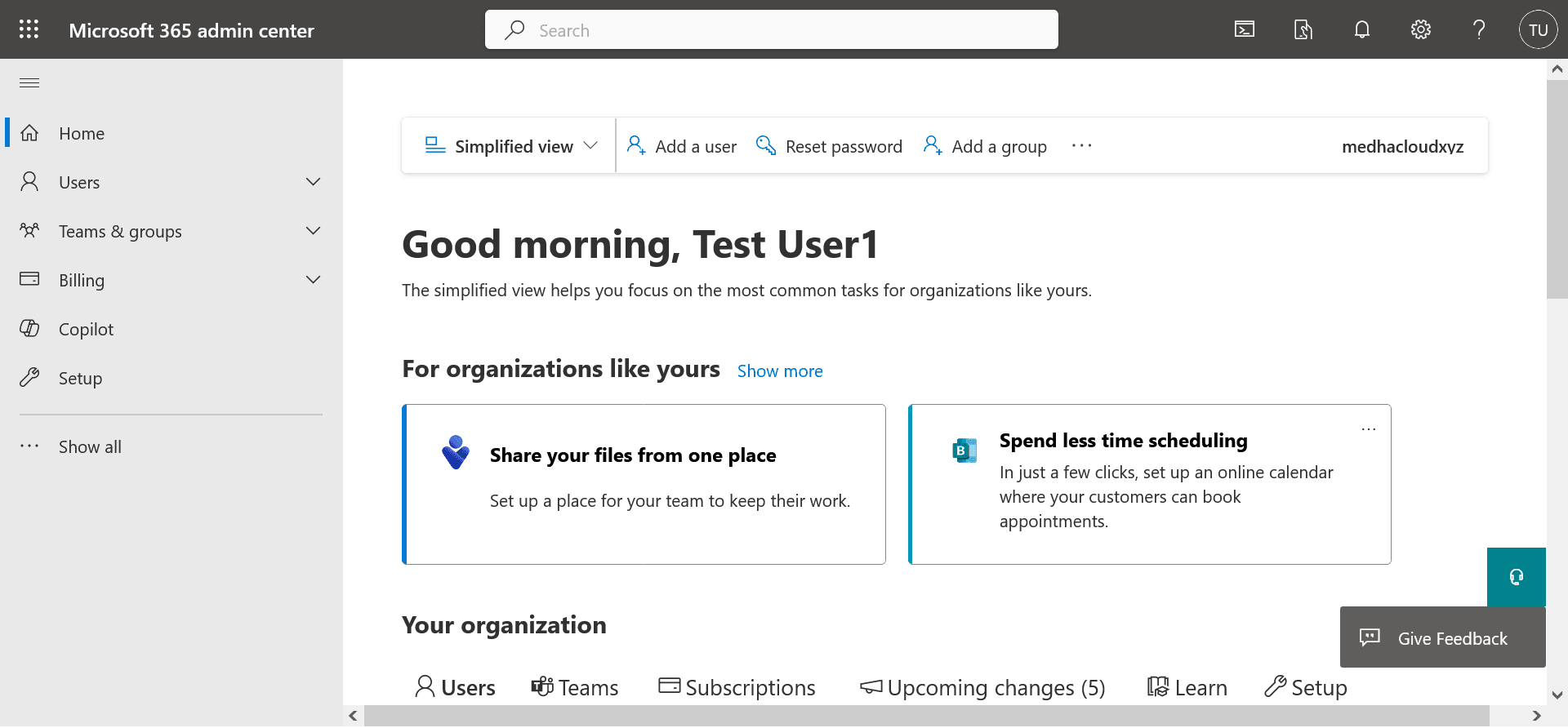
Step 1: Log in to Microsoft 365 admin center
Start by logging in to the Microsoft 365 Admin Center using your admin credentials. Only users with the appropriate administrative privileges can modify email settings.
Step 2: Navigate to users
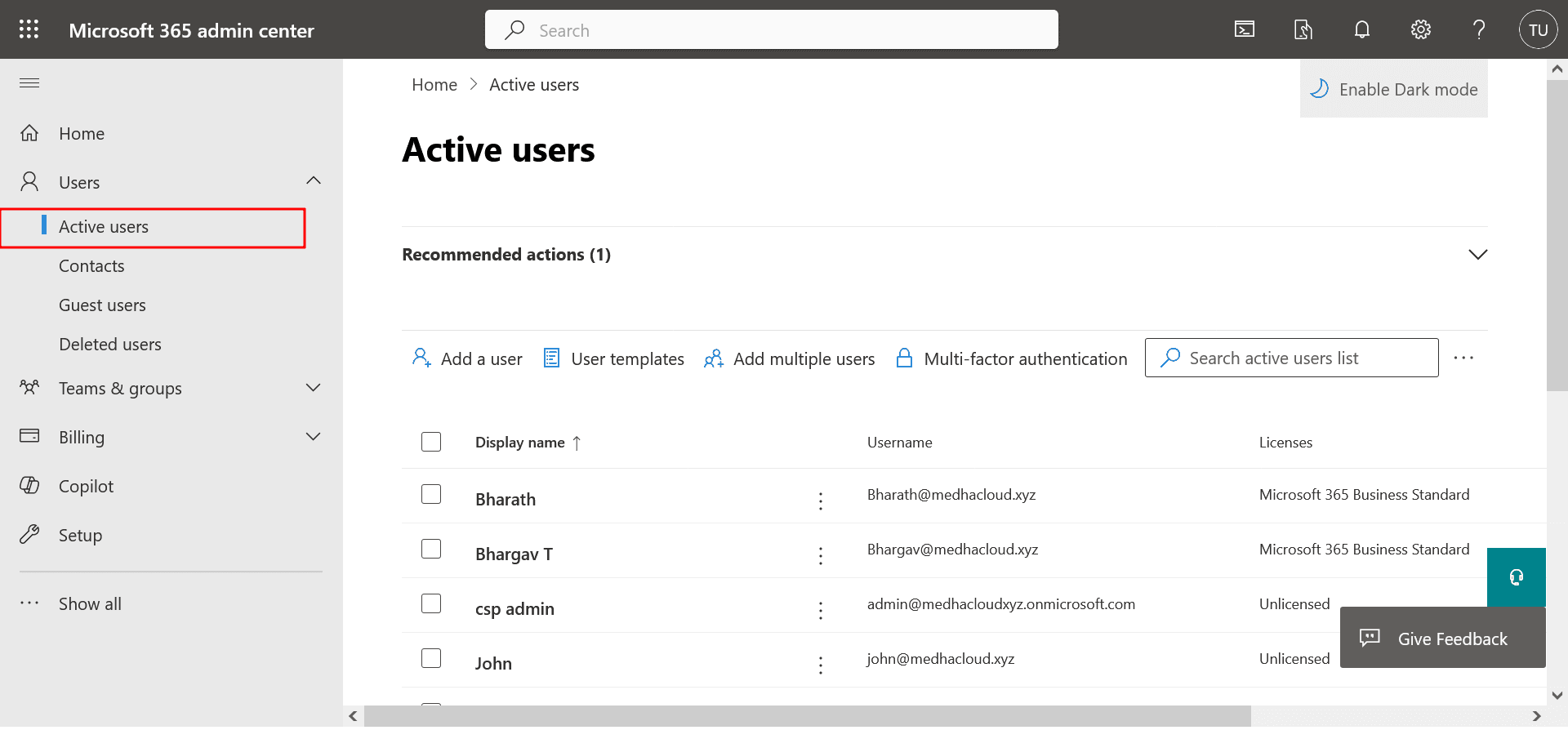
Once logged in, click on Users in the left-hand navigation pane, then select Active users. This will display a list of all users in your organization.
Step 3: Select the user
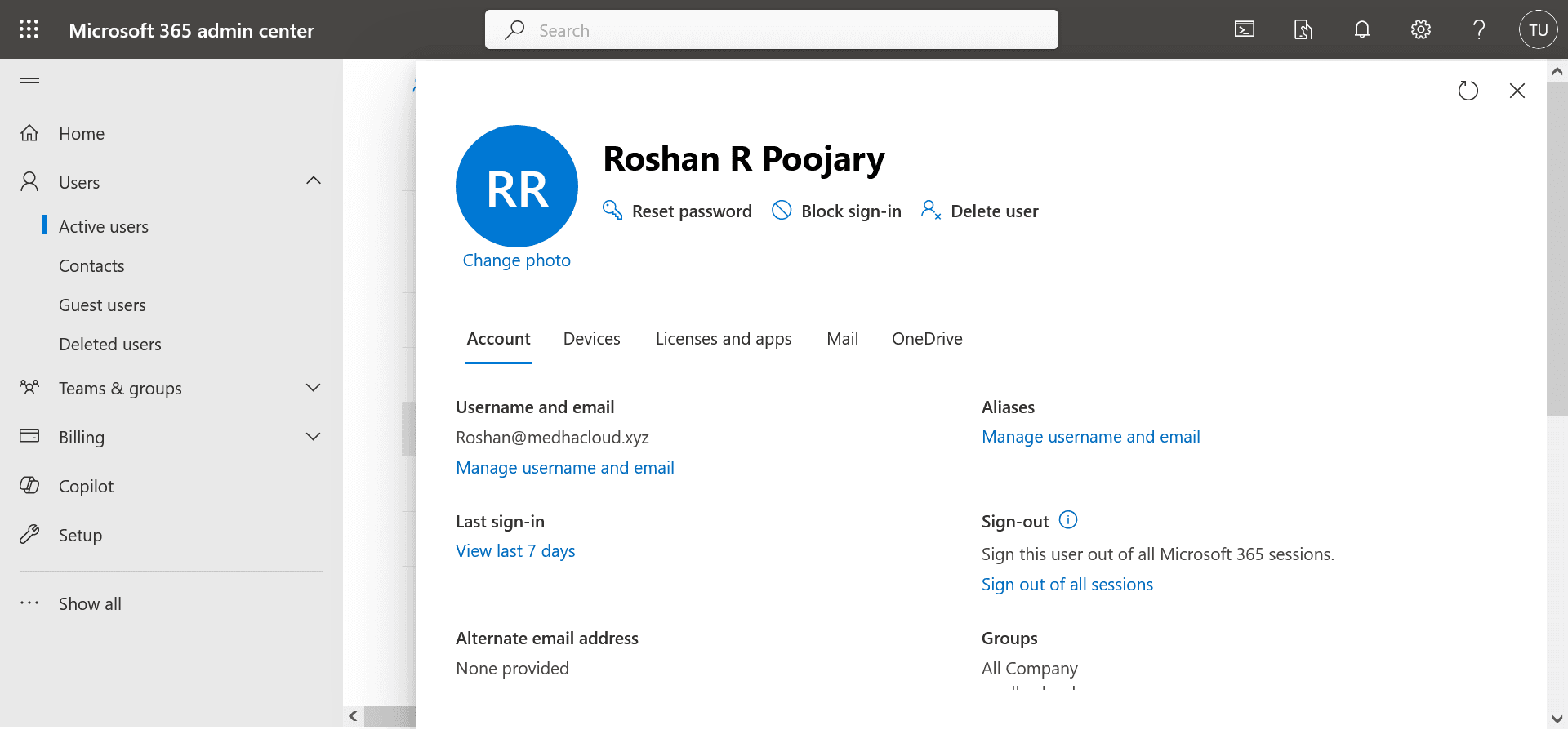
From the list of active users, find and select the user you want to block from sending emails. Click on their name to open their account details.
Step 4: Edit mail settings
In the user details pane, click on Mail settings. Here, you can manage the user's email preferences, including permissions.
Step 5: Block sending E-mails
Look for the option labeled E-mail apps or Mail settings (the exact naming may vary). Depending on your organization’s setup, you may see an option to restrict sending emails. Toggle this option to block the user from sending emails.
Step 6: Save changes
After making the necessary adjustments, ensure you click Save changes to apply the new settings.
Step 7: Notify the user
It’s essential to communicate with the user regarding this change. Send them a notification explaining that their ability to send emails has been restricted and the reasons behind this decision.
Step 8: Monitor the user’s account
Regularly monitor the user's account and communications to ensure compliance with your organization’s policies. This will also help you assess whether the restriction needs to be lifted or adjusted in the future.
Conclusion
Blocking users from sending emails is a critical step in protecting your organization from potential security threats and ensuring compliance with internal policies. By following these steps, administrators can manage user permissions effectively and maintain a secure email environment.
For further assistance or to explore more advanced email management features, feel free to reach out to Medha Cloud. Our expert team is ready to help you enhance your email security and overall IT management.
Compare Microsoft 365 plans and find the right license for your organization.
Microsoft 365 Business SolutionsTopics
Roshan R Poojary
Cloud Licensing Specialist • 6+ years
Roshan is a Cloud Licensing Specialist with deep expertise in Microsoft 365 and Google Workspace subscription management. He helps businesses optimize their cloud licensing costs and assists help desk teams in resolving complex subscription issues.
More in Microsoft 365
View all
SharePoint Support: Microsoft Options & Third Party
8 min read
SharePoint Permissions: Levels, Groups & Inheritance
9 min read
SharePoint 2016 & 2019 End of Life: Dates & Options
9 min read
SharePoint Server Subscription Edition: Licensing & Upgrade
9 min read
SharePoint Document Library: Setup, Views & Limits
9 min read
SharePoint vs OneDrive: Differences & When to Use Each
8 min read