
How to create an FTP account in SiteWorx?

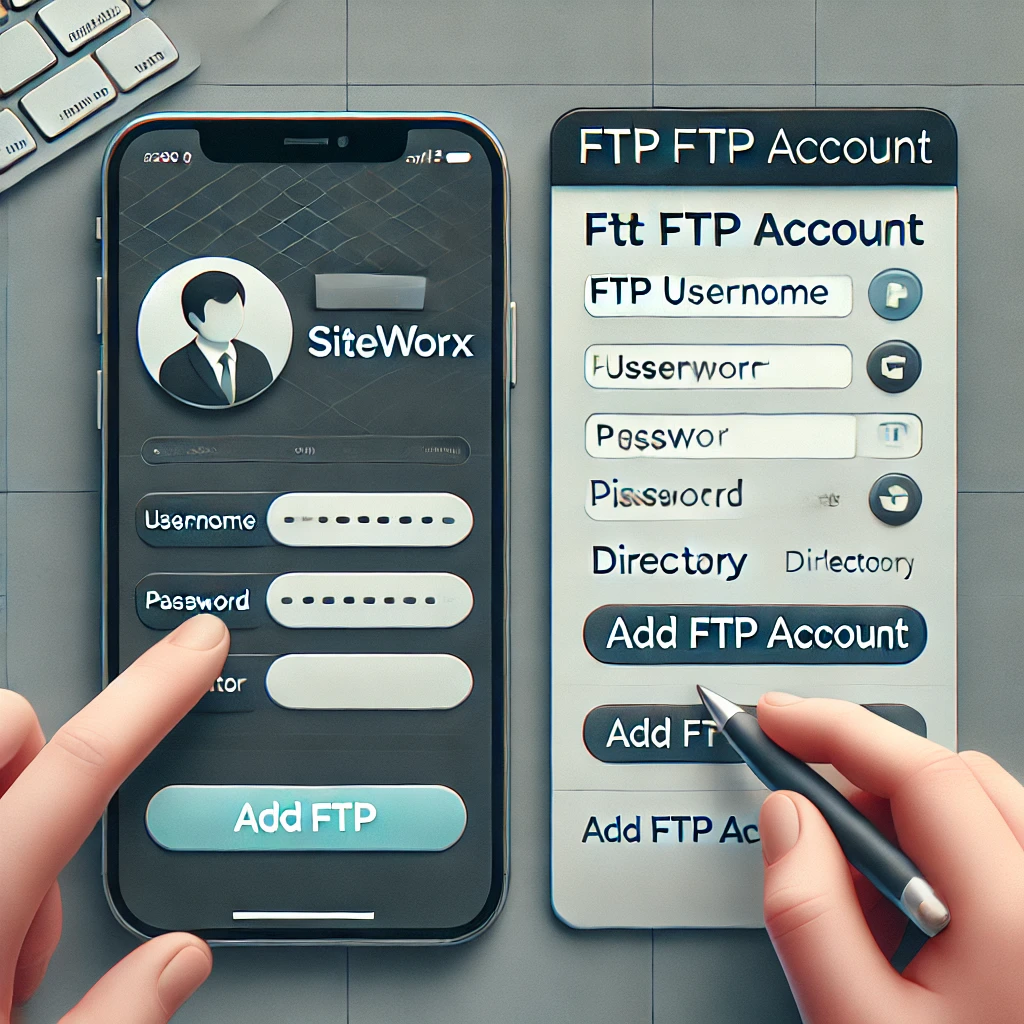
How to create an FTP account in SiteWorx?
create an FTP Account
You can use your SiteWorx username and password to access all folders and files via FTP. However, if you want to create an FTP user account for a specific folder or you don't want to allow access to your root files then you can create a separate FTP account.
1. Log into your SiteWorx account. (e.g. www.example.com:2443/siteworx/ )
2. Under "SiteWorx Menu", click the "Hosting Features" menu item if it is not already open.
3. Click the "FTP" menu item and then click on "Accounts" option.
4. Under the "Add an FTP Account" field, fill in the following details:
FTP Username: Enter an FTP username like "NewFTPUser".
Password: Enter new FTP password in the password field and the confirm password field or generate a new password by clicking on the "Generate" button.
Home Directory: Leave this as it is.
5. Click on the "Add" button.
Now you can access your FTP Account by using your newly-created FTP account like:
Host: Your Website IP or enter your website name like ftp.example.com (replace example.com with your website address).
Username: NewFTPUser@example.com
FTP port: 21 (Default port is 21)
FTP password: Your FTP password
Topics
Bhargav T
Microsoft 365 Support Lead • 5+ years
Bhargav leads the Microsoft 365 support team at Medha Cloud, managing subscription inquiries and technical support for enterprise clients. His expertise in M365 licensing and help desk operations ensures rapid issue resolution for customers.
