How to configure Gmail compliance rules for objectionable content?

Objectionable content can come in many forms. Maybe it is a word with obscenities, confidential outlook, and much more. Setting your Gmail compliance rules for objectionable content further helps to control detects outbound messages with confidential data and improve data protection.

Total Time Needed: 30 Minutes
Required tools:
Things needed?
G Suite subscription
Steps to configure Gmail Compliance Rules for objectionable content
Step 1 : Log in to Admin Console
Login to admin.google.com and click on Apps.
Click on G-Suite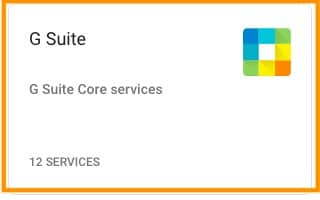
Scroll down to find Gmail and click on it.
Step 2 : Advanced Setting Configuration
Scroll down to Advanced settings and click on it.
Scroll down to objectionable content and hover on it to see “Configure” option and click on it.
Step 3: Set up the Compliance Parameters
Select the messages that you want to affect.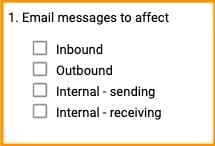
Add the objectionable words by clicking on Edit.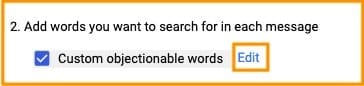
Enter the words and click Save.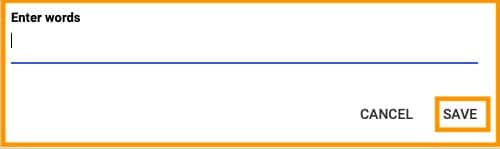
Step 4: Set the Action
If the mails match the above objectionable words, You can either choose to Modify, Reject, or quarantine the message.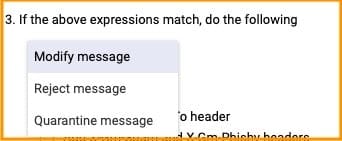
To reject the messages, select Reject the message and add a rejection note which will be sent to the sender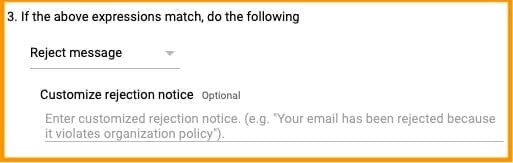
If you choose to modify the message, You can add Headers, prepend subject, change route, Remove attachments.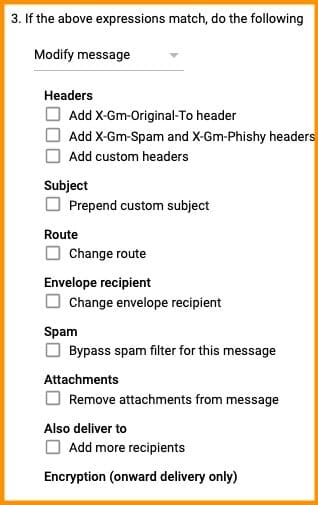
Step 5: Set up recipients
You can choose to deliver the mails to any mail address by adding recipients. Scroll down to “Also deliver to” and check to ADD more recipients box and click ADD.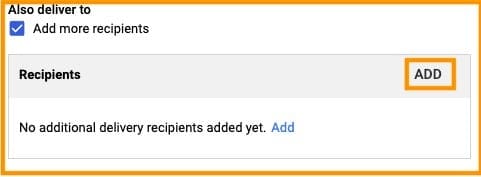
Add the mail addresses and click SAVE.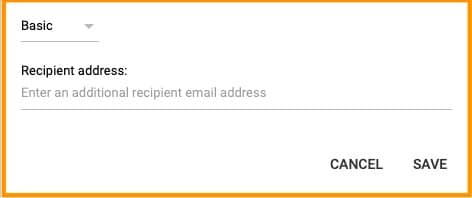
Click on ADD SETTING
Conclusion:
Following these steps you can configure Gmail Compliance Rules for Objectionable Content. If you come across with any doubts contact Medha Hosting.
Read Here: How To Configure Attachment Compliance In Gmail?
Migrate Gmail, Drive, Calendar, and Contacts to Microsoft 365 with zero data loss.
Switch from Google to Microsoft 365Topics
Sreenivasa Reddy G
Founder & CEO • 15+ years
Sreenivasa Reddy is the Founder and CEO of Medha Cloud, recognized as "Startup of the Year 2024" by The CEO Magazine. With over 15 years of experience in cloud infrastructure and IT services, he leads the company's vision to deliver enterprise-grade cloud solutions to businesses worldwide.