
Seamlessly migrate from Exchange to Microsoft 365 using cutover migration

About us
MedhaCloud is a Microsoft Gold Partner, providing cutting-edge Microsoft 365 solutions to
businesses worldwide. With our deep expertise in cloud technologies and managed services, we help organizations achieve seamless migrations, enhanced security, and improved operational efficiency. Our services include managed Exchange migrations, Microsoft 365 deployments, and ongoing support, all designed to deliver optimal performance tailored to your business needs.
We pride ourselves on ensuring smooth transitions and minimizing downtime for our clients, allowing them to focus on their core business while we handle the technical complexities of migration and cloud management.
Introduction
Migrating from an on-premises Exchange environment to Microsoft 365 can greatly enhance your organization's scalability, security, and communication efficiency. With Medha Cloud’s managed Exchange migration services, we take care of every aspect of the transition, from pre-migration preparation to post-migration support.
As a Microsoft Gold Partner, we bring industry-leading expertise to ensure your migration is done seamlessly, with minimal disruption and a focus on aligning the new environment with your specific organizational goals.
Exchange cutover migration to Microsoft 365
Migrating from an on-premises Exchange Server 2019 to Microsoft 365 is a significant transition for any organization. This migration helps streamline communication, improve maintenance, and enhance scalability. However, careful planning and preparation are crucial to avoid data loss and minimize downtime.
Here are some critical pre-migration steps to help ensure a successful transition from your on – premises Exchange environment to Microsoft 365:
Assess your current environment:
- Audit Your Mail Setup: Identify the number of mailboxes, their sizes, and the Exchange version in use. Note any unique features like public folders or custom configurations.
- System Health Check: Ensure your current Exchange environment is stable before starting the migration.
Plan your migration method:
- Select the Best Migration Method: Depending on your organization's size and requirements, choose from cutover, staged, hybrid, or IMAP migration options.
- Cutover: Best for fewer than 2,000 mailboxes, performed all at once.Staged: Migrates in batches over time, ideal for larger setups.Hybrid: Combines on-premises and cloud services, offering flexibility.
- IMAP: Transfers emails but not contacts or calendar data.
Prepare your organization:
- User Training: Educate users about Microsoft 365 features and what to expect during the migration.
- Communication: Inform everyone about potential downtime or impacts during the migration process.
Set up your Microsoft 365 environment:
- Purchase Licenses: Ensure the correct Microsoft 365 licenses are in place.
- Tenant Setup: Verify your domain and ensure Office 365 is ready for migration.
Sync required OUs:
- Microsoft Entra Connect: Install Entra Connect to synchronize your on-premises users with Microsoft 365.
Prepare your exchange server:
- SSL Certificate: Install a trusted SSL certificate (avoid self-signed).
- Enable Outlook Anywhere & Autodiscover: Configure Outlook Anywhere and ensure Autodiscover is set up properly.
- Permissions: Ensure proper permissions for migration.
Prepare your network:
- Network Readiness: Ensure your network can handle the additional load of migration.
- Firewall Configuration: Ensure your firewall allows necessary connections to Office 365.
Mailbox cleanup:
- Archive or Delete Unnecessary Items: This reduces migration time and bandwidth usage.
Develop a communication plan:
- Regular Updates: Inform staff about migration progress and expected outcomes.
Perform a pilot migration:
- Test with a Small Group: Conduct a pilot migration to identify potential issues early.
Create a rollback plan:
- Have a Backup Strategy: In case of issues, ensure you can revert to your original environment.
Detailed steps for Cutover Migration
Step 1: Run hybrid deployment wizard
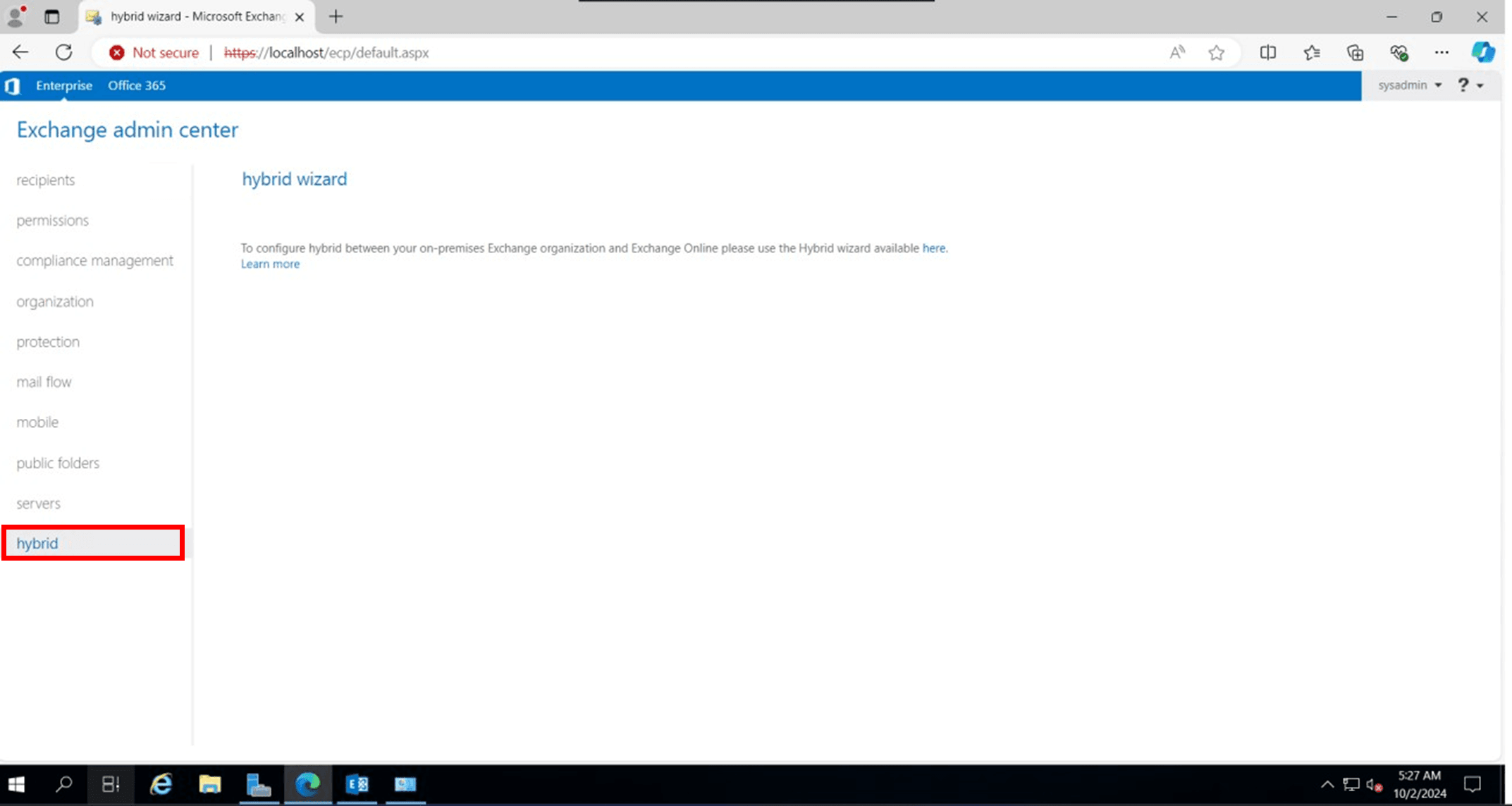
Open Exchange ECP head to hybrid on the left side menu
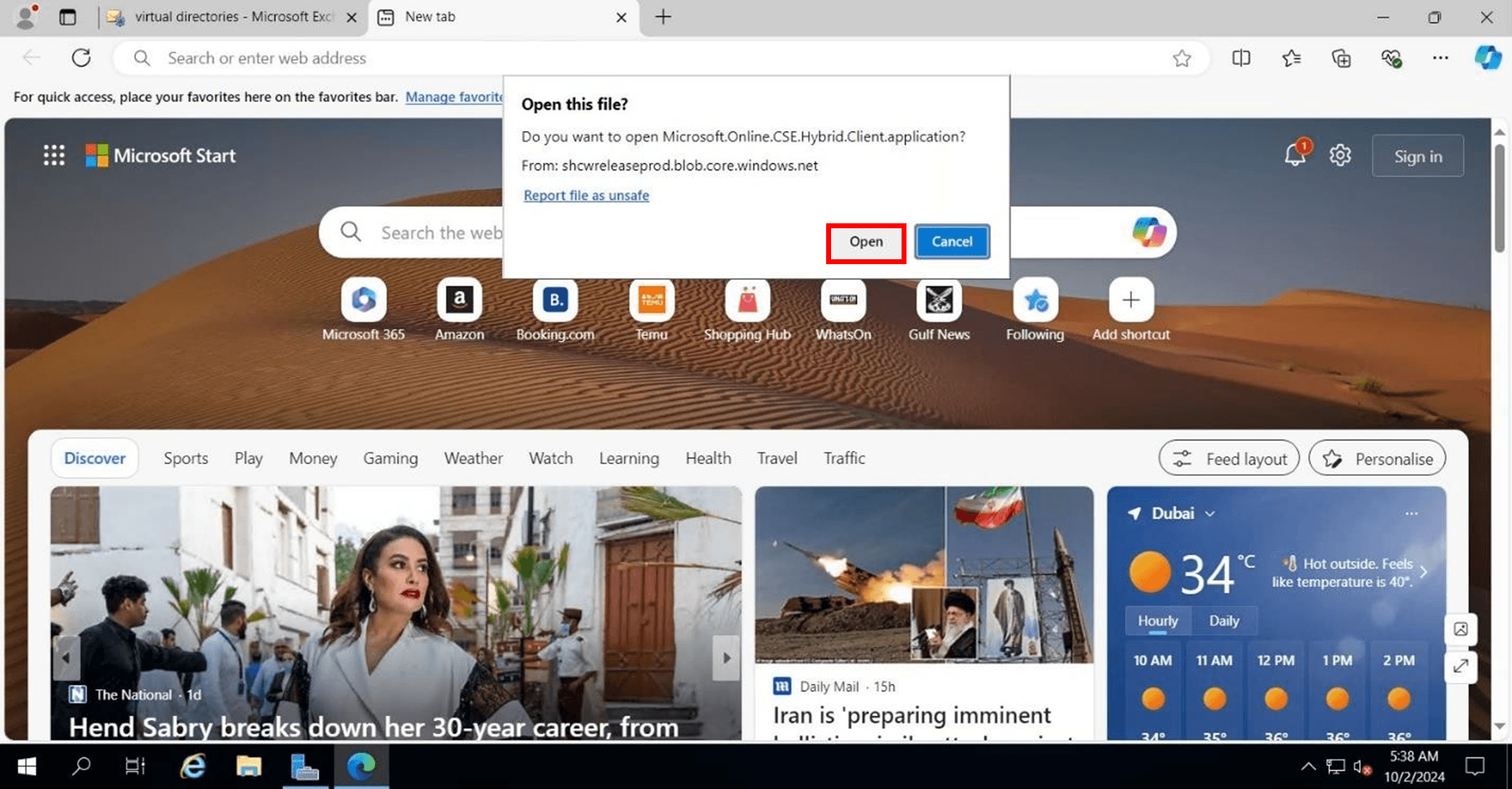
A popup will open to open the hybrid deployment wizard
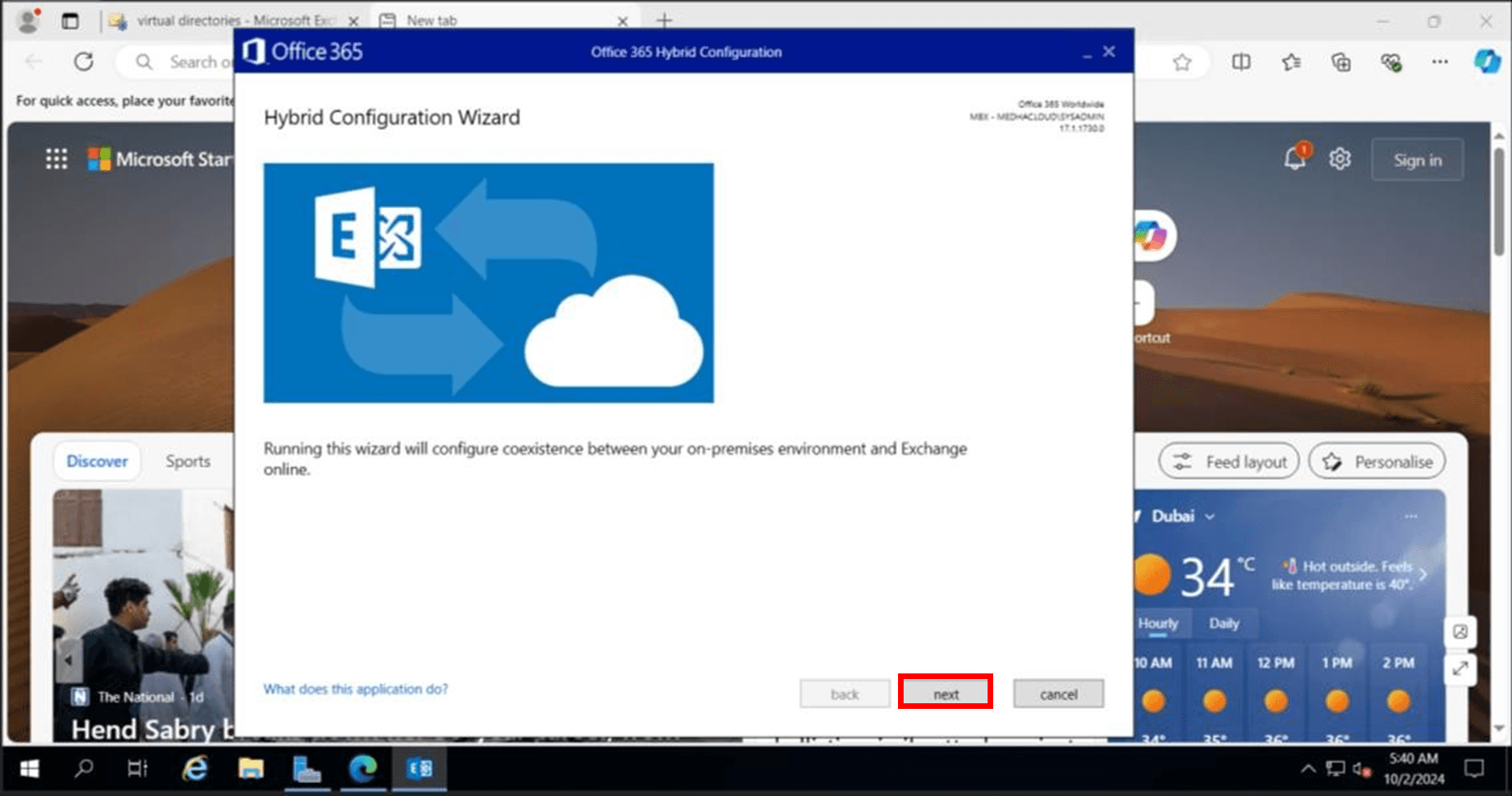
Once the wizard opened click next on the welcome page
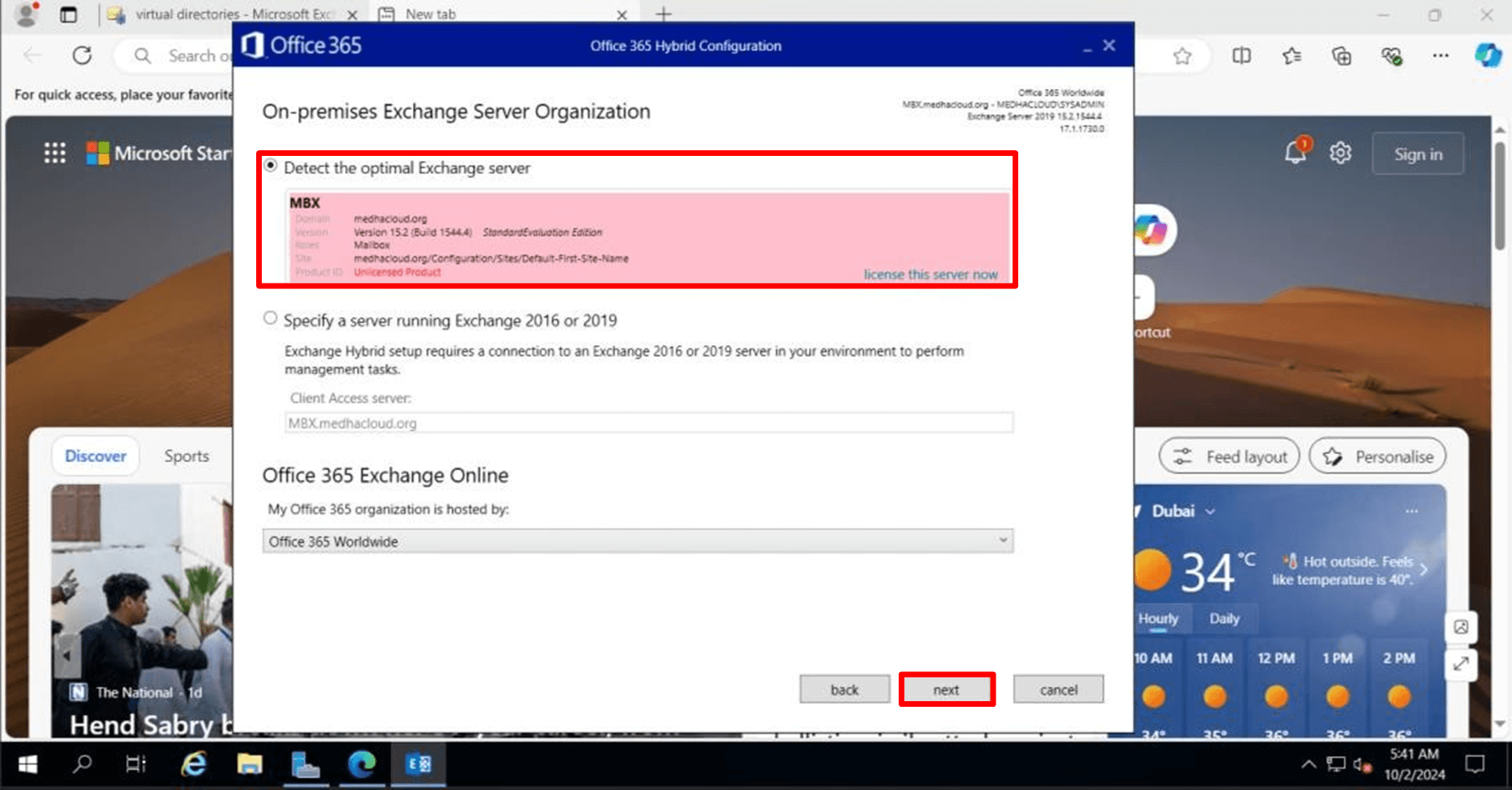
Choose the on-prime exchange server and press next
Sign in to exchange online which exchange admin account then press next
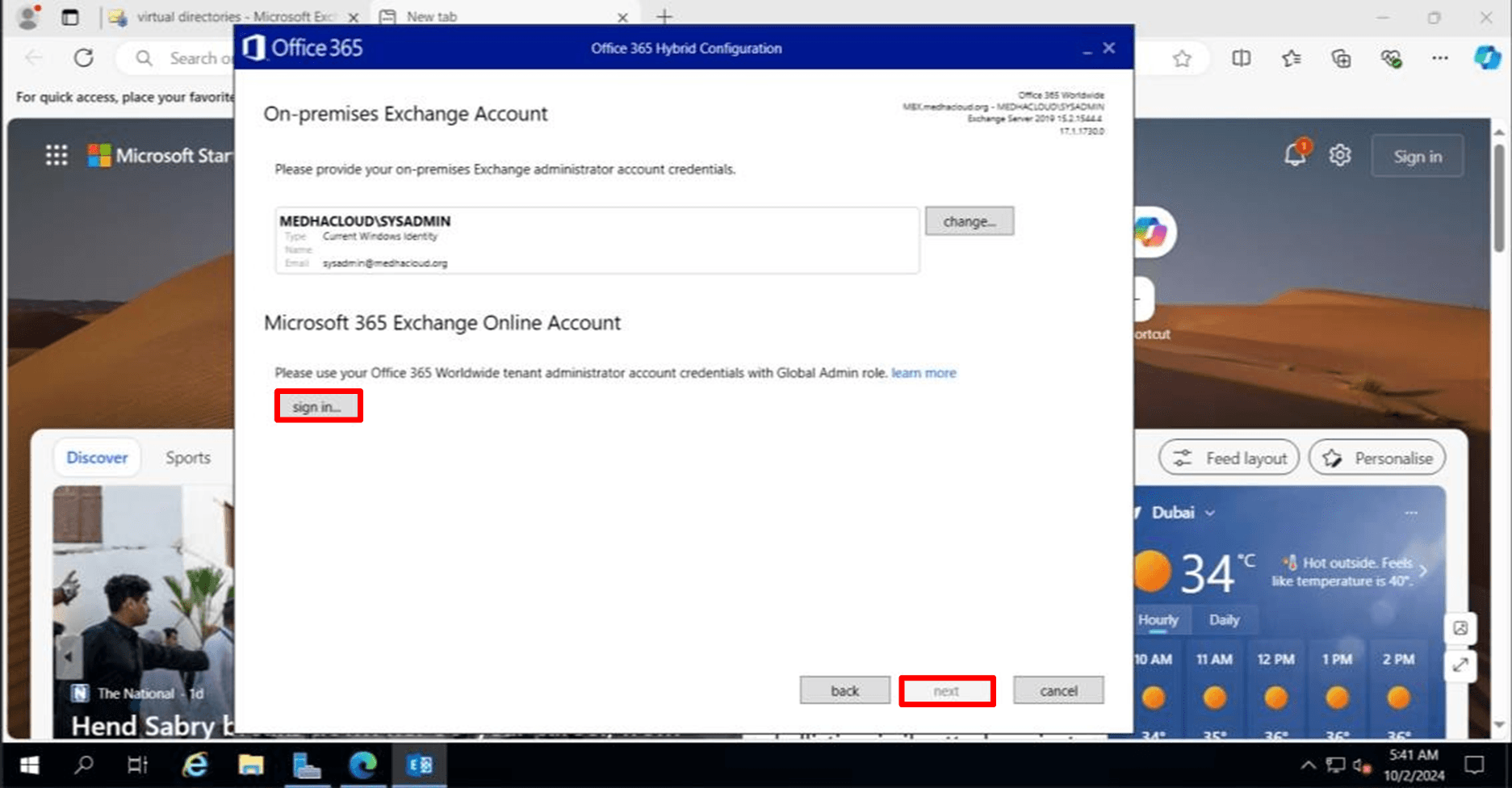
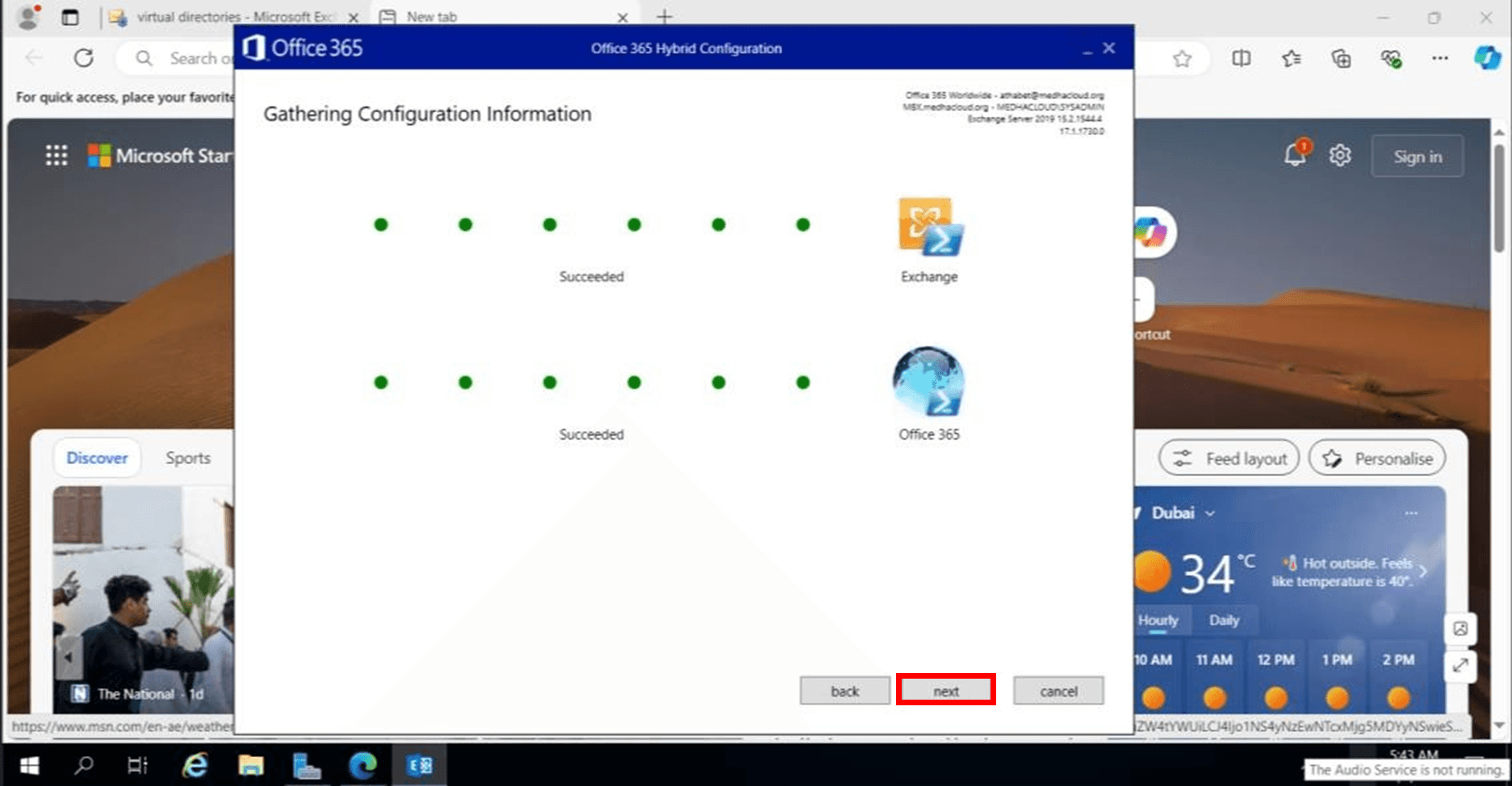
The hybrid configuration wizard will try to connect to on-prime exchange server and office 365 when it is succussed press next
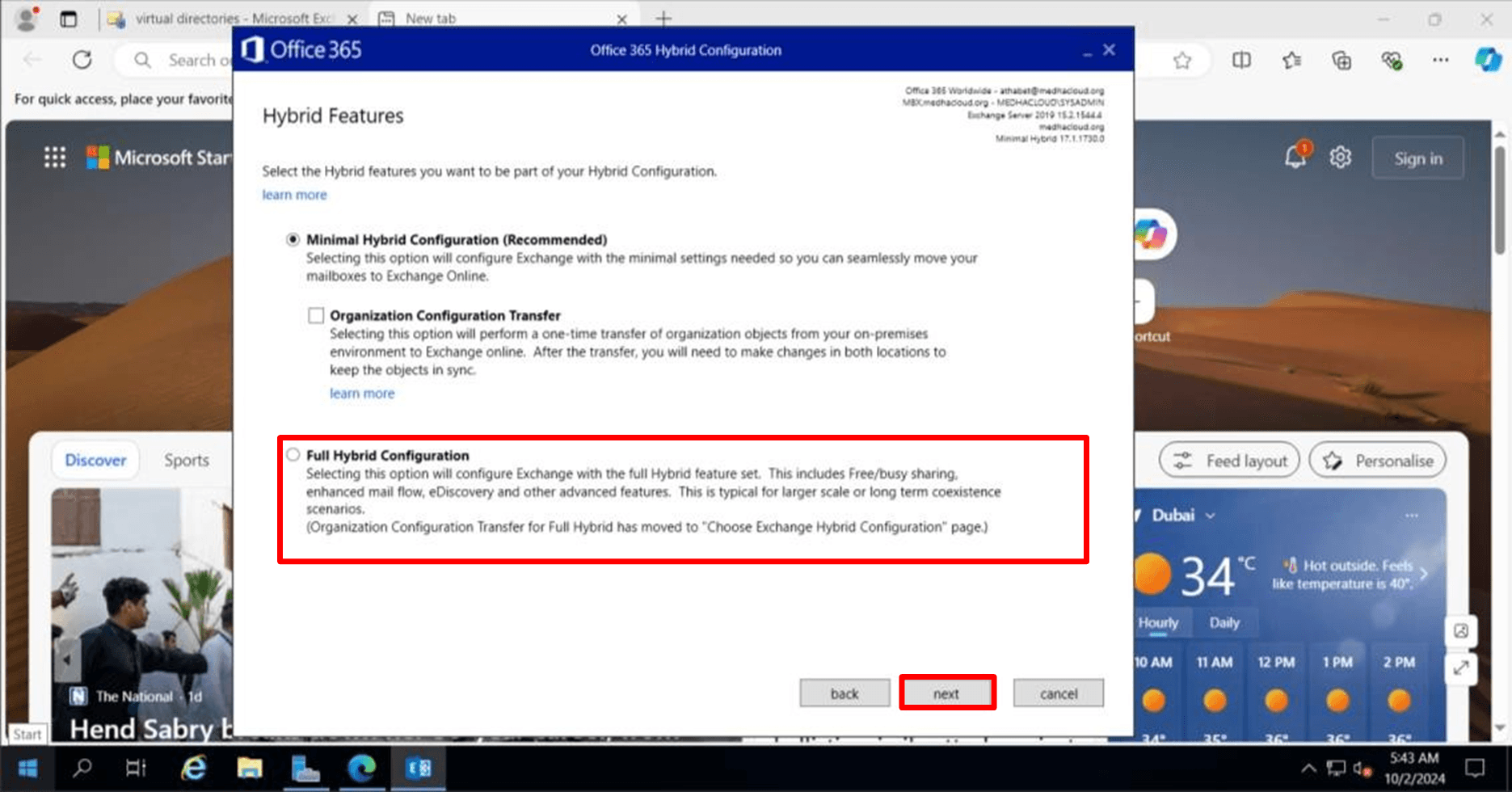
Choose Full Hybrid Configuration and press next
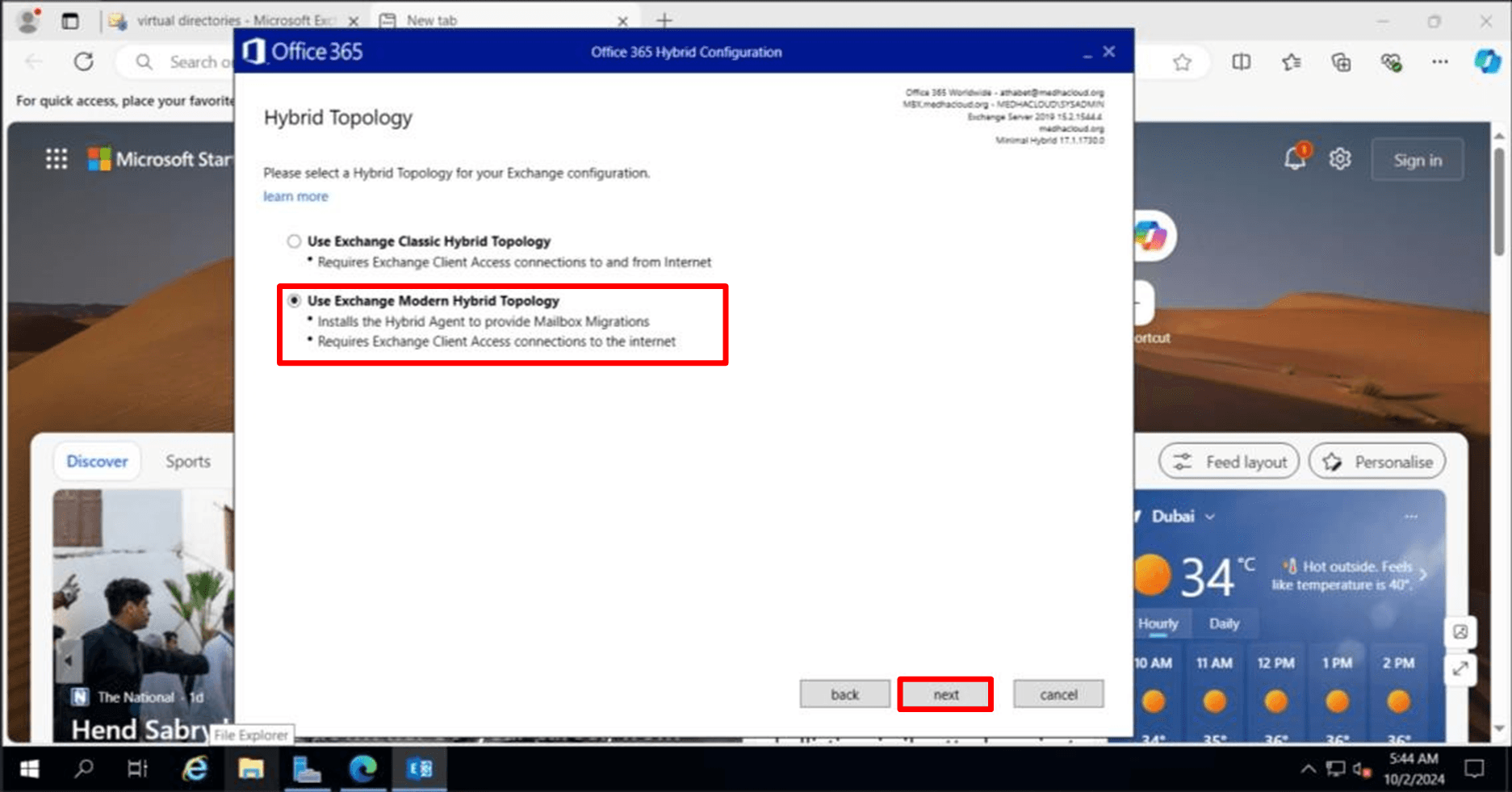
Choose Use Exchange Modern Hybrid Topology and press next
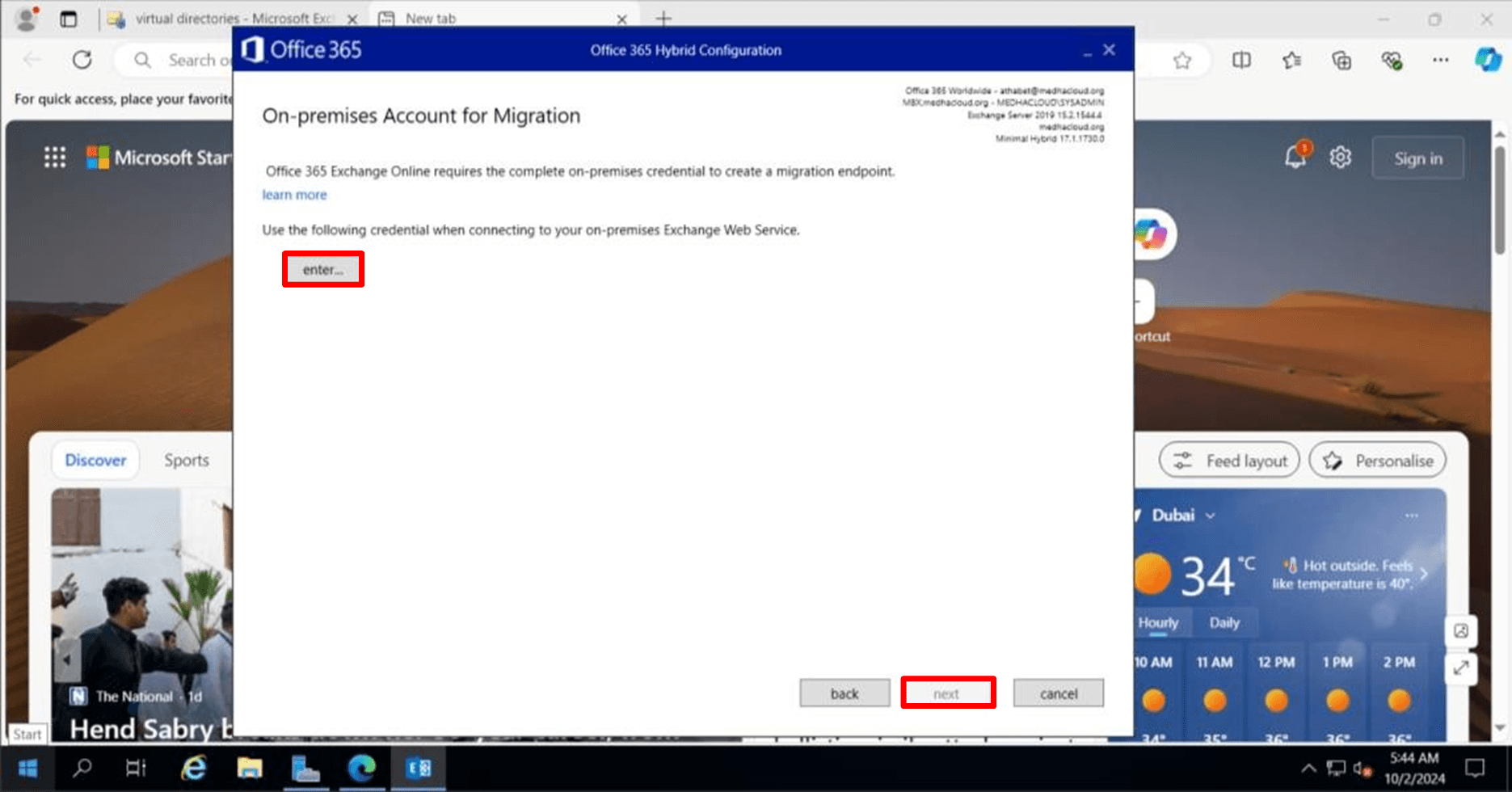
Press enter and Enter on-prime Exchange admin account and press next
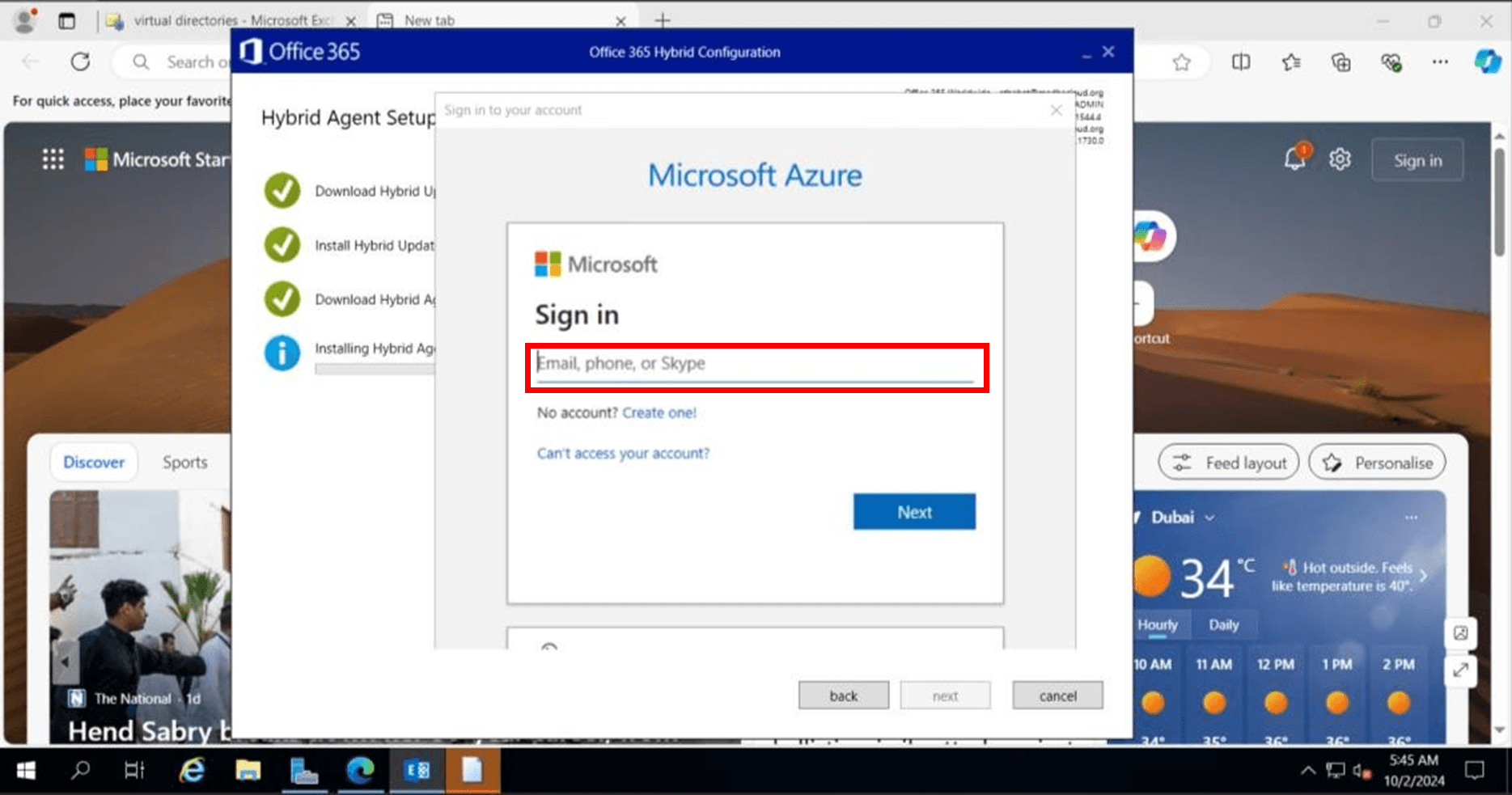
Installing Hybrped Agent will start and ask you for office365 admin account .
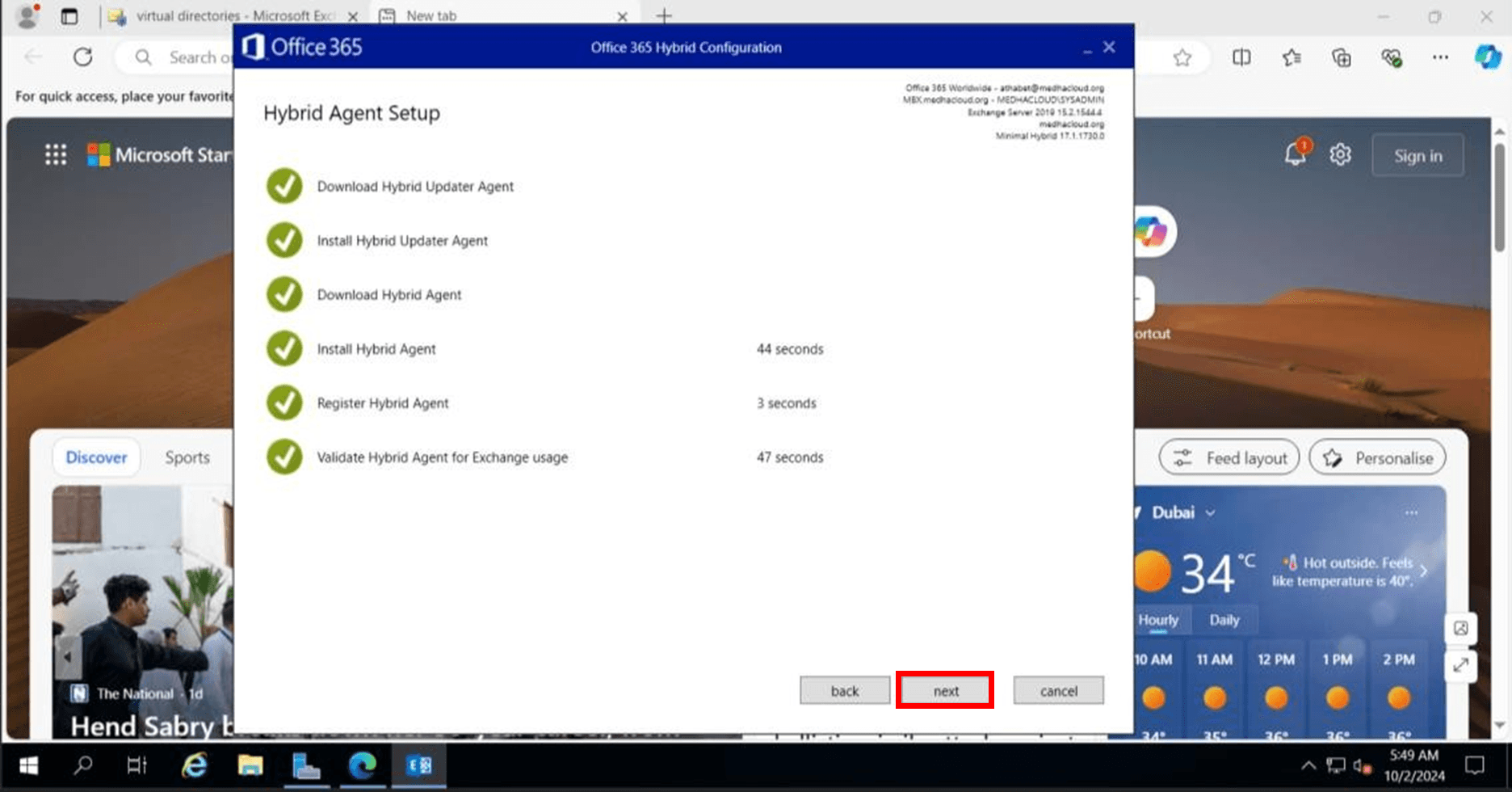
After completing the agent setup press next
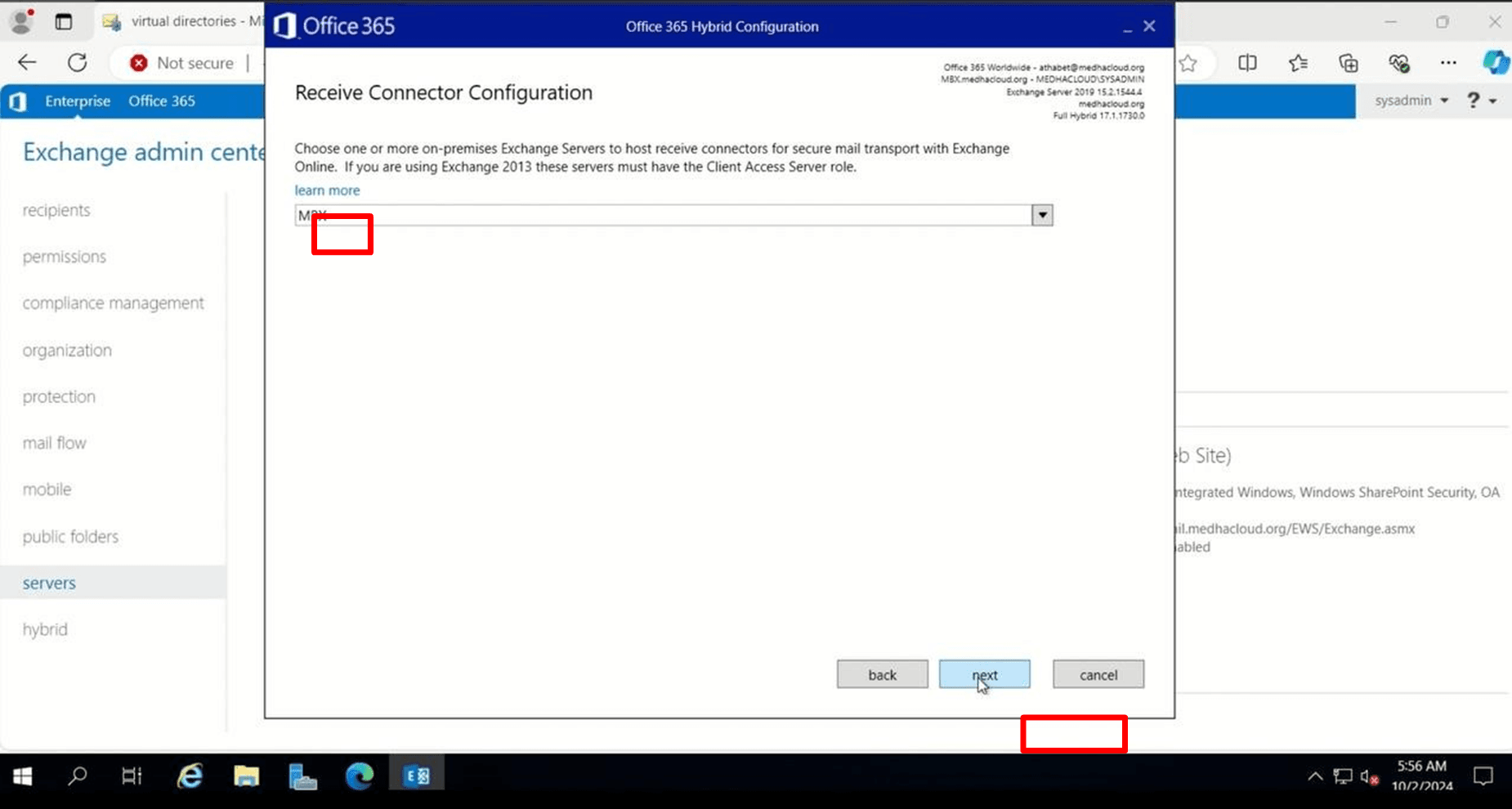
Choose the exchange server to set the Receive connector
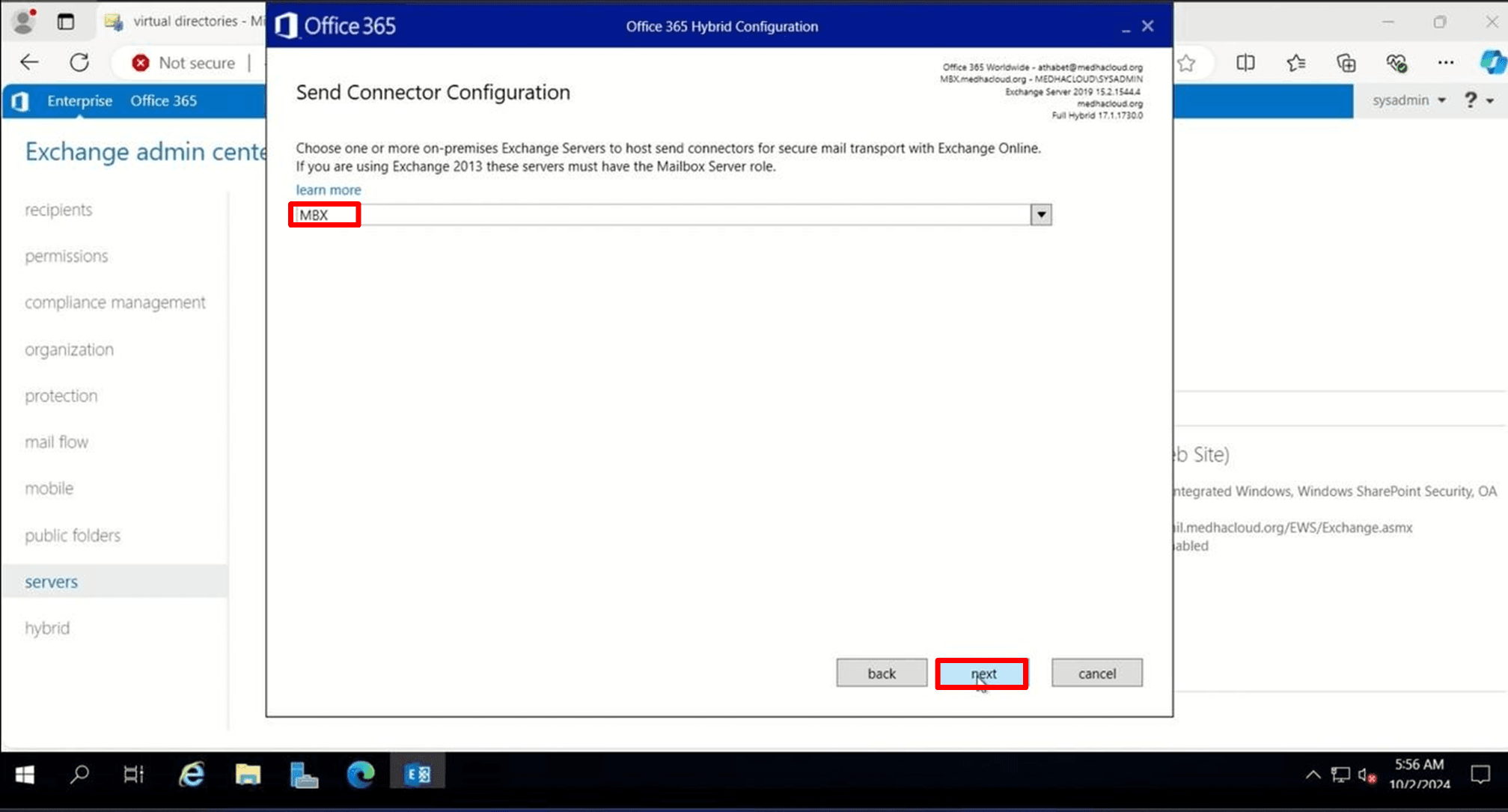
Choose the exchange server to set the Send connector
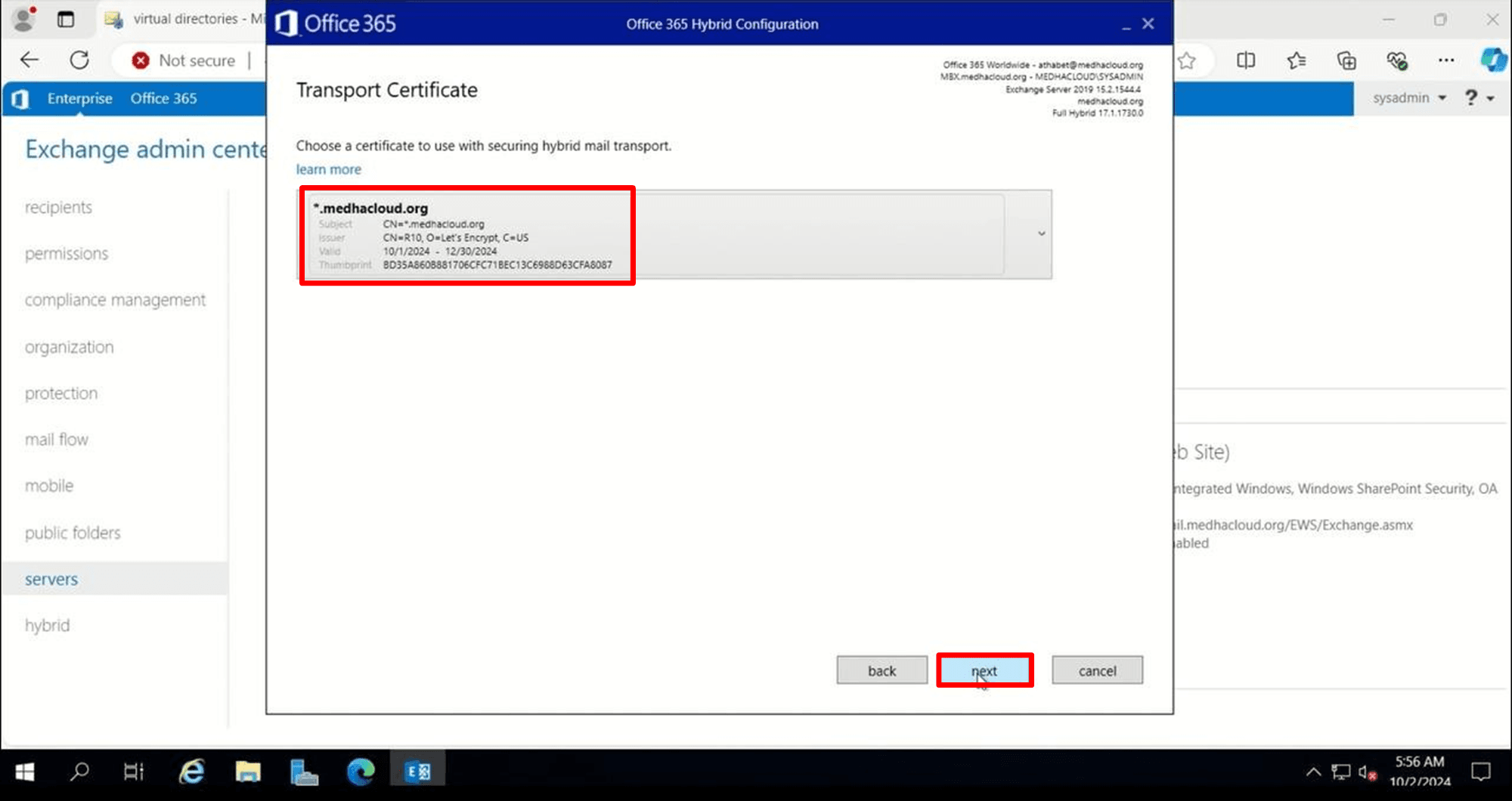
Then choose the SSL certificate used to secure the connection to office 365
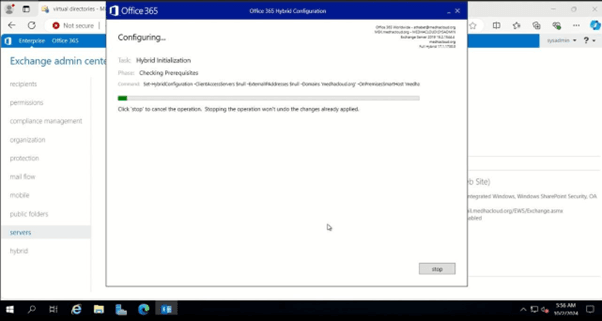
Configuration will run
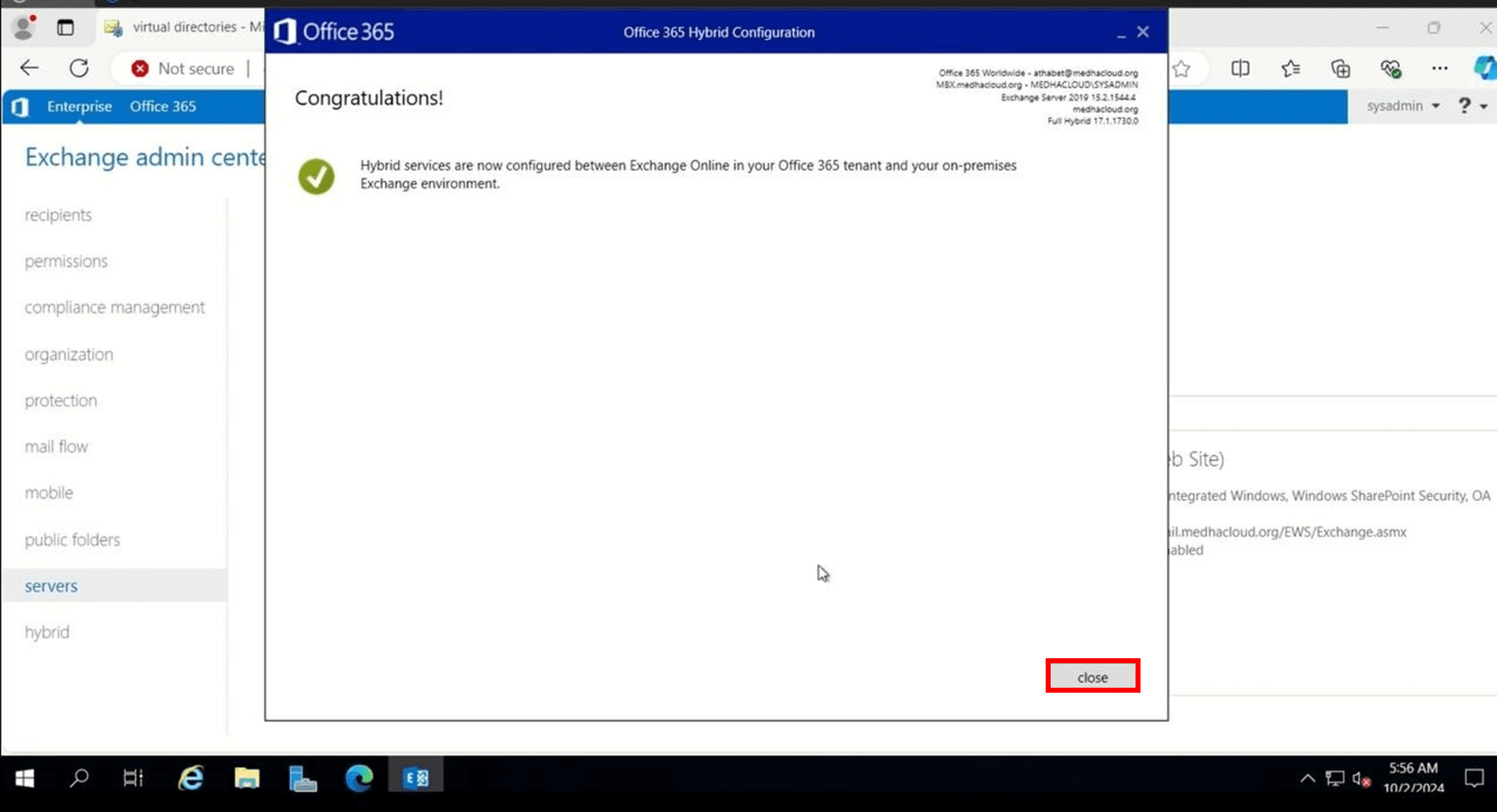
Now the hybrid configuration wizard completed successfully we will start the migration.
Step 2: Migration Endpoint
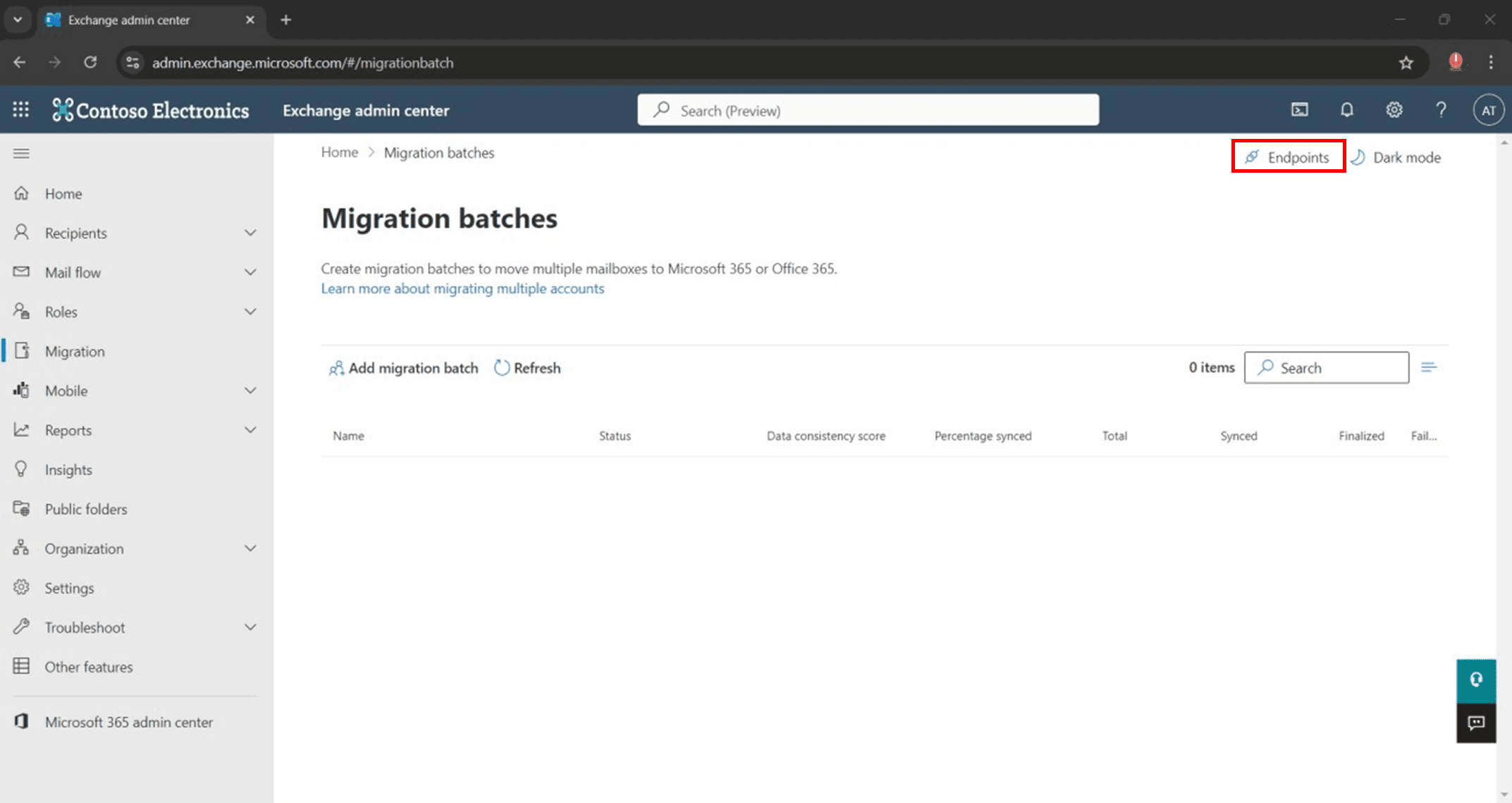
In the Office 365 Exchange Admin Center, go to Migration

Then choose Endpoints
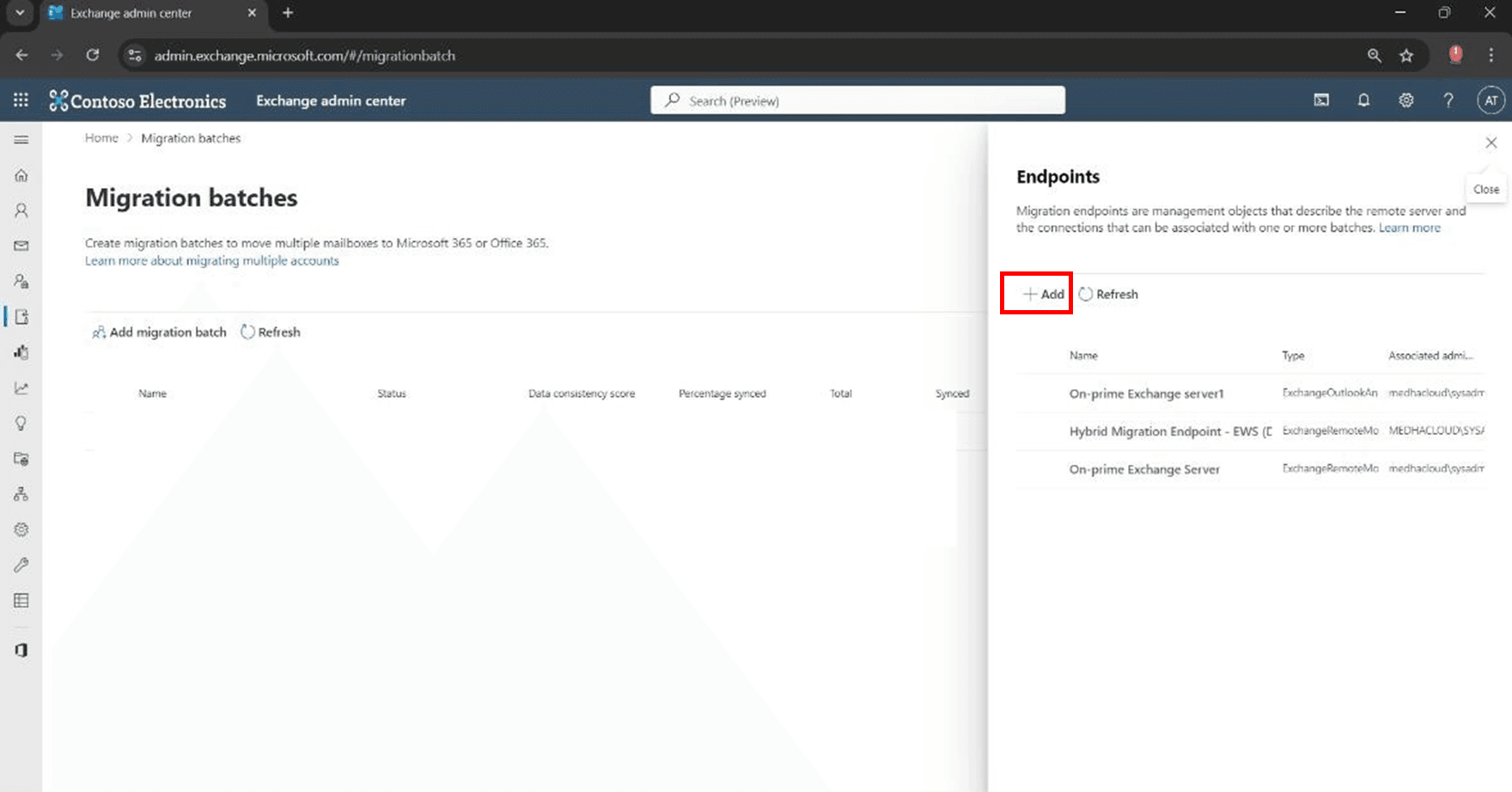
Then choose Add
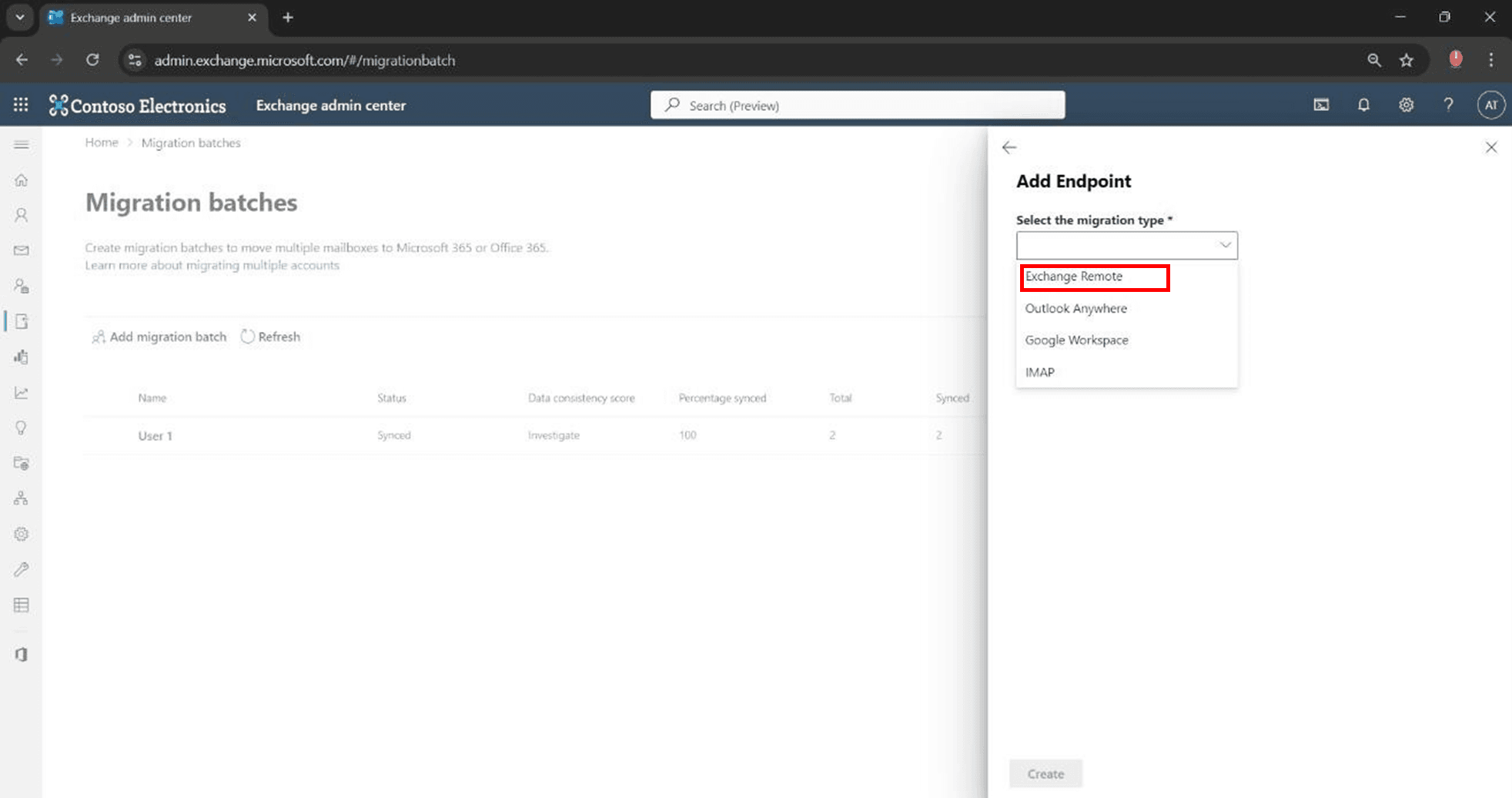
Then choose the migration type to Exchange remote
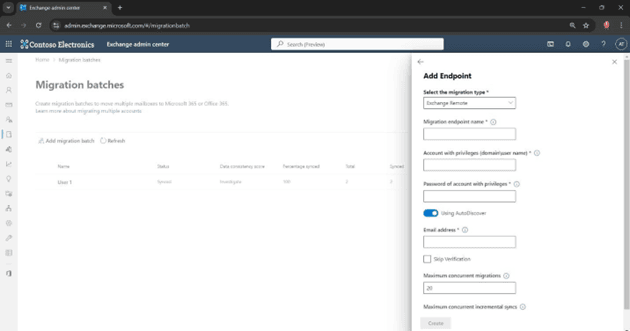
Next Fill the required details Migration Endpoint name , Domain admin username and password , choose Using Autodiscover and add an email for testing the connection . Then choose create
Step 3: Create a Migration batch
In the Office 365 Exchange Admin Center, go to Migration
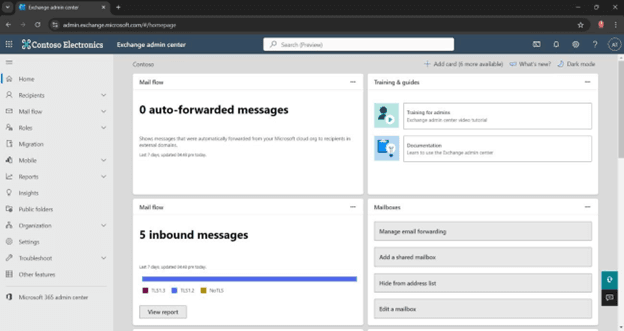
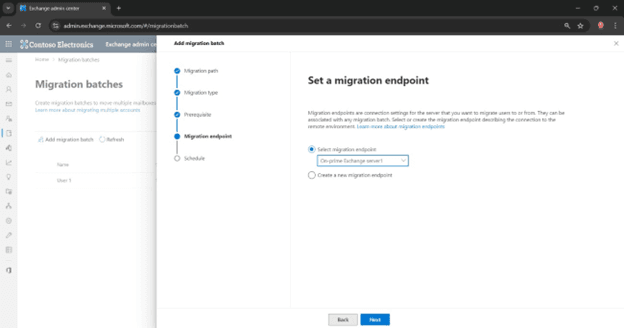
Then choose Add migration Batch
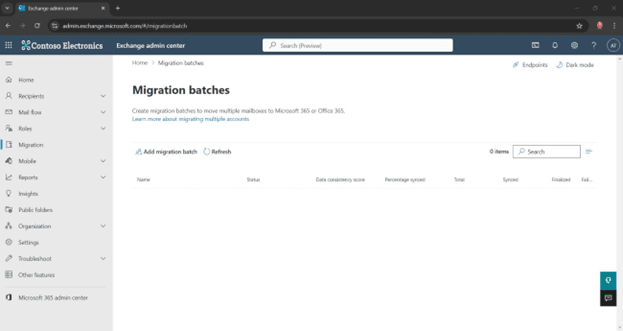
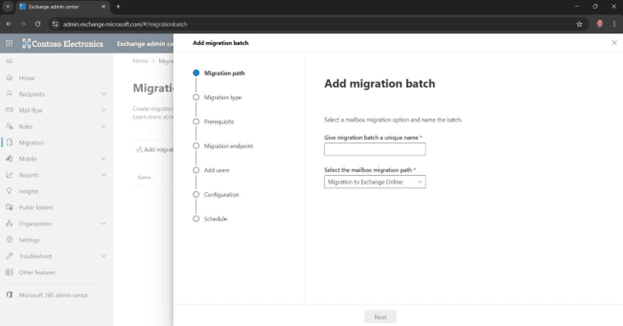
Add migration Bacth page will slide Gve a name to the migration batch and select ‘Migrate to Exchange Online’
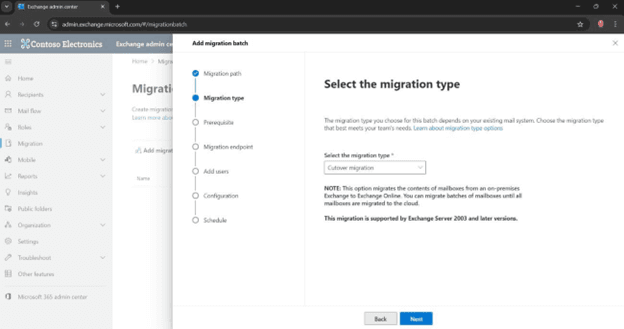
Select the migration type ‘Cutover migration.’
Choose the created endpoint and press next . Now the migration patch has been created
Step 4: Update DNS records
Once all mailboxes are synchronized and ready to complete the migration, you must update your DNS records. Specifically, you need to change your MX record to point to Office 365 so all new mail is delivered there.
You should also add or update the CNAME record for Autodiscover to point to
autodiscover.outlook.com to ensure Outlook can automatically configure itself. In that scenario, your hostname would be autodiscover.contoso.com rather than autodiscover.com if your domain is contoso.com.
Step 5: Complete the Migration batch
Once the DNS changes have propagated, you can complete the migration batch in the Office 365 Exchange Admin Center. This will finalize the migration, and Office 365 will start a final
synchronization to get any emails delivered since the DNS change.
Step 6: Test and Confirm
Finally, you should test and confirm everything is working correctly. Ensure that users can access their mailboxes, send and receive emails, and that all data is present.
Keep in mind that while cutover migration is a straightforward method, it requires careful planning and timing to avoid disrupting email access. Also, performing a pilot migration with a smaller data set is strongly advised before proceeding with the entire mailbox migration.
Conclusion
At Medha Cloud, we are dedicated to making your Exchange to Microsoft 365 migration a success. Our expert team provides comprehensive support throughout the migration process, ensuring your business experiences the full benefits of cloud-based communication.
For more information or to discuss your migration needs, contact us today:
USA: Medha Cloud Solutions LLC
30 N Gould St Ste R, Sheridan, WY 82801 Phone: +1 646 775 2855
India: Medha Hosting Private Limited
#74, 7th Cross, Krishna Garden InCity Layout, Chikka Kammanahalli, Banneraghatta Road, Bangalore 560083
Phone: +91 93536 44646
E-Mail: [email protected]
Let our certified engineers handle your Exchange migration with zero data loss and minimal downtime.
Exchange Server Migration ServicesTopics
Bharath Kumar
Senior Microsoft 365 Consultant • 8+ years
Bharath is a Senior Microsoft 365 Consultant specializing in enterprise productivity solutions and white-label IT services. He has successfully deployed Microsoft 365 for over 200 organizations and helps MSPs build scalable white-label partnerships.
More in Microsoft 365
View all
SharePoint Support: Microsoft Options & Third Party
8 min read
SharePoint Permissions: Levels, Groups & Inheritance
9 min read
SharePoint 2016 & 2019 End of Life: Dates & Options
9 min read
SharePoint Server Subscription Edition: Licensing & Upgrade
9 min read
SharePoint Document Library: Setup, Views & Limits
9 min read
SharePoint vs OneDrive: Differences & When to Use Each
8 min read