
How to enroll Chrome Browser in G Suite? (Browser management)


Going through this blog, you an enforce stringent device management policies for any users that open chrome web browser on a registered device. Set up browser management for your G Suite account easily now.
Required tools:
Things needed?
G Suite subscription
Steps to enroll chrome browser in G Suite
Step 1 : Log in to Admin Console
Log on to admin.google.com, and from the admin, console goes to Devices.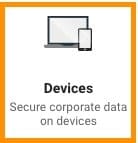
Go to "Managed Browsers".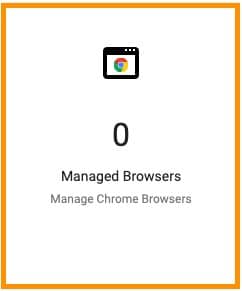
Step 2 :Enroll New Chrome Browser
Click the PLUS symbol that can be found in the right bottom corner. You will get a popup, download the file. (Windows users, rename the file to .reg)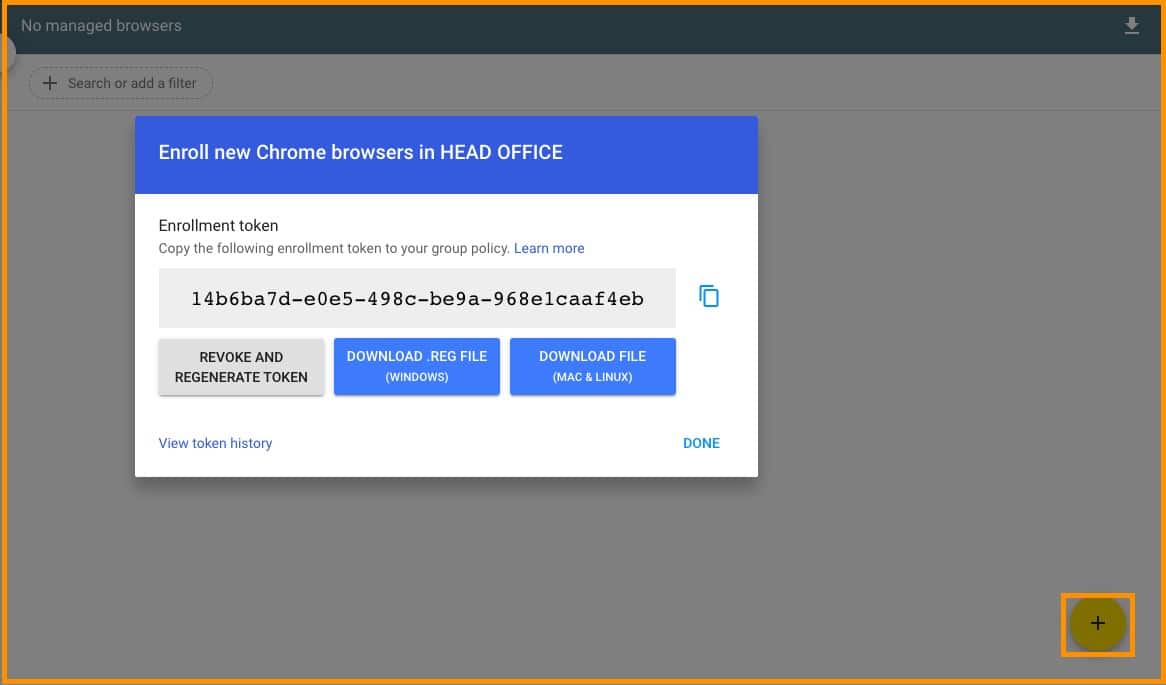
Step 3 : Enroll browser
Click on “Learn how to enroll browsers”.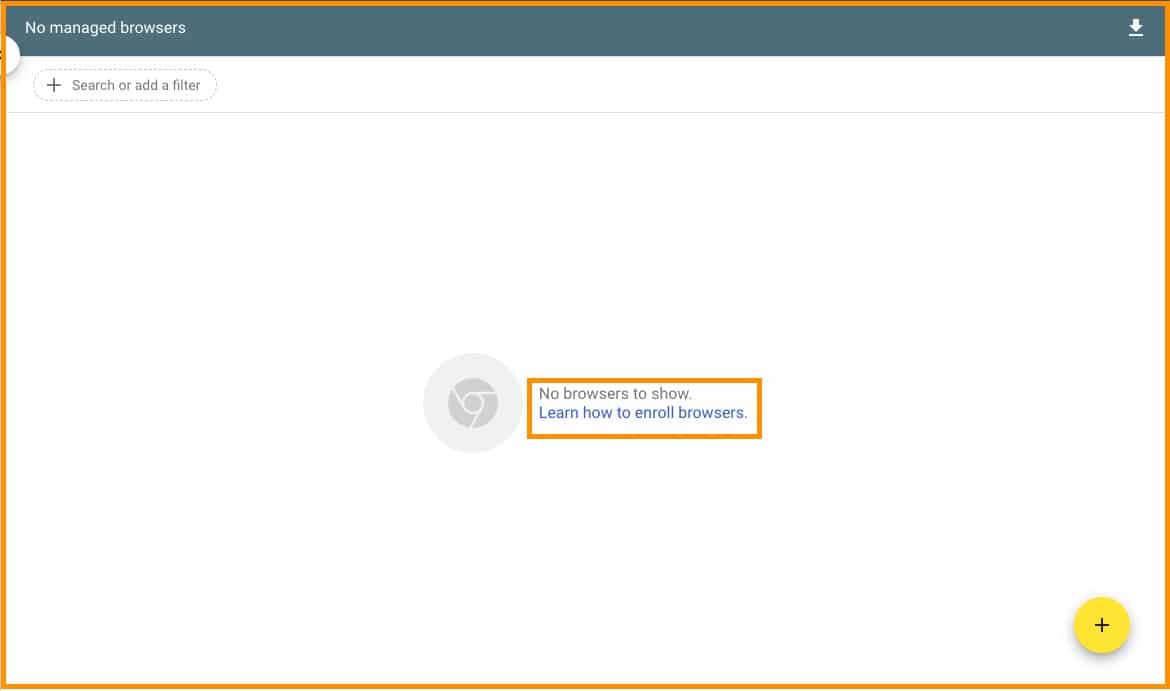
Step 4 : Set up Chrome Browser Cloud Management
Click on “Start setup now”.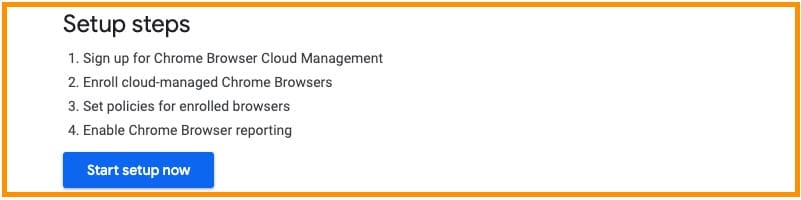
Click on “Fill out this form” and click on “Next step”. Now install the earlier downloaded .reg file and Close the chrome browser and Restart it.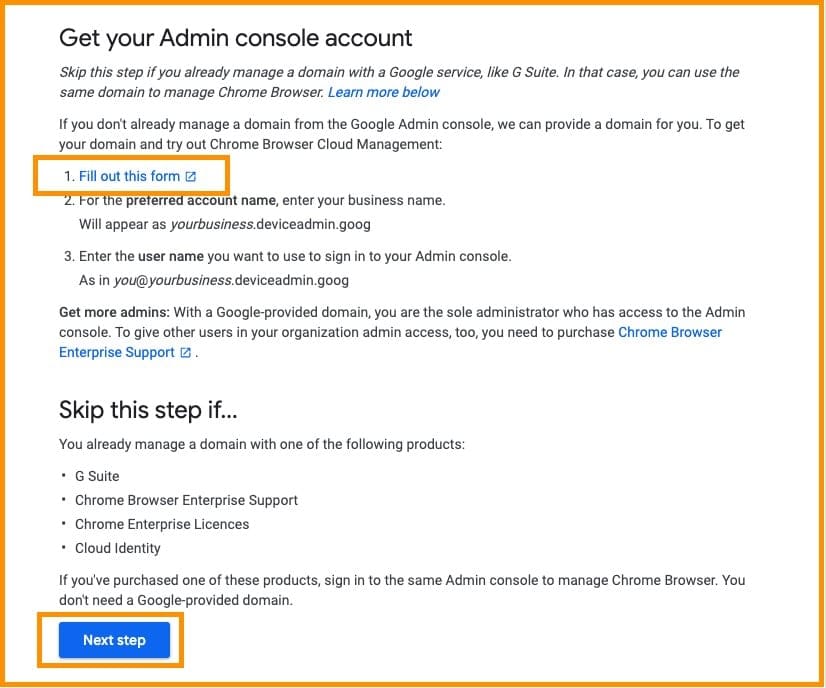
Step 5 : Check Device
Now, if you Go to “managed Browsers,” You will see that it is added. Once your device is added, You can manage chrome as per your requirements. Some of them are shown in the next steps.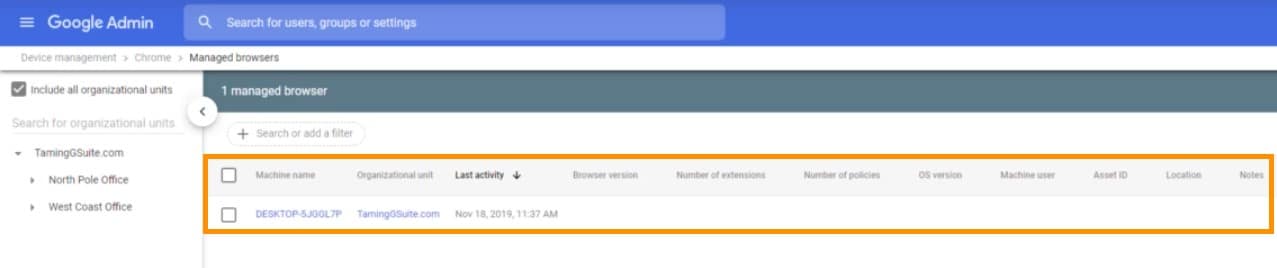
Step 6 : Chrome Management
For Chrome management, Go back to devices from Admin console. Click on “Chrome management” that can found on the left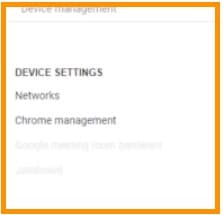
Step 7 : Customization
To use settings like Custom Wallpaper, avatar. Click on “User & browser settings”.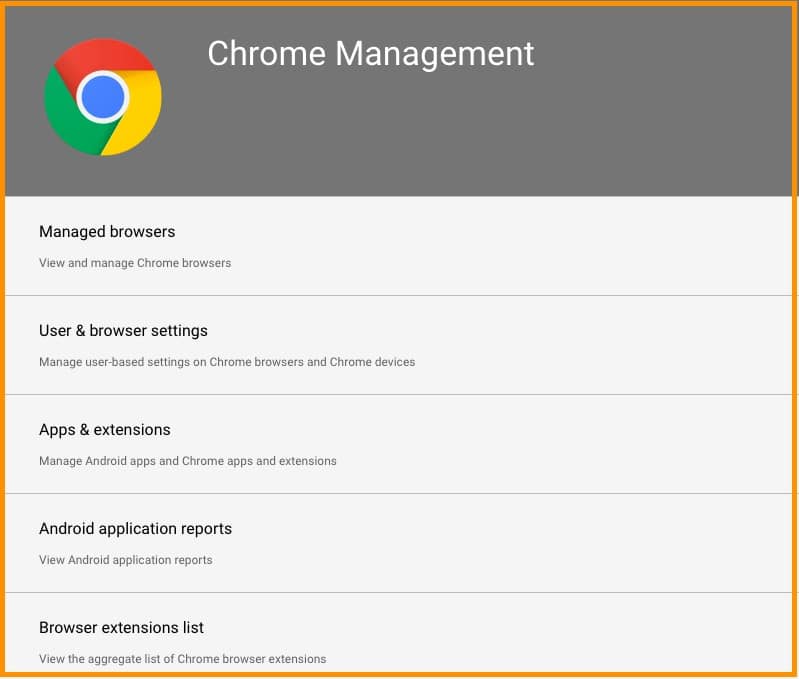
Wallpaper and Avatar can be uploaded from here and scroll down to see some other settings.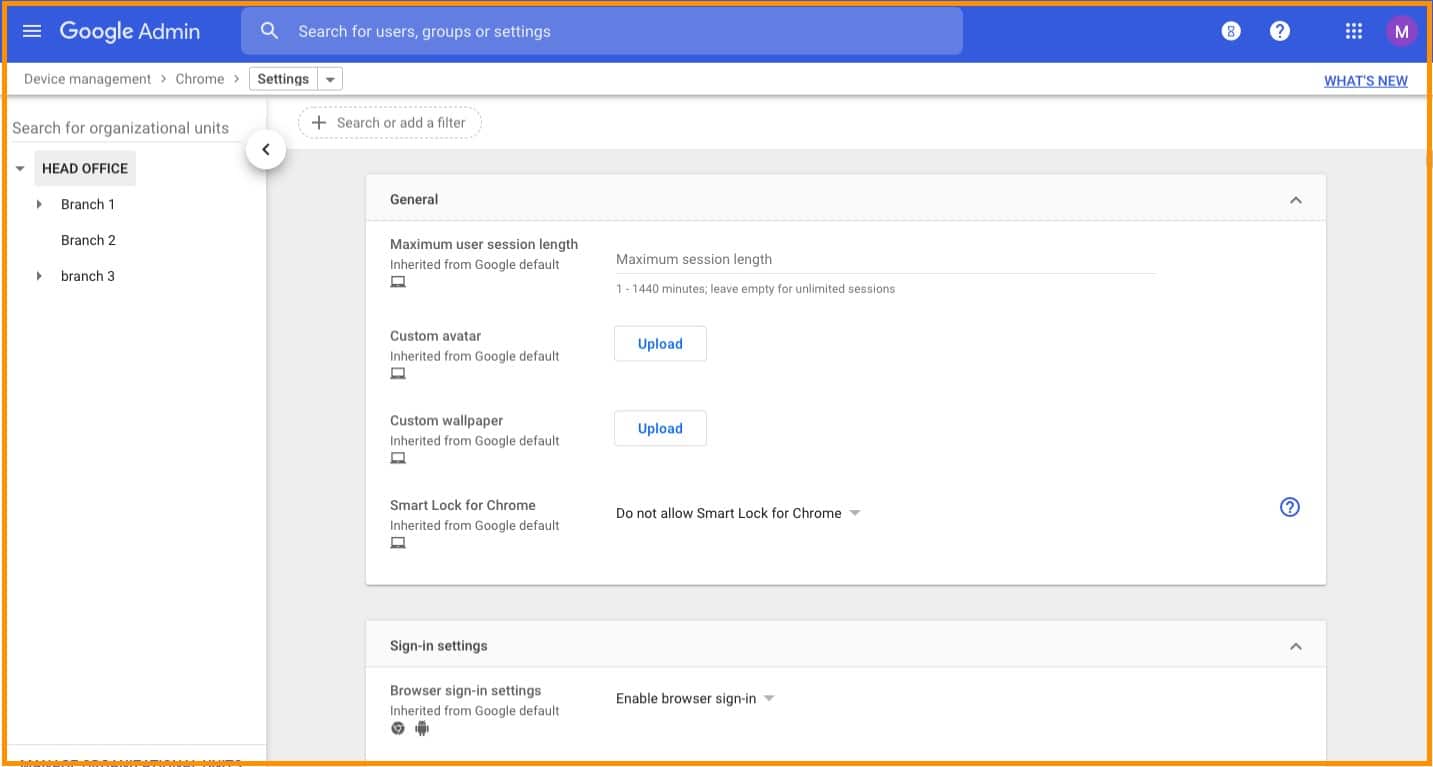
Step 8 : Adding Apps
On the same page as above, Scroll down to Apps and extensions to add apps. Click on apps & extensions page.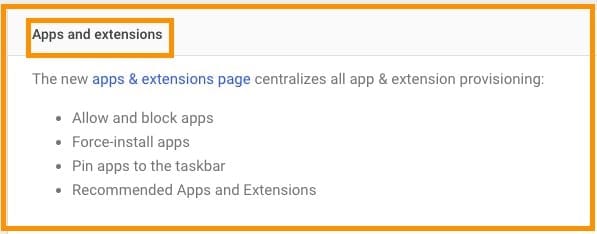
You will be redirected to apps & extensions page. Hover your mouse cursor to the PLUS symbol on the right bottom. Four more symbols will appear to help to download apps from google play store, Google webstore, Add by ID, Add by URL. Click on any one of them.
Search for the app that you are looking for in the search box.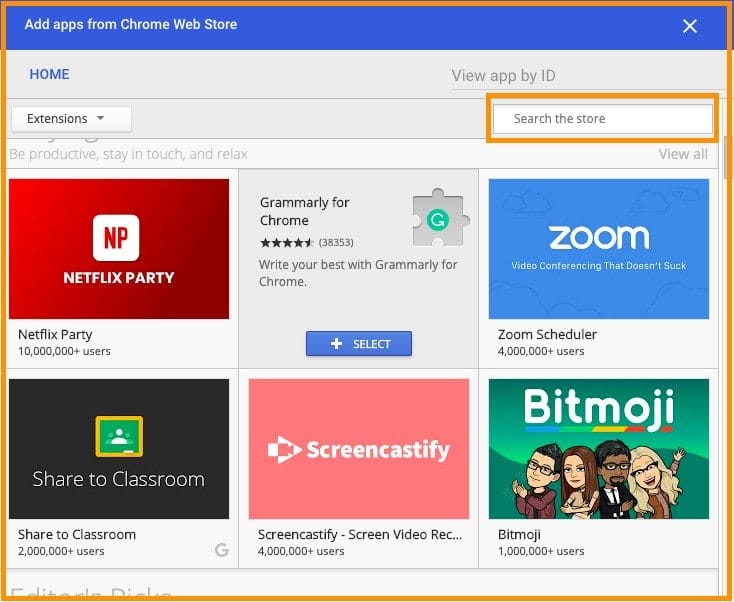
Click on ”SELECT”.
Conclusion:
Hope you've learned how to to Enroll Chrome Browser in G Suite. Likewise, G Suite offers plenty of browser management options for organizations and users to manage the browser in the devices.
If you want to know more about G Suite and explore the features of G Suite reach Medha Hosting.
Read Here: Device Management- Introduction To Password And Work Profile Setting In G Suite
Migrate Gmail, Drive, Calendar, and Contacts to Microsoft 365 with zero data loss.
Google Drive to OneDrive MigrationTopics
Sreenivasa Reddy G
Founder & CEO • 15+ years
Sreenivasa Reddy is the Founder and CEO of Medha Cloud, recognized as "Startup of the Year 2024" by The CEO Magazine. With over 15 years of experience in cloud infrastructure and IT services, he leads the company's vision to deliver enterprise-grade cloud solutions to businesses worldwide.
More in Managed IT Services
View all
Salesforce Layoffs 2026: Numbers, Timeline & What Is Known
8 min read
Cisco Layoffs 2026: Numbers, Timeline & What Is Known
8 min read
Intel Layoffs 2026: Numbers, Timeline & What Is Known
8 min read
Microsoft Layoffs 2026: Numbers, Timeline & What Is Known
8 min read
Oracle Layoffs 2026: Numbers, Timeline & What Is Known
9 min read
Meta Layoffs 2026: Numbers, Timeline & What Is Known
8 min read