How to set up Apple Push Certificate in G Suite? (Device Management)


Apple iOS devices require a push certificate to access the advanced management features in G Suite. This certificate is for establishing a trusted connection between iOS devices and the organization's domain. Plus, users need to renew the certificate yearly. In this blog, let check how to set up Apple Push Certificate in G Suite.
Required tools:
Things needed?
G Suite subscription
Steps to set up Apple Push Certificate in G Suite
Step 1: Login to admin console
Click “Devices” to start the process.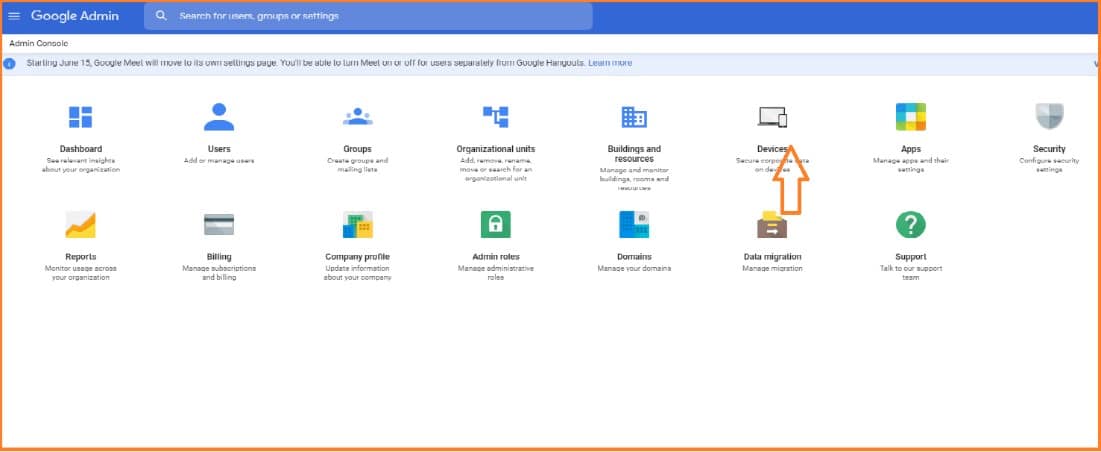
Step 2 : Mobile Management
Click on “Setup” from the options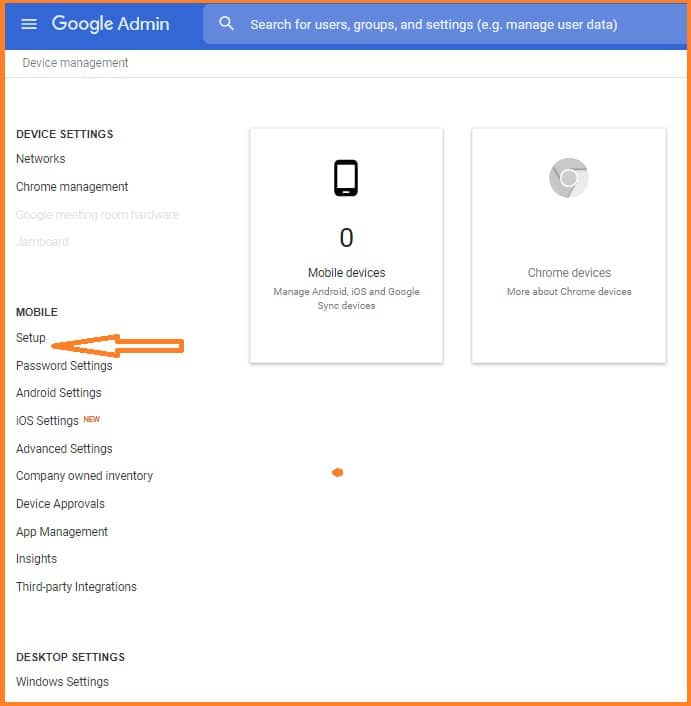
Click on “Mobile Management”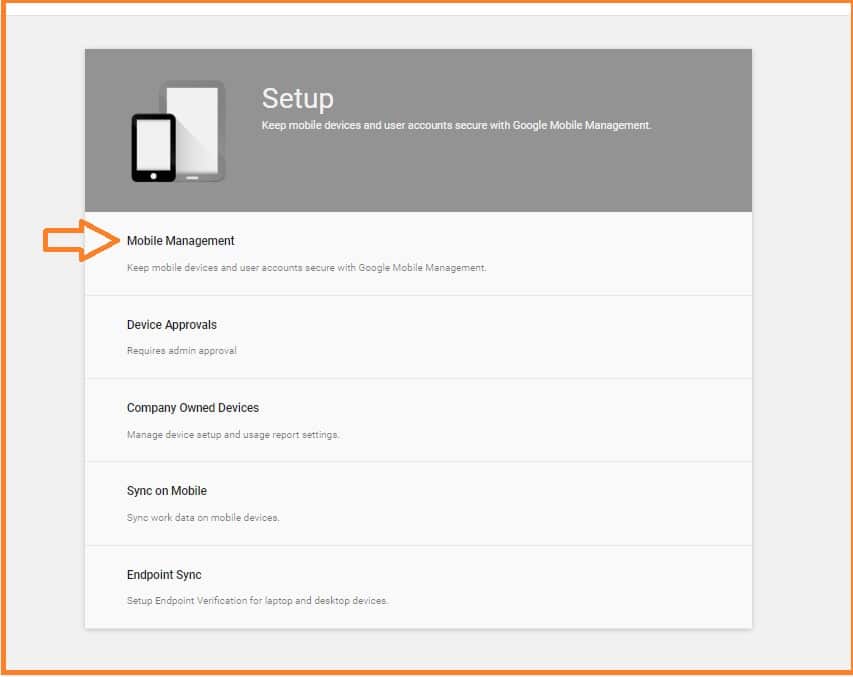
Step 3 : Apple Push Certificate
Click on “Apple Push Certificate” that you can find at the bottom of the page, as you can see in the image.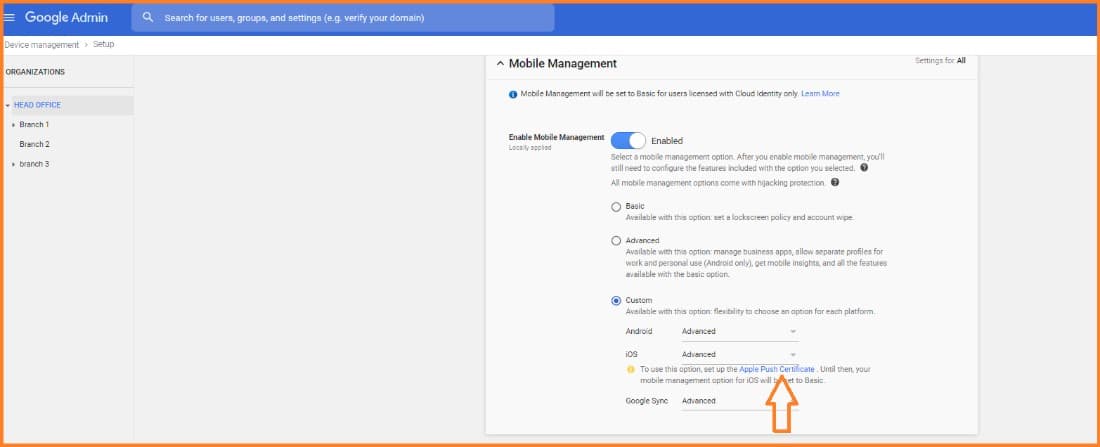
Click on “GOT IT”
Step 4 : Sign in to Apple Push Certificate Portal
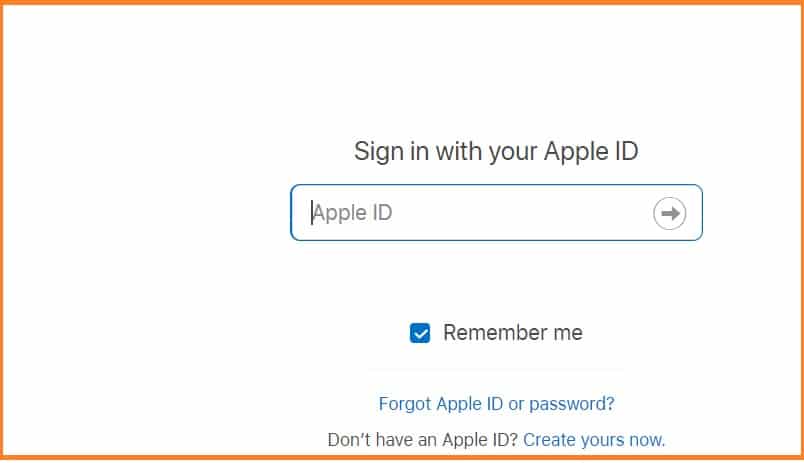
Click on “Apple Push Certificate portal” with your “ Apple ID”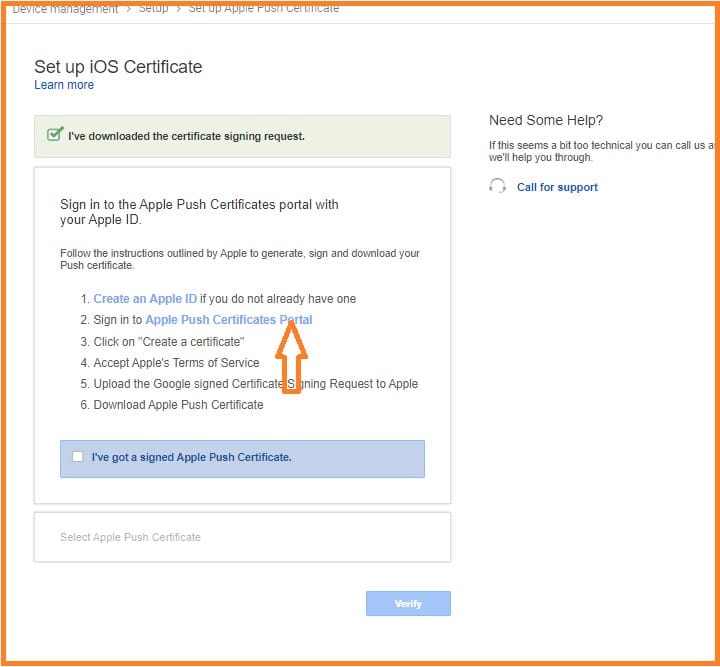
Step 5 : Terms and condition
Click on “Accept” and you can reach to another page where you will prompted to upload the file.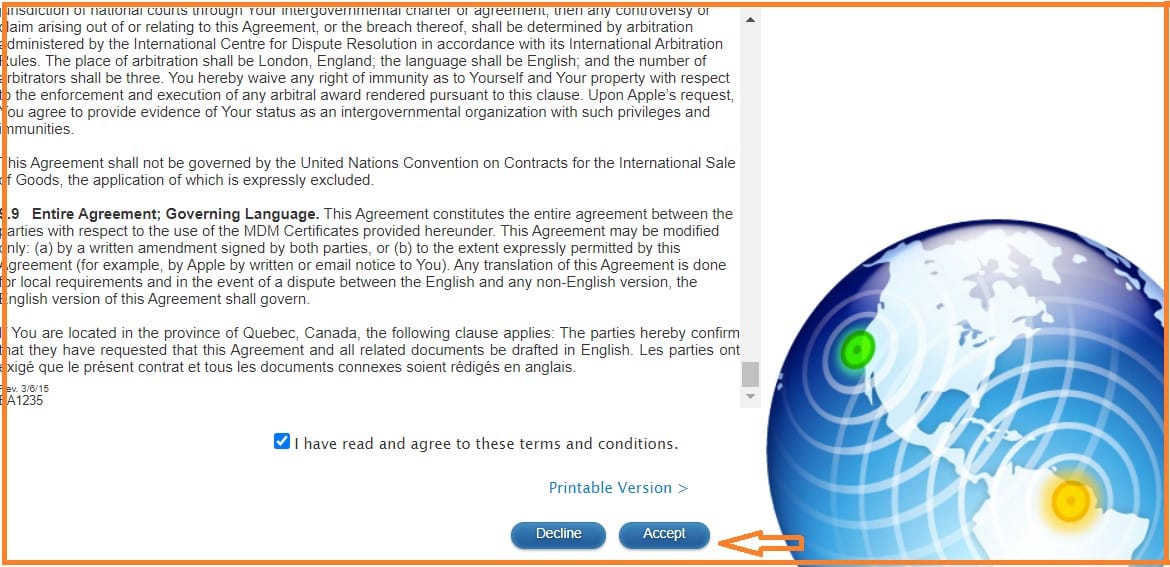
Upload the file that you downloaded earlier and click “Upload”.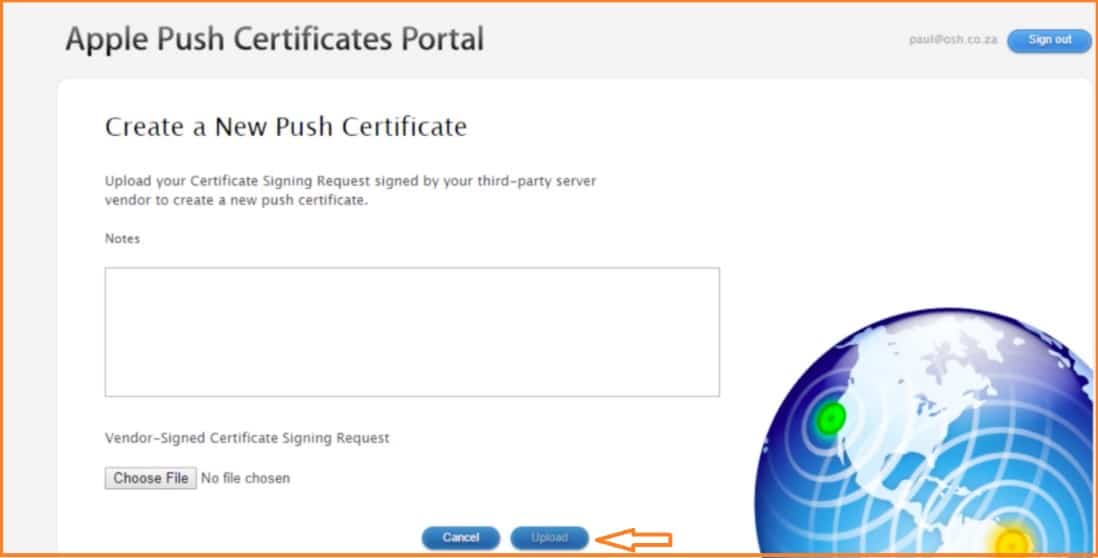
Step 5 : Select certificate file
Check the boxes and click “Select certificate file” and “verify”.
You will get a popup and click on “Continue Setup”.
Step 5 : Advanced setting
Check if Android, OS, Google Sync are set to “ADVANCED” in Custom.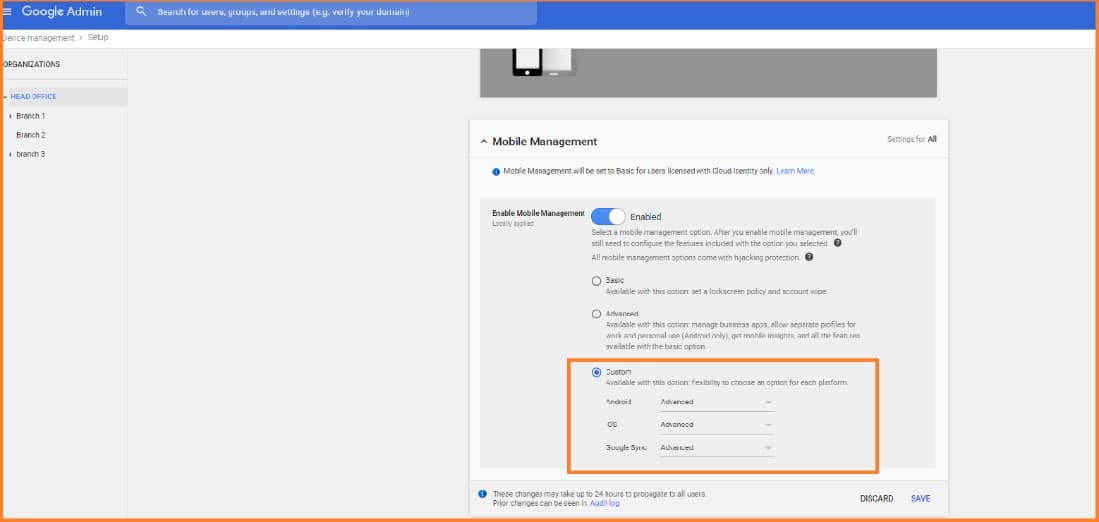
Scroll down to see other available options that can be edited as per your requirements.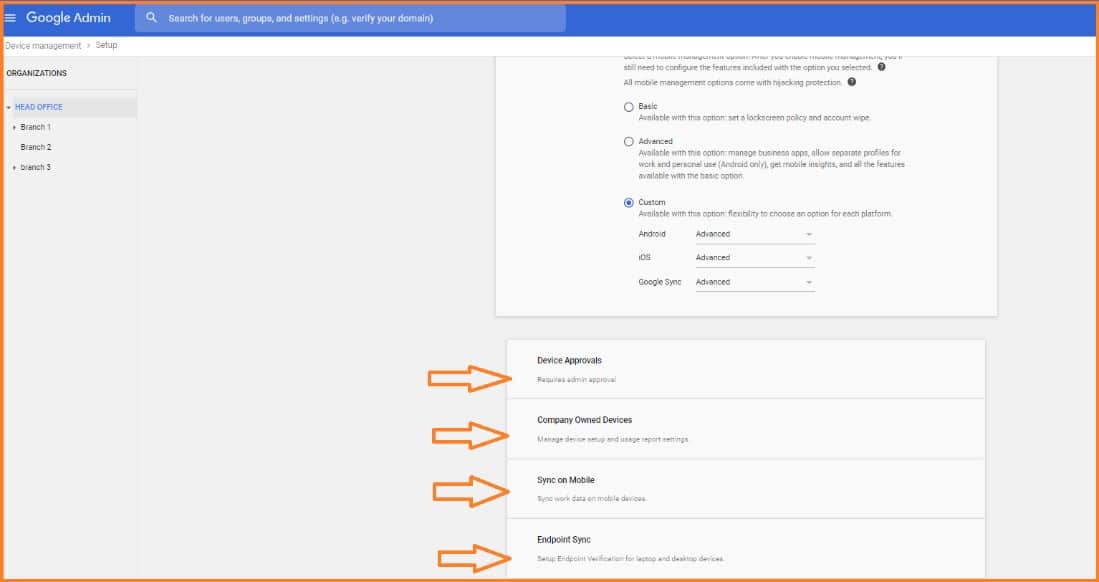
Conclusion:
This is how you can set up Apple Push certificate in G Suite. Follow the instruction and try to do it by yourself. If you got any doubt please contact Medha Hosting.
Read Here: How To Enroll Chrome Browser In G Suite? (Browser Management)
Migrate Gmail, Drive, Calendar, and Contacts to Microsoft 365 with zero data loss.
G Suite to M365 Migration ServicesTopics
Sreenivasa Reddy G
Founder & CEO • 15+ years
Sreenivasa Reddy is the Founder and CEO of Medha Cloud, recognized as "Startup of the Year 2024" by The CEO Magazine. With over 15 years of experience in cloud infrastructure and IT services, he leads the company's vision to deliver enterprise-grade cloud solutions to businesses worldwide.