
A Step-by-Step Guide to Adding Members to a Security Group in Office 365
Adding members to a security group in Office 365 is an essential task for managing permissions and access control within your organization. Security groups allow you to grant or revoke access to various resources, such as files, applications, or shared services, in bulk. This guide will walk you through how to add members to a security group in Office 365.
Step 1: Log in to Office 365 with Admin Privileges
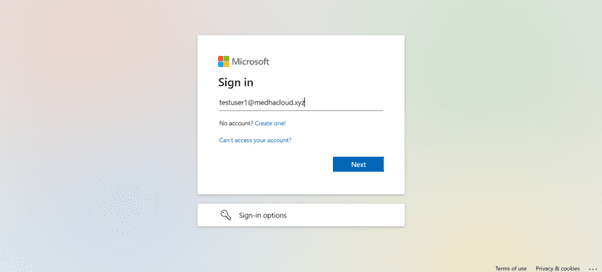
To begin, log in to Office 365 using an admin account. Only administrators or users with the right permissions can add or manage security group members.
Step 2: Open the Admin Panel
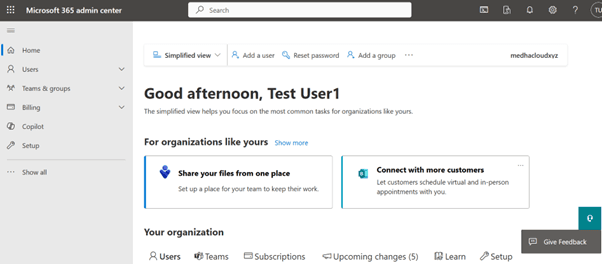
Once logged in, go to the Admin app from the Office 365 app launcher (the grid icon in the upper left corner). This will take you to the Admin Center, where you can manage groups and memberships.
Step 3: Navigate to Groups > Active Groups
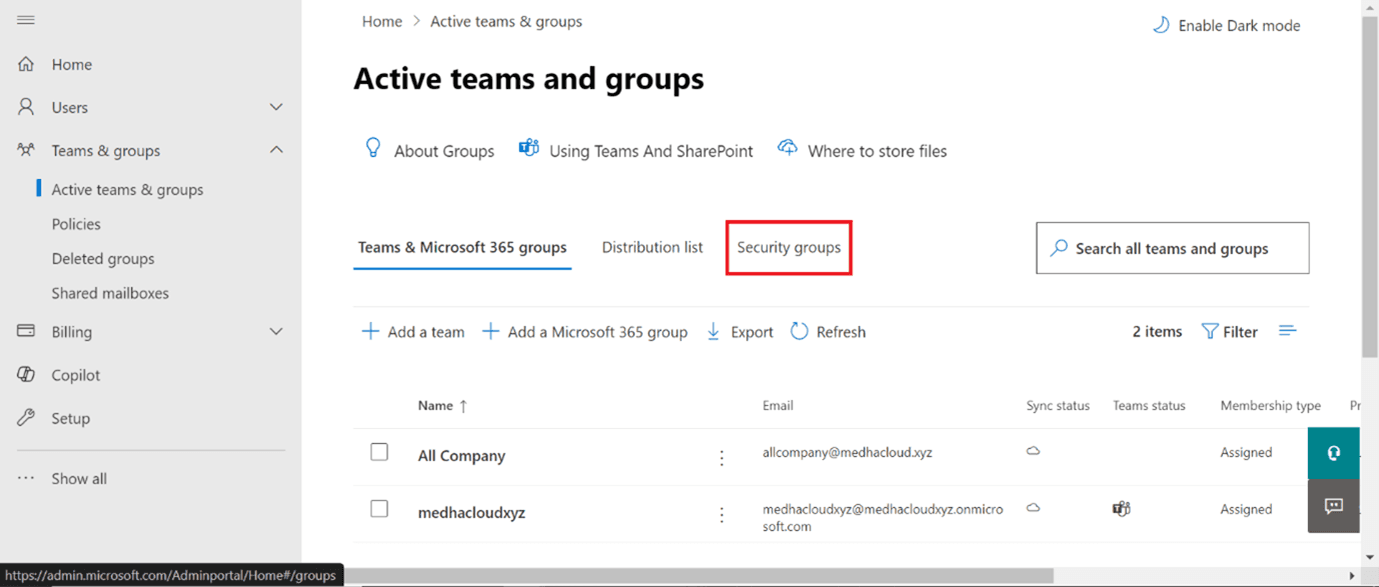
In the Admin Center, click on Groups from the left-hand navigation panel and select Active Groups. This will show you a list of all the active groups, including security groups, in your organization.
Step 4: Select the Security Group
From the list of active groups, find and select the security group to which you want to add members. This will open the group’s details.
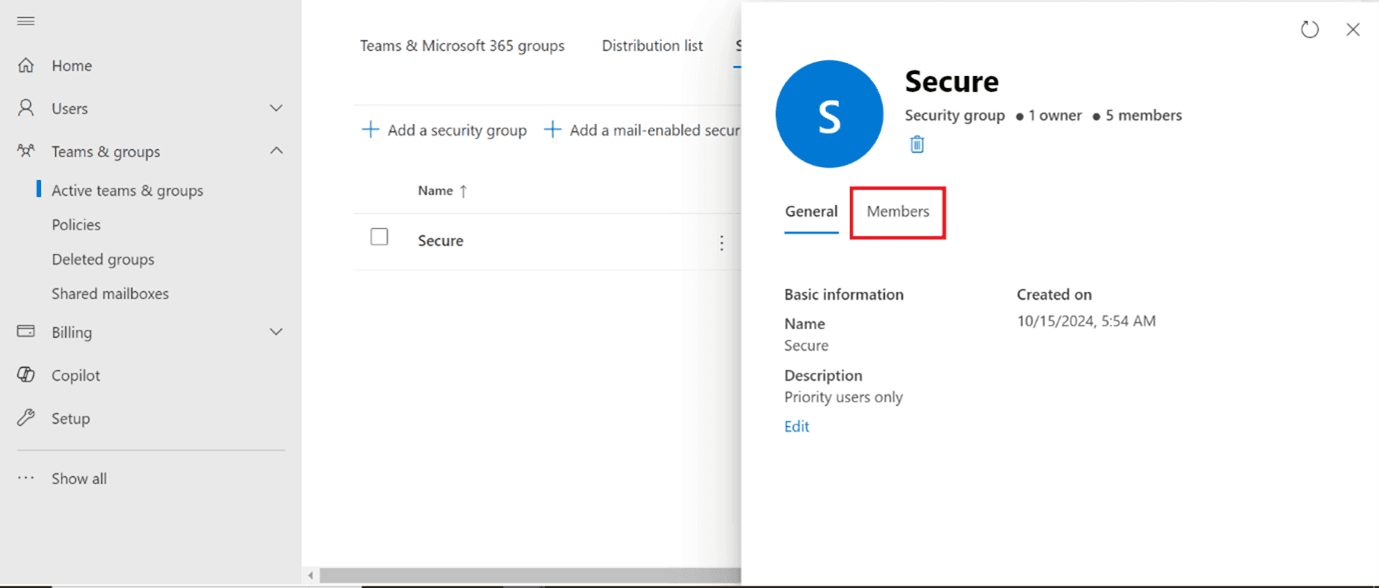
Step 5: Go to the View all and manage members Tab
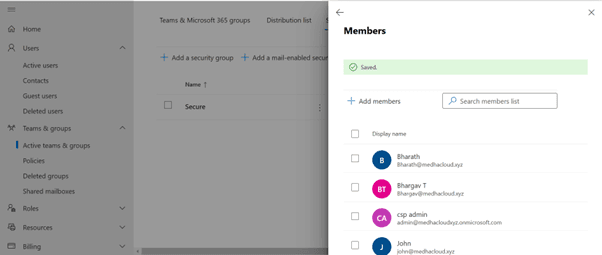
In the group details, click on the Members tab. Here, you’ll be able to see a list of current members and the option to add new users to the group.
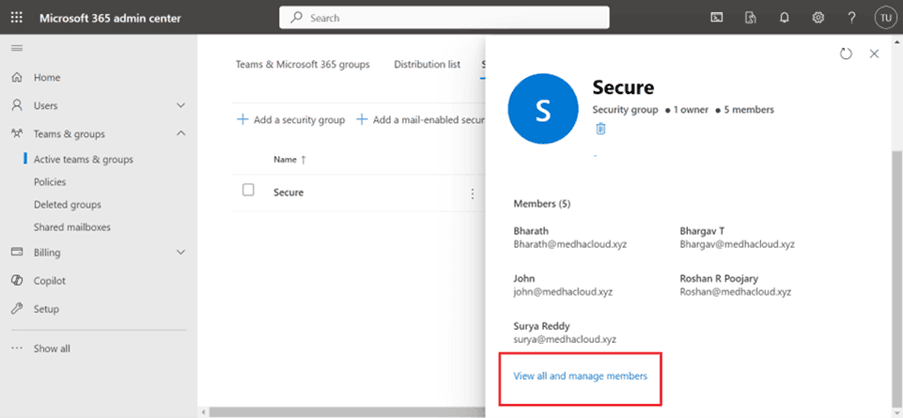
Step 6: Add New Members
To add new members, click the Add members button. A search box will appear where you can find and select the users you want to add to the security group.
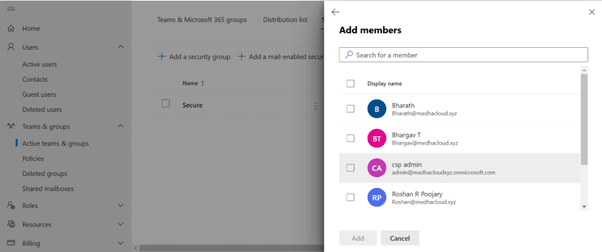
Step 7: Select Users to Add
Search for the users by typing their names or email addresses into the search field. Once you’ve located the correct users, select their names and click Add to include them in the security group.
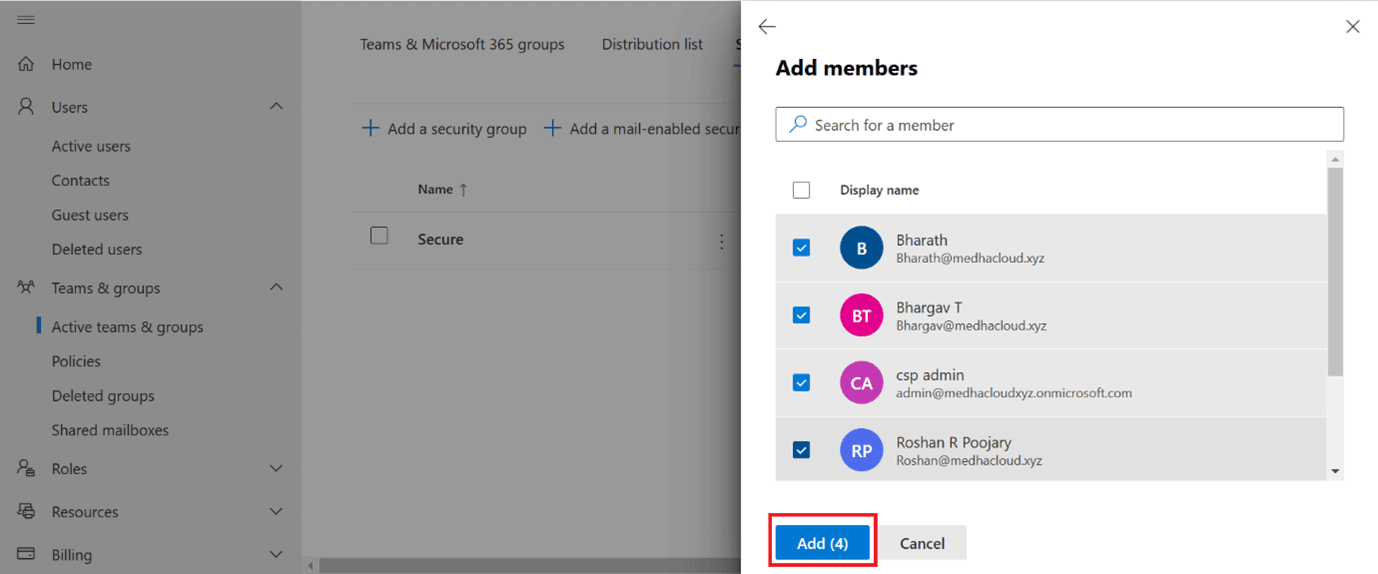
Step 8: Save the Changes
After adding the new members, make sure to click Save to apply the changes. The newly added members will now inherit the permissions and access associated with the security group.
Step 9: Verify the Membership (Optional)
To verify that the members have been successfully added, go back to the Members tab in the group’s settings and check that the new users appear in the list.
By following these steps, you can efficiently add members to a security group in Office 365, making it easier to manage access and permissions for multiple users at once. For more help managing security groups or other Office 365 features, contact Medha Cloud today. Our team is ready to assist you in securing and optimizing your Office 365 environment.
Compare Microsoft 365 plans and find the right license for your organization.
Microsoft 365 Licensing OptionsTopics
Bharath Kumar
Senior Microsoft 365 Consultant • 8+ years
Bharath is a Senior Microsoft 365 Consultant specializing in enterprise productivity solutions and white-label IT services. He has successfully deployed Microsoft 365 for over 200 organizations and helps MSPs build scalable white-label partnerships.
More in Microsoft 365
View all
SharePoint Support: Microsoft Options & Third Party
8 min read
SharePoint Permissions: Levels, Groups & Inheritance
9 min read

SharePoint 2016 & 2019 End of Life: Dates & Options
9 min read

SharePoint Server Subscription Edition: Licensing & Upgrade
9 min read

SharePoint Document Library: Setup, Views & Limits
9 min read
SharePoint vs OneDrive: Differences & When to Use Each
8 min read