
Microsoft 365 Security Hardening Guide: 50 Critical Settings Every Business Should Enable

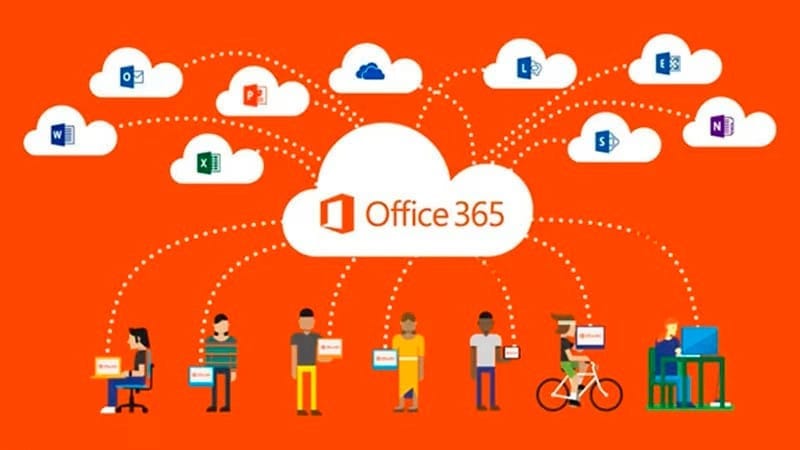
A brand-new Microsoft 365 tenant with default settings has a Secure Score around 30-35%. That means roughly two-thirds of available security controls are turned off. Microsoft ships tenants optimized for ease of use, not security — which makes sense from an adoption standpoint but creates real risk for businesses that don't harden their configuration after deployment.
This guide covers the 50 most impactful security settings across Microsoft 365 — organized into five priority tiers from "do this today" to "advanced hardening." Each setting includes what it does, where to find it, and why it matters. Your target: a Secure Score above 80%.
Tier 1: Do This Today (Settings 1-10)
These settings address the most commonly exploited misconfigurations. If you do nothing else from this guide, implement these 10.
1. Enable Security Defaults or Conditional Access
Where: Entra ID → Properties → Security Defaults
Security Defaults enforce MFA for all users, block legacy authentication, and require MFA for admin actions. This is the minimum viable security configuration for any M365 tenant. For organizations with Microsoft 365 Business Premium or E3/E5, replace Security Defaults with Conditional Access policies for more granular control.
2. Block Legacy Authentication Protocols
Where: Entra ID → Conditional Access → New Policy → Conditions → Client Apps → Select "Exchange ActiveSync clients" and "Other clients"
Legacy protocols (POP3, IMAP, SMTP AUTH, older ActiveSync) don't support MFA. Attackers use password spray attacks against these protocols to bypass your MFA enforcement. Block them entirely. Modern Outlook, mobile apps, and web clients all use Modern Authentication and don't need legacy protocols.
3. Enforce MFA for All Users
Where: Entra ID → Conditional Access → New Policy → Users: All Users → Grant: Require MFA
Not just admins. All users. Microsoft reports that MFA blocks 99.9% of account compromise attacks. Use Microsoft Authenticator (app-based push with number matching) or FIDO2 security keys. Avoid SMS MFA where possible — it's vulnerable to SIM swapping.
4. Require MFA for Admin Portals
Where: Conditional Access → New Policy → Target: Microsoft Admin Portals → Grant: Require MFA + Require Compliant Device
Admin accounts are high-value targets. Require both MFA and a compliant device (managed by Intune) for access to Azure Portal, M365 Admin Center, Exchange Admin Center, and Security & Compliance Center.
5. Limit Global Administrators to 2-4 Accounts
Where: Entra ID → Roles and Administrators → Global Administrator
Most organizations have too many Global Admins. Every Global Admin account is a potential full-compromise entry point. Audit this list now. Reassign users to role-specific admin roles: Exchange Admin, SharePoint Admin, User Admin, Security Admin. Only 2-4 accounts should hold Global Admin — and at least 2 should be emergency "break-glass" accounts stored offline.
6. Enable Unified Audit Log
Where: Microsoft Purview → Audit → Audit search
The Unified Audit Log captures every significant action in your M365 environment — user logins, file access, email forwards, admin changes, mailbox delegation, and more. It should already be enabled by default, but verify. Set retention to maximum (180 days for E3, 1 year for E5). Your SOC monitoring depends on these logs.
7. Disable User Consent to Third-Party Apps
Where: Entra ID → Enterprise Applications → Consent and permissions → User consent settings → "Do not allow user consent"
When users consent to third-party OAuth apps ("Sign in with Microsoft"), they can inadvertently grant malicious apps access to their mailbox, files, and calendar. Require admin approval for all app consent requests. This blocks a common attack vector where phishing emails trick users into granting OAuth access to attacker-controlled apps.
8. Enable Microsoft Defender for Office 365 Safe Links
Where: Security → Email & Collaboration → Policies & Rules → Threat policies → Safe Links
Safe Links rewrites URLs in emails and Office documents to route through Microsoft's filtering. When a user clicks a link, Microsoft checks it in real-time against known malicious URLs. This catches time-delayed attacks where a URL is clean at delivery but redirects to malware hours later.
9. Enable Safe Attachments
Where: Security → Threat policies → Safe Attachments → Create policy
Safe Attachments detonates email attachments in a sandbox before delivering them to the user's inbox. This catches zero-day malware that signature-based scanning misses. Set the action to "Dynamic Delivery" — users receive the email immediately, attachments are delivered after scanning (typically 1-2 minutes).
10. Configure Anti-Phishing Policies
Where: Security → Threat policies → Anti-phishing → Default policy → Edit
Enable impersonation protection for your executives and key external partners. When someone sends an email impersonating your CEO's name from an external domain, Defender flags or quarantines it. Configure mailbox intelligence to learn your users' normal communication patterns and detect anomalies.
Tier 2: This Week (Settings 11-20)
11. Disable Auto-Forwarding to External Domains
Where: Exchange Admin Center → Mail Flow → Rules → Create rule to block external auto-forwarding
Attackers who compromise a mailbox frequently set up a forwarding rule to exfiltrate all incoming email to an external address. Block this at the transport level. No legitimate business process requires automatic forwarding of all email to an external domain. Also check: Security → Threat policies → Anti-spam → Outbound policy → Automatic forwarding → Off.
12. Enable Mailbox Audit Logging
Where: Enabled by default since 2019, but verify with PowerShell: Get-OrganizationConfig | FL AuditDisabled
Mailbox auditing logs actions like message access, send-as, delegate access, and folder permission changes. This data is critical for investigating email compromise incidents and is often required by cyber insurance carriers.
13. Configure Data Loss Prevention (DLP) Policies
Where: Microsoft Purview → Data Loss Prevention → Policies
Create DLP policies that detect and block sharing of sensitive information: Social Security numbers, credit card numbers, health records (PHI), financial account numbers. Start with detection mode (monitor and report) for 30 days, then switch to enforcement mode. Critical for HIPAA compliance and PCI-DSS compliance.
14. Enable Sensitivity Labels
Where: Microsoft Purview → Information Protection → Labels
Sensitivity labels classify and optionally encrypt documents and emails. Create labels like "Public," "Internal," "Confidential," and "Highly Confidential." Apply encryption to Confidential and above — documents remain encrypted even if they're shared outside the organization. Requires M365 E3 or Business Premium.
15. Configure SharePoint and OneDrive Sharing Settings
Where: SharePoint Admin Center → Policies → Sharing
Default SharePoint sharing settings are too permissive. Restrict external sharing to "New and existing guests" (not "Anyone" — which creates anonymous links). Require guests to sign in. Set link expiration for external sharing (30 days maximum). Block sharing of specific file types (.exe, .ps1, .bat).
16. Block External Domain Sharing in Teams
Where: Teams Admin Center → Users → External Access
Review which external domains your users can communicate with in Teams. The default allows communication with all external Teams/Skype users. Restrict to specific allowed domains (your clients and partners) or block entirely if your organization doesn't need external Teams communication.
17. Enable Sign-In Risk and User Risk Policies
Where: Entra ID → Protection → Identity Protection → Sign-in risk policy / User risk policy
Entra ID Identity Protection evaluates every sign-in for risk signals: unfamiliar location, anonymous IP, impossible travel, password spray detection. Configure the sign-in risk policy to require MFA for medium-risk sign-ins and block high-risk sign-ins. Configure the user risk policy to require password change for high-risk users. Requires Entra ID P2 (included in E5).
18. Configure Password Protection
Where: Entra ID → Protection → Authentication Methods → Password Protection
Enable the custom banned password list. Add your company name, product names, city, and common variations that employees might use in passwords. Enable Azure AD Password Protection to block known weak passwords and common patterns. This prevents passwords like "CompanyName2026!" that technically meet complexity requirements but are trivially guessable.
19. Restrict PowerShell Access
Where: Conditional Access policy targeting Windows PowerShell application
Attackers use PowerShell remoting to manage compromised M365 tenants — exfiltrating data, modifying settings, and creating persistence. Restrict PowerShell access to admin accounts only, from compliant devices only, with MFA required.
20. Enable Microsoft Defender for Cloud Apps
Where: Security → Cloud Apps portal
Defender for Cloud Apps (formerly MCAS) acts as a Cloud Access Security Broker (CASB). It discovers shadow IT (SaaS apps your users are accessing without IT approval), detects impossible travel and anomalous activity, and enforces session controls. Included in E5, available as add-on for E3.
Tier 3: This Month (Settings 21-30)
21. Configure Conditional Access — Require Compliant Devices
Require that devices accessing M365 are managed by Intune and meet your compliance policies (encryption enabled, firewall on, antivirus current, OS updated). This prevents personal/unmanaged devices from accessing corporate data.
22. Enable App Protection Policies for Mobile
Intune App Protection Policies (MAM) protect corporate data on mobile devices without requiring full device enrollment. Enforce PIN/biometric for M365 apps, prevent copy/paste to personal apps, and enable remote wipe of corporate data.
23. Configure Attack Simulation Training
Where: Security → Email & Collaboration → Attack simulation training
Built into Defender for Office 365 P2 and E5. Run monthly phishing simulations against your users, automatically assign training to users who click, and track improvement over time.
24. Set Up Alerts for Suspicious Admin Activities
Where: Microsoft Purview → Alert Policies
Configure alerts for: new admin role assignments, Conditional Access policy changes, mail flow rule creation, external forwarding rule creation, and OAuth app consent grants. These are the actions attackers take to maintain persistence after initial compromise.
25. Enable Customer Lockbox
Where: M365 Admin Center → Settings → Org settings → Security & privacy → Customer Lockbox
Customer Lockbox requires your approval before Microsoft support engineers can access your data during support requests. Without it, Microsoft engineers can access your content during troubleshooting (with their own auditing, but without your explicit approval). Required for some compliance frameworks.
26. Configure Retention Policies
Set retention policies for email (minimum 1 year for business, 7 years for regulated industries), Teams chats, SharePoint documents, and OneDrive files. Retention policies ensure data is preserved for compliance and e-discovery while also automatically deleting data past its retention period.
27. Restrict Guest User Permissions
Where: Entra ID → External Identities → External collaboration settings
Limit what guest users can see and do. Default settings allow guests to enumerate all users, groups, and applications in your directory. Restrict guest access to "limited" — they should only see their own profile and the resources explicitly shared with them.
28. Enable Privileged Identity Management (PIM)
Where: Entra ID → Identity Governance → Privileged Identity Management
PIM implements just-in-time admin access. Instead of permanently assigned admin roles, users activate roles when needed (with approval workflow and time limits). A Global Admin role is only active for the 2 hours the admin needs it, not 24/7/365. Requires Entra ID P2.
29. Configure Email Authentication (SPF, DKIM, DMARC)
SPF, DKIM, and DMARC prevent attackers from spoofing your domain. If your DMARC policy is p=none, you're only monitoring — not preventing spoofing. Move to p=quarantine, then p=reject. This protects your domain reputation and prevents phishing emails that appear to come from your domain.
30. Disable Anonymous Meeting Join in Teams
Where: Teams Admin Center → Meetings → Meeting policies
Prevent anonymous users from joining Teams meetings or require them to wait in the lobby. This prevents "meeting bombing" and unauthorized eavesdropping on sensitive business discussions.
Tier 4: This Quarter (Settings 31-40)
31. Implement Named Locations in Conditional Access
Define your office IP ranges and trusted locations. Create policies that allow seamless access from trusted locations but require additional verification (MFA, compliant device) from unfamiliar locations.
32. Block Access from High-Risk Countries
If your business doesn't operate in certain countries, block sign-ins from those regions entirely via Conditional Access. Focus on countries commonly associated with cyberattacks (and where you have zero legitimate users).
33. Configure Automated Investigation and Response (AIR)
Where: Security → Email & Collaboration → Policies → Automated Investigation
AIR automatically investigates and remediates security alerts — quarantining malicious emails, blocking compromised accounts, and removing malware. Reduces SOC workload and response time from hours to minutes.
34. Enable Communication Compliance
Monitor Teams messages and emails for sensitive content, inappropriate communication, or regulatory violations. Particularly important for financial services and healthcare organizations.
35. Configure Information Barriers
Prevent specific groups of users from communicating with each other in Teams (e.g., investment banking and advisory teams in a financial firm — "Chinese wall" requirements).
36. Set Up Insider Risk Management
Where: Microsoft Purview → Insider Risk Management
Detects potential insider threat indicators: unusual download volume, data exfiltration patterns, departing employee activity, policy violations. Creates alerts for investigation without invasive surveillance.
37. Enable Microsoft Defender for Identity
If you have on-premises Active Directory (hybrid environment with Windows Server), Defender for Identity monitors AD for reconnaissance, lateral movement, and privilege escalation attacks. It detects Pass-the-Hash, Golden Ticket, and Kerberoasting attacks.
38. Configure Azure AD Access Reviews
Automate quarterly access reviews: managers review their direct reports' group memberships, application access, and role assignments. Users who no longer need access are automatically removed. Prevents access creep over time.
39. Implement Session Lifetime Policies
Configure token lifetime and session controls. Don't allow infinite session persistence — force re-authentication every 12-24 hours for sensitive applications and every 7 days for standard applications.
40. Enable Defender for Azure (Cloud Security Posture Management)
If you have Azure resources, enable Defender for Cloud to continuously assess security posture, detect misconfigurations, and provide hardening recommendations. Essential for hybrid environments.
Tier 5: Advanced Hardening (Settings 41-50)
41. Implement Continuous Access Evaluation (CAE)
CAE enables near-real-time revocation of access tokens when risk is detected (user disabled, password changed, high-risk sign-in). Without CAE, tokens remain valid until natural expiration (typically 1 hour).
42. Configure Token Protection (Preview)
Binds tokens to the device that issued them, preventing token theft attacks where attackers steal session tokens from compromised endpoints and replay them from attacker-controlled infrastructure.
43. Deploy FIDO2 Security Keys for Admins
Move admin accounts to passwordless authentication with FIDO2 security keys. This eliminates the possibility of password compromise and MFA bypass for your most privileged accounts.
44. Implement Cross-Tenant Access Settings
Control inbound and outbound collaboration with specific external M365 tenants. Define which users can collaborate with which partner organizations and what level of access they receive.
45. Configure Microsoft Sentinel Integration
Connect M365 logs to Microsoft Sentinel (SIEM) for advanced threat detection, custom analytics rules, and automated incident response playbooks. Enables your SOC team to correlate M365 events with network, endpoint, and cloud activity.
46. Enable eDiscovery Holds
For legal and compliance: configure eDiscovery holds to preserve email, Teams, SharePoint, and OneDrive content related to legal matters or regulatory investigations.
47. Deploy Windows Hello for Business
Replace passwords with biometric or PIN-based authentication tied to the device's TPM chip. Users authenticate with fingerprint, face recognition, or a device-specific PIN that never leaves the device.
48. Configure Adaptive Card for Safe Links
When Safe Links blocks a malicious URL, display an adaptive card in Teams or Outlook explaining why the link was blocked and providing guidance on reporting suspicious content.
49. Implement Zero Trust Network Access (ZTNA) via Entra Private Access
Replace traditional VPN with identity-based per-application access. Users access internal resources based on identity, device compliance, and risk level — not network location.
50. Configure Microsoft Copilot Security and Governance
If deploying Microsoft 365 Copilot, configure sensitivity label inheritance, DLP policies for Copilot responses, and audit logging for Copilot interactions. Ensure Copilot respects existing access controls and doesn't surface information users shouldn't have access to.
Measuring Your Progress: Secure Score
Where: Security → Secure Score
Microsoft Secure Score grades your M365 security configuration as a percentage. Here's what to target:
| Score Range | Assessment | Risk Level |
|---|---|---|
| 0-30% | Default configuration, minimal security | Critical |
| 30-50% | Basic controls in place, significant gaps | High |
| 50-70% | Good baseline, room for improvement | Medium |
| 70-85% | Well-hardened environment (target) | Low |
| 85%+ | Advanced hardening, enterprise-grade | Very Low |
Implementing Tiers 1-3 of this guide will typically bring your Secure Score from the 30% default to 65-75%. Adding Tiers 4-5 pushes it above 80%.
If you're managing a Microsoft 365 environment and want help implementing these hardening steps, our team specializes in M365 security configuration for businesses of all sizes. We can audit your current Secure Score, identify the highest-impact improvements, and implement them without disrupting your users. For organizations with on-premises Exchange Server or hybrid Active Directory, we also provide migration services to move your environment to a fully cloud-managed, hardened M365 configuration.
Boost productivity and security with Microsoft 365 E3 — enterprise-grade tools at competitive pricing.
Microsoft 365 E3 LicensingTopics
Sreenivasa Reddy G
Founder & CEO • 15+ years
Sreenivasa Reddy is the Founder and CEO of Medha Cloud, recognized as "Startup of the Year 2024" by The CEO Magazine. With over 15 years of experience in cloud infrastructure and IT services, he leads the company's vision to deliver enterprise-grade cloud solutions to businesses worldwide.
More in Microsoft 365
View all
SharePoint Support: Microsoft Options & Third Party
8 min read
SharePoint Permissions: Levels, Groups & Inheritance
9 min read
SharePoint 2016 & 2019 End of Life: Dates & Options
9 min read
SharePoint Server Subscription Edition: Licensing & Upgrade
9 min read
SharePoint Document Library: Setup, Views & Limits
9 min read
SharePoint vs OneDrive: Differences & When to Use Each
8 min read