
Microsoft 365 Cost Optimization: How to Cut Your Licensing Spend by 30% Without Losing Features

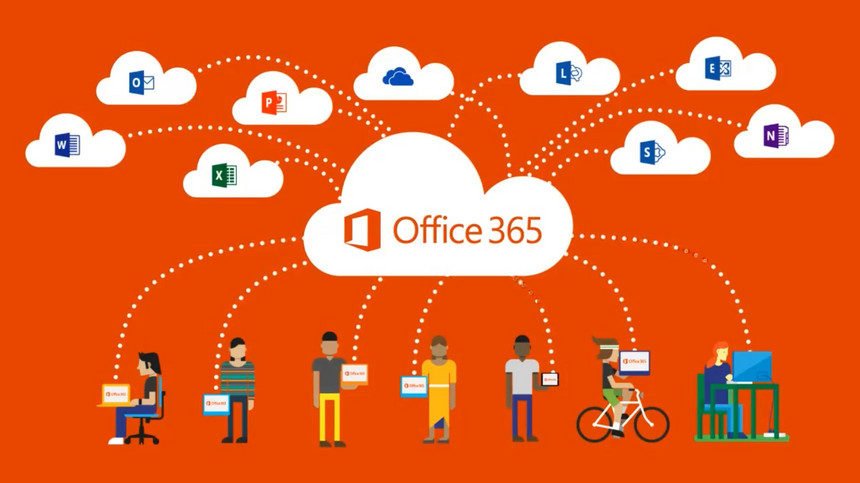
Here's a number that should concern every IT leader: the average organization wastes 25-40% of its Microsoft 365 licensing spend. That's not a typo. Across 500+ M365 environments we've audited, we consistently find thousands of dollars in monthly waste — unused licenses, over-provisioned plans, duplicate capabilities from third-party tools, and features sitting dormant that could replace paid add-ons.
For a 200-user organization on E3 licensing, that waste amounts to $25,920-$41,472 per year. For enterprises with 1,000+ seats, the number crosses six figures annually.
This guide walks through 15 proven optimization strategies, organized from quick wins (implement this week) to strategic changes (plan over 90 days). Every recommendation includes specific dollar savings and step-by-step implementation guidance.
The Microsoft 365 Overspending Problem: By the Numbers
| Waste Category | Prevalence | Average Waste per 100 Users/Year |
|---|---|---|
| Unused or inactive licenses | 92% of organizations | $8,640-$15,120 |
| Over-provisioned license tiers | 78% of organizations | $12,000-$28,800 |
| Duplicate third-party tools | 65% of organizations | $6,000-$18,000 |
| Unoptimized add-on purchases | 45% of organizations | $3,600-$12,000 |
| Missed volume/commitment discounts | 55% of organizations | $4,800-$14,400 |
| Total potential savings | $35,040-$88,320/year |
Phase 1: Quick Wins (Week 1-2)
Strategy 1: Reclaim Unused Licenses
Potential savings: $7-57/user/month per reclaimed license
The single biggest source of M365 waste is licenses assigned to users who don't use them — departed employees, shared accounts that were never cleaned up, service accounts with full licenses, and users who simply never adopted the platform.
How to identify unused licenses:
- Open Microsoft 365 Admin Center → Reports → Usage
- Review the Active Users report for the last 90 days
- Export to Excel and filter for users with zero activity across all workloads
- Cross-reference with HR data to identify departed employees
- Check for service accounts that don't need full licenses
Benchmark: We typically find 8-15% of licenses are completely unused. For a 200-user E3 tenant ($36/user/month), reclaiming just 10% of licenses saves $8,640/year.
For organizations without dedicated IT staff, a managed IT services provider can automate license reclamation with monthly usage reviews.
Strategy 2: Right-Size License Tiers
Potential savings: $10-33/user/month per downgraded license
Not every user needs the same license tier. The most common mistake we see: giving every employee an E3 or E5 license when many only use email and basic Office apps.
| User Profile | What They Actually Use | Recommended License | Monthly Cost |
|---|---|---|---|
| Executive / Power User | All apps, compliance, analytics | E5 | $57.00 |
| Knowledge Worker | Office apps, email, Teams, SharePoint | E3 | $36.00 |
| Information Worker | Email, Teams, basic Office (web) | Business Standard | $12.50 |
| Frontline Worker | Email, Teams on mobile, simple tasks | F3 | $8.00 |
| Email-Only User | Just email and calendar | Exchange Online Plan 1 | $4.00 |
| Meeting Room / Shared | Calendar booking only | Room Mailbox (free) | $0.00 |
Example savings: A 200-user organization where everyone has E3 ($36/month) but the actual need breaks down as: 30 E5, 70 E3, 60 Business Standard, 30 F3, 10 Exchange Online P1.
| Scenario | Monthly Cost | Annual Cost |
|---|---|---|
| Current: 200 × E3 | $7,200 | $86,400 |
| Optimized: Mixed licensing | $5,290 | $63,480 |
| Annual savings | $22,920 (26.5%) |
Strategy 3: Convert Shared Mailboxes
Potential savings: $4-36/month per converted mailbox
Many organizations pay for licensed user mailboxes that should be shared mailboxes (which are free up to 50 GB). Common examples:
- info@, sales@, support@, billing@ — these should be shared mailboxes
- Departed employee mailboxes kept for access — convert to shared
- Department mailboxes — shared mailboxes with delegated access
Steps to convert:
- Admin Center → Users → Active Users → Select user
- Mail tab → Convert to shared mailbox
- Remove the license (saves $4-36/month per mailbox)
- Assign delegate access to the users who need it
Limitation: Shared mailboxes are limited to 50 GB without a license. If the mailbox exceeds 50 GB, you'll need to either archive old mail or keep the license.
Strategy 4: Eliminate Room/Resource Mailbox Licenses
Potential savings: $4-36/month per room
Conference rooms and equipment (projectors, vehicles, etc.) don't need paid licenses. A Room Mailbox in Exchange Online is free and provides calendar booking without a license.
We routinely find 5-20 room/resource accounts with full E3 licenses. For 10 rooms on E3, that's $4,320/year in pure waste.
Phase 2: Strategic Optimization (Week 3-6)
Strategy 5: Audit and Eliminate Redundant Third-Party Tools
Potential savings: $3-15/user/month in third-party costs
Microsoft 365 E3 and E5 include capabilities that many organizations pay separately for. Here are the most common redundancies:
| Third-Party Tool | Cost/User/Month | M365 Built-In Replacement | Included In |
|---|---|---|---|
| Zoom | $13.33 | Microsoft Teams | All plans |
| Slack | $8.75 | Microsoft Teams | All plans |
| Dropbox Business | $15.00 | OneDrive + SharePoint | All plans |
| DocuSign | $10-25 | Adobe Acrobat in M365 (limited) | E3+ |
| Trello / Asana | $5-10.99 | Microsoft Planner + Lists | All plans |
| SurveyMonkey | $25-75/month flat | Microsoft Forms | All plans |
| Mimecast / Proofpoint | $3-6 | Defender for Office 365 | Business Premium, E5 |
| LastPass / 1Password | $4-7 | Entra ID SSO + Conditional Access | E3+ |
| Power BI Pro (third-party BI) | $10-30 | Power BI Pro | E5 (included) |
| Vonage / RingCentral | $20-35 | Teams Phone | Add-on ($8-15) |
Action plan: Create a SaaS inventory spreadsheet listing every tool, its cost, number of users, and whether M365 has an equivalent. Prioritize eliminating tools where M365 provides 80%+ feature parity.
Our IT consulting team provides complimentary SaaS rationalization audits that typically identify $8,000-$40,000 in annual savings for mid-sized organizations.
Strategy 6: Leverage Microsoft 365 Features You're Already Paying For
Potential savings: Indirect — maximizes ROI of existing spend
Most organizations use less than 30% of M365's capabilities. Here are high-value features that are included but rarely activated:
| Feature | What It Does | Included In | Adoption Rate |
|---|---|---|---|
| Power Automate | Workflow automation (500 runs/month free) | All plans | ~12% |
| Microsoft Bookings | Online appointment scheduling | Business Standard+ | ~8% |
| Microsoft Lists | Structured data tracking (replaces Airtable) | All plans | ~15% |
| SharePoint News | Internal communications (replaces intranet tools) | All plans | ~20% |
| Microsoft Stream | Internal video hosting | All plans | ~10% |
| Viva Insights | Productivity analytics | E3+ | ~5% |
| Compliance Manager | Compliance posture tracking | E3+ | ~8% |
| Information Protection | Sensitivity labels, DLP | E3+ | ~18% |
| Defender for Office 365 | Advanced email threat protection | Business Premium, E5 | ~35% |
Strategy 7: Optimize Add-On Purchases
Potential savings: $5-30/user/month per optimized add-on
Common add-on mistakes we find:
- Buying Copilot for all users — Start with 10-15% of users who will actually benefit. At $30/user/month, deploying to 200 users costs $72,000/year. Piloting with 30 power users costs $10,800/year while you validate ROI.
- Buying Power BI Pro separately when on E5 — E5 includes Power BI Pro. If you upgraded to E5, cancel standalone Power BI Pro licenses.
- Buying Teams Phone for all users — Only users who make/receive external calls need Phone licenses. Internal Teams calling is free.
- Buying Defender P2 separately when on E5 — E5 includes Defender for Office 365 Plan 2.
- Buying Azure AD P2 add-on when on E5 — E5 includes Entra ID P2.
Strategy 8: Implement License Lifecycle Automation
Potential savings: Prevents $500-2,000/month in ongoing waste
Manual license management inevitably leads to waste. Automate with:
- Group-based licensing: Assign licenses via Entra ID groups tied to departments/roles. When a user changes roles, their license automatically adjusts.
- Automated offboarding: Use Power Automate or Entra ID lifecycle workflows to automatically convert departing employee mailboxes to shared and reclaim licenses.
- Quarterly usage reviews: Schedule automated reports showing license utilization by user, flagging accounts with zero activity for 60+ days.
- Self-service license requests: Instead of blanket provisioning, let users request specific capabilities through an approval workflow.
Phase 3: Advanced Optimization (Month 2-3)
Strategy 9: Negotiate Volume and Commitment Discounts
Potential savings: 5-20% off list price
Microsoft offers significant discounts that many organizations don't leverage:
| Discount Type | Eligibility | Typical Savings |
|---|---|---|
| Annual commitment (vs monthly) | Any organization | 16-20% |
| CSP partner pricing | Through authorized partner | 5-15% |
| Enterprise Agreement (EA) | 500+ seats | 10-20% |
| Nonprofit pricing | Qualifying nonprofits | Up to 75% |
| Education pricing | Qualifying institutions | Up to 80% |
| Government pricing | Government entities | 10-30% |
Key tip: Working with a Microsoft 365 authorized partner often provides better pricing than purchasing directly from Microsoft, plus you get migration support and ongoing management included.
Strategy 10: Consolidate Tenants
Potential savings: $2,000-20,000+/year for multi-tenant organizations
Organizations that grew through acquisitions often have multiple M365 tenants. Each tenant requires separate licensing, administration, and security configuration. Consolidating into a single tenant:
- Eliminates duplicate administrative overhead
- Enables unified security policies and compliance management
- Allows shared resources (meeting rooms, shared mailboxes) across the organization
- Simplifies user experience with single identity
Tenant consolidation is complex and requires careful migration planning — typically 3-6 months for organizations with 500+ users across multiple tenants.
Strategy 11: Optimize Storage Before Buying Add-Ons
Potential savings: $2-5/user/month in avoided storage add-ons
Before purchasing additional storage:
- Implement retention policies to automatically delete old content (E3/E5 include this)
- Archive inactive sites in SharePoint to free up quota
- Enable OneDrive Known Folder Move to prevent local duplicates
- Review and clean up orphaned SharePoint sites — inactive project sites accumulate rapidly
- Use Exchange Online Archiving (included in E3/E5) to offload old email from primary mailboxes
Strategy 12: Right-Size Copilot Deployment
Potential savings: $18,000-$54,000/year for premature full deployments
Microsoft Copilot at $30/user/month is a significant investment. Our deployment data shows:
| User Segment | Copilot ROI | Recommendation |
|---|---|---|
| Executives (reports, email volume) | High — saves 5-8 hrs/week | Deploy immediately |
| Sales (proposals, email follow-ups) | High — saves 4-6 hrs/week | Deploy in wave 1 |
| Marketing (content creation) | Medium-High — saves 3-5 hrs/week | Deploy in wave 1 |
| HR (policies, communications) | Medium — saves 2-4 hrs/week | Deploy in wave 2 |
| IT (documentation, PowerShell) | Medium — saves 2-3 hrs/week | Deploy in wave 2 |
| Finance (Excel analysis) | Variable — depends on complexity | Pilot first |
| Frontline workers | Low — minimal document creation | Skip or defer |
| Part-time / seasonal | Low | Skip |
Optimal deployment: Start with 15-20% of users in high-ROI roles, measure time savings over 60 days, then expand to additional segments only where the data supports it.
Strategy 13: Leverage E5 Security Features to Eliminate Third-Party Security Spend
Potential savings: $8-25/user/month in third-party security tools
If you're on E5, these security capabilities are included but often underutilized while organizations continue paying for third-party equivalents:
| E5 Feature | Replaces | Third-Party Cost Saved |
|---|---|---|
| Defender for Office 365 P2 | Mimecast, Proofpoint | $3-6/user/month |
| Defender for Endpoint P2 | CrowdStrike, SentinelOne | $5-15/user/month |
| Defender for Identity | Third-party identity protection | $2-5/user/month |
| Microsoft Sentinel (5 GB/day free) | Splunk, LogRhythm | Variable |
| Entra ID P2 | Okta, Ping Identity | $3-8/user/month |
| Information Protection | Vera, Virtru | $2-5/user/month |
| Insider Risk Management | DTEX, Teramind | $5-10/user/month |
Implementing these native security features requires expertise. Our security-focused IT team can assess your current security stack and create a consolidation roadmap.
Strategy 14: Implement Chargeback or Showback Models
Potential savings: 10-20% reduction through accountability
When departments see the cost of their M365 consumption, behavior changes. Implement a showback model that reports per-department licensing costs monthly. Organizations that implement chargeback or showback consistently see 10-20% cost reduction within 6 months as department managers:
- Request license downgrades for employees who don't need premium features
- Report departed employees faster
- Reduce unnecessary add-on requests
- Challenge whether all team members need Copilot
Strategy 15: Annual License Optimization Review
Potential savings: Prevents 15-25% annual cost creep
Microsoft increases M365 pricing every 12-18 months. Without annual reviews, costs creep up through:
- Price increases on existing plans (M365 E3 increased from $32 to $36 in 2024)
- New users added without right-sizing
- Add-on accumulation without ROI validation
- Organizational changes that shift license requirements
Annual review checklist:
- Export full license inventory from Admin Center
- Run usage reports for all workloads (email, Teams, SharePoint, OneDrive)
- Cross-reference with HR headcount and role data
- Identify license tier mismatches (Strategy 2)
- Review add-on ROI (Copilot, Phone, etc.)
- Check renewal terms and negotiate pricing (Strategy 9)
- Validate third-party tool redundancy (Strategy 5)
- Document optimization actions and projected savings
Implementation Roadmap: 90-Day Optimization Plan
| Week | Actions | Expected Savings |
|---|---|---|
| 1-2 | Reclaim unused licenses, convert shared mailboxes, fix room licenses | 5-10% immediate |
| 3-4 | Right-size license tiers, audit third-party tools | 15-25% cumulative |
| 5-8 | Implement group-based licensing, automate lifecycle, optimize add-ons | 20-30% cumulative |
| 9-12 | Negotiate pricing, consolidate tenants, implement chargeback | 25-35% cumulative |
Cost Optimization Checklist
Use this checklist to track your optimization progress:
- ☐ Run M365 usage reports and identify inactive licenses (90+ days no activity)
- ☐ Reclaim all unused licenses and convert to shared mailboxes where appropriate
- ☐ Audit current license tiers against actual user needs — create a tier matrix
- ☐ Remove licenses from room/resource mailboxes and service accounts
- ☐ Create SaaS inventory and identify M365-replaceable third-party tools
- ☐ Implement group-based licensing in Entra ID
- ☐ Set up automated offboarding workflow for license reclamation
- ☐ Review and optimize Copilot deployment (high-ROI roles only)
- ☐ Audit E5 security features vs third-party security spend
- ☐ Evaluate annual commitment pricing vs monthly billing
- ☐ Review partner/CSP pricing options vs direct Microsoft purchasing
- ☐ Implement storage optimization before buying storage add-ons
- ☐ Set up monthly license cost reporting by department
- ☐ Schedule annual license optimization review
- ☐ Document baseline costs and track savings over time
Frequently Asked Questions
Can I mix license types within the same M365 tenant?
Yes. A single M365 tenant can have users on E5, E3, Business Standard, F3, Exchange Online, and other plans simultaneously. Group-based licensing in Entra ID makes managing mixed environments straightforward. This is the #1 optimization strategy and has no technical drawbacks.
Will downgrading licenses disrupt users?
Potentially, if done incorrectly. Before downgrading a user from E3 to Business Standard, verify they don't use E3-only features (Advanced eDiscovery, Information Protection labels, etc.). Always communicate changes to affected users 2 weeks before implementation and provide documentation on feature differences.
How often should we review M365 licensing?
Quarterly usage reviews with a comprehensive annual audit. Set calendar reminders 90 days before your agreement renewal to negotiate pricing. Organizations with high employee turnover (retail, hospitality) should review monthly.
Is it cheaper to buy M365 directly from Microsoft or through a partner?
Through a partner, almost always. CSP (Cloud Solution Provider) partners like Medha Cloud receive wholesale pricing and typically pass savings to customers. Partners also include migration support, ongoing management, and direct escalation paths to Microsoft that direct customers don't get.
What's the ROI timeline for Copilot?
Based on our deployment data, high-ROI users (executives, sales, content creators) see positive ROI within 30 days. Average knowledge workers take 60-90 days. If a user hasn't shown measurable time savings after 90 days, reallocate their Copilot license to another user.
Should we move from E5 to E3 + add-ons to save money?
Only if you're using fewer than 3 of the E5-exclusive features. E5 bundles Defender for Endpoint P2, Defender for Office 365 P2, Entra ID P2, Power BI Pro, Phone System, and advanced compliance. Buying these individually often costs more than the E5 bundle. Do the math for your specific feature usage before downgrading.
Get a Free M365 Cost Optimization Assessment
Stop overpaying for Microsoft 365. Contact Medha Cloud for a complimentary license optimization assessment. We'll analyze your current tenant, identify specific savings opportunities, and provide a prioritized optimization roadmap — typically uncovering $15,000-$75,000 in annual savings for mid-sized organizations.
Our IT consulting team has optimized M365 licensing for 500+ organizations across healthcare, finance, education, and technology sectors. Whether you need a one-time audit or ongoing managed IT services with continuous license optimization, we can help.
Related Resources
Boost productivity and security with Microsoft 365 E3 — enterprise-grade tools at competitive pricing.
Microsoft 365 E3 Plans & PricingTopics
Sreenivasa Reddy G
Founder & CEO • 15+ years
Sreenivasa Reddy is the Founder and CEO of Medha Cloud, recognized as "Startup of the Year 2024" by The CEO Magazine. With over 15 years of experience in cloud infrastructure and IT services, he leads the company's vision to deliver enterprise-grade cloud solutions to businesses worldwide.
More in Microsoft 365
View all
SharePoint Support: Microsoft Options & Third Party
8 min read
SharePoint Permissions: Levels, Groups & Inheritance
9 min read
SharePoint 2016 & 2019 End of Life: Dates & Options
9 min read
SharePoint Server Subscription Edition: Licensing & Upgrade
9 min read
SharePoint Document Library: Setup, Views & Limits
9 min read
SharePoint vs OneDrive: Differences & When to Use Each
8 min read