
How to Screenshot on Windows, Mac & Chromebook — Every Method (2026)

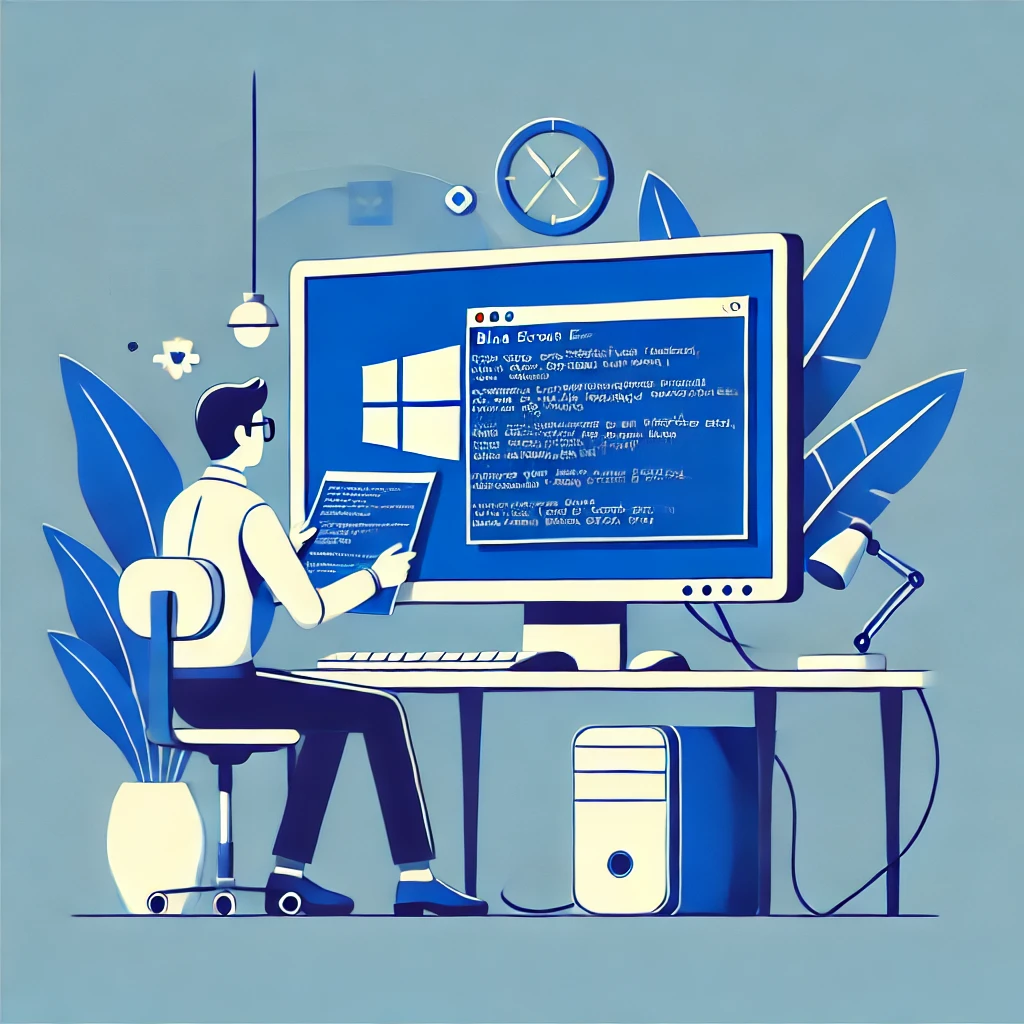
Need to take a screenshot? Whether you're on Windows, Mac, or Chromebook, this guide covers every single method — from quick keyboard shortcuts to advanced tools that let you capture, annotate, and share.
I've been supporting IT environments for over 24 years, and taking screenshots is something we do dozens of times a day — for documentation, troubleshooting, and team communication. Here's every method I know, organized by operating system.
Quick Reference — Copy This
| What You Want | Windows | Mac | Chromebook |
|---|---|---|---|
| Full screen screenshot | PrtScn or Win + PrtScn | Cmd + Shift + 3 | Ctrl + Show Windows |
| Selected area | Win + Shift + S | Cmd + Shift + 4 | Ctrl + Shift + Show Windows |
| Single window | Alt + PrtScn | Cmd + Shift + 4 then Space | Ctrl + Alt + Show Windows |
| With built-in tool | Snipping Tool | Screenshot app (Cmd+Shift+5) | Screen Capture |
Table of Contents
Windows How to Screenshot on Windows 10 & 11
Windows gives you at least 6 different ways to take a screenshot. Here's each method, when to use it, and where the screenshot ends up.
1 Win + Shift + S (Best Method)
This is the fastest and most flexible way to screenshot on Windows. It opens a small toolbar at the top of your screen with four capture modes:
- Rectangular snip — drag to select any area
- Freeform snip — draw any shape to capture
- Window snip — click any window to capture it
- Full-screen snip — captures everything
After you capture, the screenshot is copied to your clipboard. You'll see a notification in the bottom-right corner — click it to open Snipping Tool where you can annotate, crop, and save.
2 Print Screen (PrtScn) Key
The classic method. Just press the Print Screen key on your keyboard. It copies a screenshot of your entire screen to the clipboard.
After pressing it, open any app (Paint, Word, Outlook, etc.) and press Ctrl + V to paste the screenshot. Then save it from there.
3 Win + PrtScn (Auto-Save)
If you don't want to deal with pasting and saving — this shortcut captures the full screen AND automatically saves it as a PNG file.
Your screen will briefly flash or dim — that means it worked. The file is saved automatically.
4 Alt + PrtScn (Active Window Only)
When you only want to capture the window you're currently using — not the entire screen.
This captures just the active (focused) window and copies it to clipboard. Useful when you have multiple monitors or don't want to crop later.
5 Snipping Tool (Full Editor)
Snipping Tool comes pre-installed on Windows 10 and 11. It's the built-in screenshot app with editing features.
How to open it:
- Press Win + Shift + S (quick capture mode)
- Or search "Snipping Tool" in the Start menu
- Or press Win + S, type "snip", and hit Enter
What you can do with it:
- Take rectangular, freeform, window, or fullscreen snips
- Set a delay timer (3, 5, or 10 seconds) — useful for capturing menus
- Annotate with pen, highlighter, and text
- Crop, undo, and share directly
- Record your screen (video) — yes, Snipping Tool does screen recording now
6 Xbox Game Bar (Win + G)
Originally designed for gamers, but works anywhere. Useful for taking screenshots while gaming or in full-screen apps.
This opens the Game Bar overlay. Click the camera icon or press Win + Alt + PrtScn to capture.
Mac How to Screenshot on Mac
Mac has some of the cleanest screenshot shortcuts of any operating system. Once you learn these three key combos, you'll never need a third-party tool.
1 Cmd + Shift + 3 (Full Screen)
Captures your entire screen instantly and saves it as a file on your desktop.
You'll see a thumbnail preview in the bottom-right corner. Click it to annotate, or wait a few seconds for it to save automatically.
2 Cmd + Shift + 4 (Selected Area)
Your cursor turns into a crosshair. Click and drag to select the exact area you want to capture.
Bonus trick: After pressing Cmd+Shift+4, hit the Spacebar — your cursor turns into a camera icon. Now click any window to capture just that window, complete with a nice drop shadow.
3 Cmd + Shift + 5 (Screenshot Toolbar)
Opens the full screenshot toolbar with all options in one place.
From the toolbar, you can choose:
- Capture entire screen
- Capture selected window
- Capture selected area
- Record entire screen (video)
- Record selected area (video)
Click "Options" to change where screenshots are saved, set a timer, or toggle showing the mouse cursor.
4 Cmd + Shift + 4 + Space (Single Window)
The cleanest way to capture a single window on Mac — includes the window shadow for a professional look.
Click the window you want to capture. Hold Option while clicking to remove the shadow from the screenshot.
5 Copy to Clipboard Instead of Saving
Add Control to any Mac screenshot shortcut to copy to clipboard instead of saving as a file.
| Save as File | Copy to Clipboard |
|---|---|
| Cmd + Shift + 3 | Cmd + Ctrl + Shift + 3 |
| Cmd + Shift + 4 | Cmd + Ctrl + Shift + 4 |
Then paste anywhere with Cmd + V.
Chromebook How to Screenshot on Chromebook
Chromebooks have their own screenshot shortcuts. The key difference is the "Show Windows" key (the rectangle with two lines) — it's the key that looks like a stack of windows, usually located where F5 would be on a regular keyboard.
1 Ctrl + Show Windows (Full Screen)
Captures the entire screen. A notification appears in the bottom-right with a preview.
2 Ctrl + Shift + Show Windows (Selected Area)
Your cursor turns into a crosshair. Click and drag to select the area you want.
3 Ctrl + Alt + Show Windows (Active Window)
Click the window you want to capture.
4 Screen Capture Tool (Quick Settings)
Click the clock in the bottom-right corner → click "Screen capture" in Quick Settings. This opens a toolbar with options for screenshots and screen recording — similar to Mac's Cmd+Shift+5.
You can also access it from the shelf (taskbar) if you pin it there.
Where Are Screenshots Saved?
| Platform | Default Save Location | Clipboard? |
|---|---|---|
| Windows (Win+PrtScn) | C:\Users\YourName\Pictures\Screenshots\ | Also copied to clipboard |
| Windows (PrtScn only) | Not saved — clipboard only | Yes |
| Windows (Win+Shift+S) | Not auto-saved — clipboard only | Yes, click notification to save |
| Windows (Game Bar) | C:\Users\YourName\Videos\Captures\ | No |
| Mac (all shortcuts) | Desktop (default) | Add Ctrl to copy instead |
| Chromebook | Downloads folder | Also available in clipboard |
Pro Tips for Better Screenshots
- Clean up before capturing. Close unnecessary tabs, hide bookmarks bar, and remove desktop clutter. A clean screenshot looks more professional.
- Use a delay for menus. In Snipping Tool (Windows) or Cmd+Shift+5 (Mac), set a 3-5 second delay so you can open the dropdown menu before the screenshot fires.
- Annotate right away. Both Windows Snipping Tool and Mac Preview let you add arrows, boxes, and text. Do it immediately — you'll forget what to highlight later.
- Use Ctrl+V to paste into chat apps. Most apps (Slack, Teams, WhatsApp Web, Discord) let you paste screenshots directly from clipboard. No need to save as a file first.
- Multiple monitors? PrtScn captures all screens. Use Win+Shift+S or Alt+PrtScn to capture just one display or window.
What If My Laptop Doesn't Have a Print Screen Key?
Some laptops (especially compact ones like Surface, Dell XPS, and Chromebooks) don't have a dedicated PrtScn key. Here's what to do:
- Surface devices: Press Power + Volume Up simultaneously
- Laptops with Fn key: Try Fn + PrtScn or Fn + Win + Space
- Any Windows device: Just use Win + Shift + S — it works everywhere, no PrtScn needed
- Tablets: Press Power + Home button simultaneously
Frequently Asked Questions
How do I take a screenshot on Windows without Print Screen key?
Press Win + Shift + S. This opens the Snipping Tool capture mode and works on every Windows 10 and 11 device, even without a Print Screen key. You can also open Snipping Tool from the Start menu.
How do I screenshot just one window?
On Windows: press Alt + PrtScn. On Mac: press Cmd + Shift + 4 then Space, then click the window. On Chromebook: press Ctrl + Alt + Show Windows, then click the window.
Where do screenshots go on Windows 11?
It depends on the method. Win + PrtScn saves to Pictures\Screenshots. Win + Shift + S copies to clipboard (click the notification to save). PrtScn alone only copies to clipboard — you need to paste it into an app and save manually.
Can I take a screenshot with a delay or timer?
Yes. On Windows, open Snipping Tool → click the clock icon → choose 3, 5, or 10 seconds. On Mac, press Cmd+Shift+5 → click Options → choose your timer. This is essential for capturing dropdown menus or tooltips.
How do I take a scrolling screenshot?
Windows and Mac don't natively support scrolling screenshots. You need a third-party tool like ShareX (free, Windows) or Shottr (free, Mac). In Chrome, you can use the built-in Developer Tools: press F12 → Ctrl+Shift+P → type "screenshot" → choose "Capture full-size screenshot."
How do I record my screen instead of a screenshot?
On Windows 11: Open Snipping Tool → click the video camera icon → click New → select area → click Start. On Mac: Press Cmd+Shift+5 → choose "Record Entire Screen" or "Record Selected Area." On Chromebook: Use the Screen Capture tool from Quick Settings.
What's the best screenshot format — PNG or JPG?
PNG for screenshots with text (sharper, no compression artifacts). JPG for photos or screenshots where file size matters. Windows saves as PNG by default, which is the right choice for most screenshots.
Let our certified engineers handle your Exchange migration with zero data loss and minimal downtime.
Professional Exchange MigrationTopics
Sreenivasa Reddy G
Founder & CEO • 15+ years
Sreenivasa Reddy is the Founder and CEO of Medha Cloud, recognized as "Startup of the Year 2024" by The CEO Magazine. With over 15 years of experience in cloud infrastructure and IT services, he leads the company's vision to deliver enterprise-grade cloud solutions to businesses worldwide.
More in Managed IT Services
View all
Salesforce Layoffs 2026: Numbers, Timeline & What Is Known
8 min read
Cisco Layoffs 2026: Numbers, Timeline & What Is Known
8 min read
Intel Layoffs 2026: Numbers, Timeline & What Is Known
8 min read
Microsoft Layoffs 2026: Numbers, Timeline & What Is Known
8 min read

Oracle Layoffs 2026: Numbers, Timeline & What Is Known
9 min read
Meta Layoffs 2026: Numbers, Timeline & What Is Known
8 min read