
Step-by-step guide to removing members from a Security Group in Office 365
Managing security groups in Office 365 allows administrators to control access to resources and permissions for users across the organization. If a user no longer requires access, you can remove them from the security group to ensure security and compliance. This guide will walk you through how to remove members from a security group in Office 365.
Step 1: Log in to Office 365 with Admin privileges
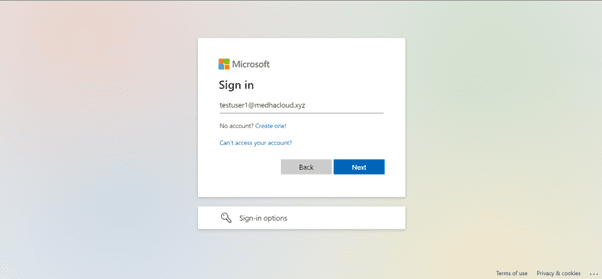
As with most administrative tasks, start by logging into Office 365 using an admin account. Only users with administrative privileges can manage security group membership.
Step 2: Open the Admin panel
Once logged in, go to the Admin app from the Office 365 app launcher (the grid icon in the upper left corner). This will take you to the Office 365 Admin Center, where you can manage groups and their members.

Step 3: Navigate to groups > Active groups
In the Admin Center, click on Groups from the left-hand panel, then select Active Groups. This will display a list of all active groups, including security groups, within your organization.

Step 4: Select the Security Group
From the list of active groups, select the security group from which you want to remove members. This will open the group’s details.
Step 5: View members of the Group
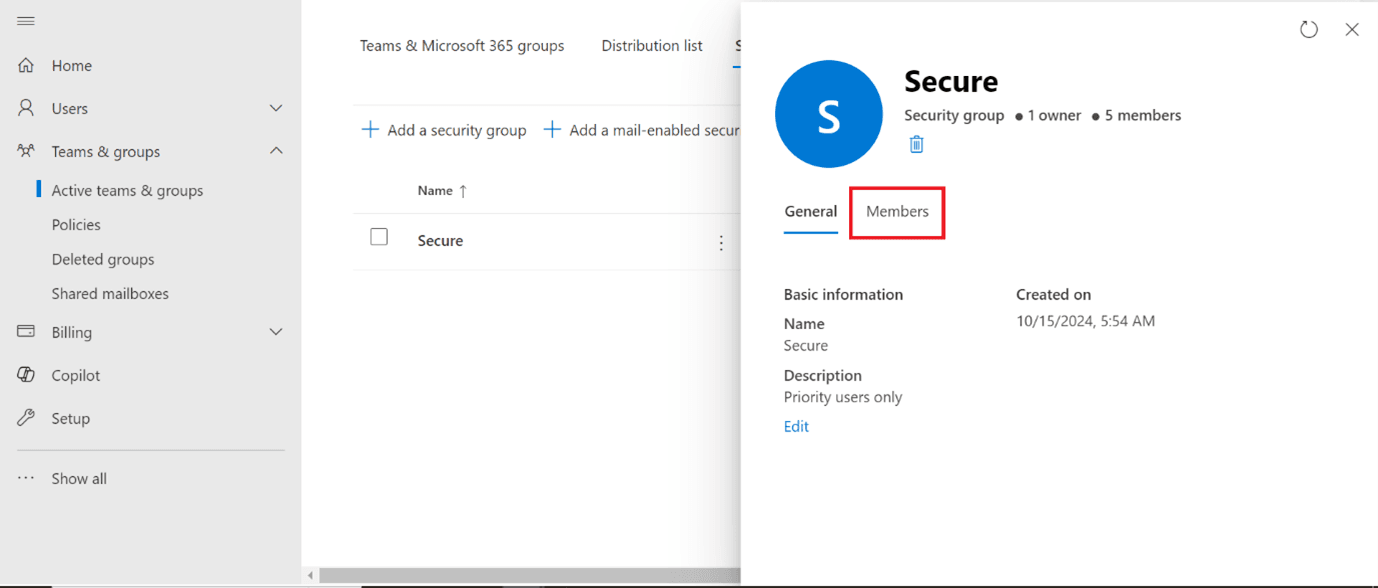
In the security group’s details page, navigate to the Members tab. Here, you will see a list of all users who are currently part of this security group.
Step 6: Remove a Member from the Group
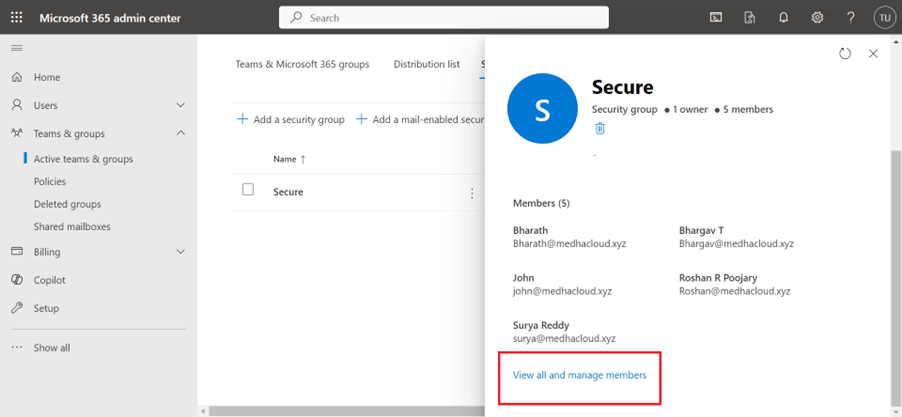
To remove a member, find the user’s name in the list and click the Remove button next to their name. This will revoke their access to the resources and permissions associated with the security group.
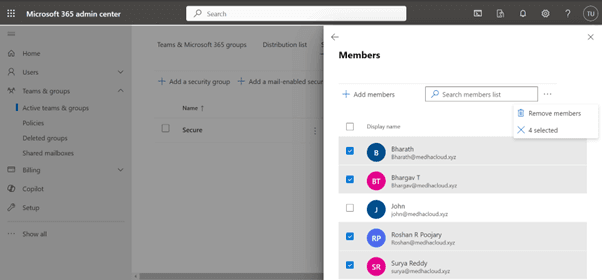
Step 7: Confirm the removal
After clicking Remove, you may be asked to confirm that you want to remove the member from the security group. Confirm the action to proceed.
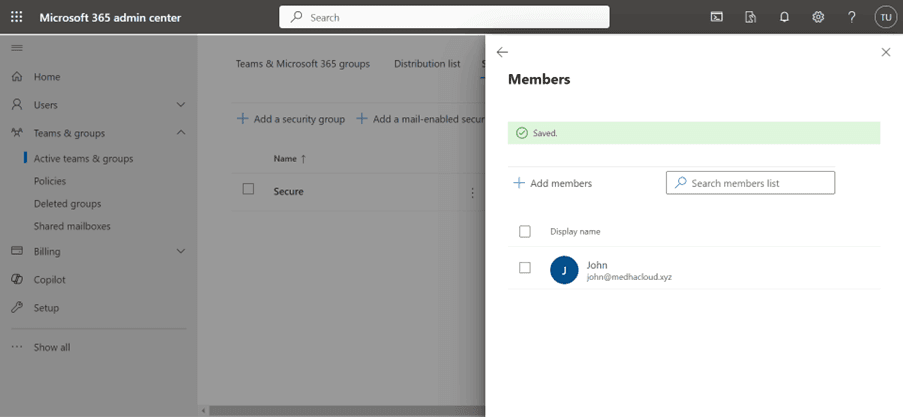
Step 8: Save the changes
After removing the member, make sure to save your changes. The user will no longer have the permissions or access granted by the security group.
Step 9: Verify the removal (optional)
You can return to the Members tab of the security group to verify that the user has been successfully removed. The user’s name should no longer appear in the list.
By following these steps, you can efficiently manage and remove members from a security group in Office 365, ensuring that only authorized users have access to sensitive resources and permissions.
For more help managing security groups or other Office 365 tasks, contact Medha Cloud today. We’re here to assist you in securing and optimizing your Office 365 environment.
Compare Microsoft 365 plans and find the right license for your organization.
Compare Microsoft 365 LicensesTopics
Bharath Kumar
Senior Microsoft 365 Consultant • 8+ years
Bharath is a Senior Microsoft 365 Consultant specializing in enterprise productivity solutions and white-label IT services. He has successfully deployed Microsoft 365 for over 200 organizations and helps MSPs build scalable white-label partnerships.
More in Microsoft 365
View all
SharePoint Support: Microsoft Options & Third Party
8 min read
SharePoint Permissions: Levels, Groups & Inheritance
9 min read

SharePoint 2016 & 2019 End of Life: Dates & Options
9 min read
SharePoint Server Subscription Edition: Licensing & Upgrade
9 min read
SharePoint Document Library: Setup, Views & Limits
9 min read
SharePoint vs OneDrive: Differences & When to Use Each
8 min read