
Google Workspace to Microsoft 365 Migration: The Complete 2026 Playbook (Gmail, Drive, and Shared Drives)

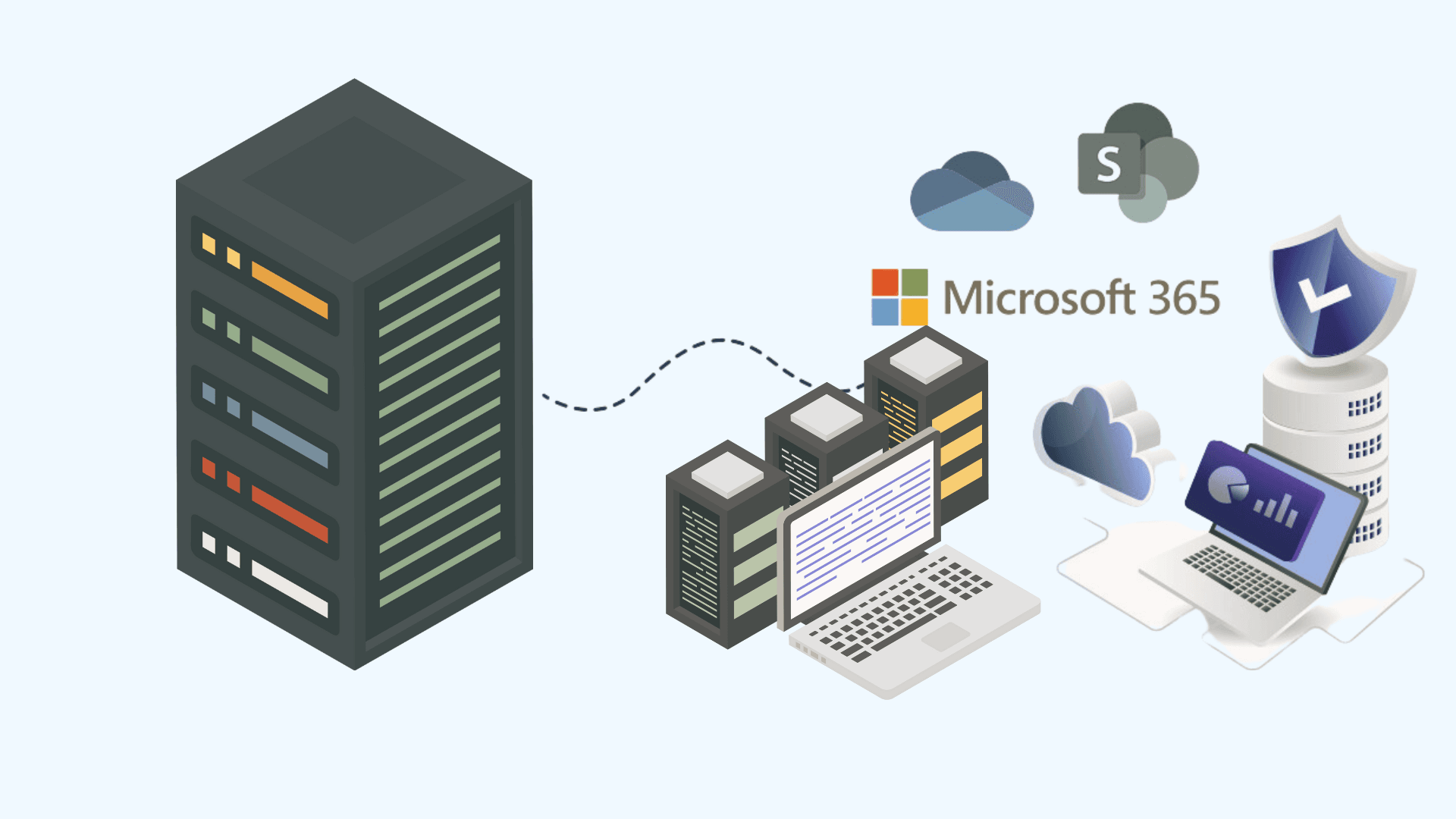
Migrating from Google Workspace to Microsoft 365 is one of the most consequential infrastructure decisions an organization can make in 2026. Whether you are driven by advanced security requirements, deeper desktop-app integration, or the need for enterprise compliance frameworks, the migration touches every user, every file, and every workflow in your business.
This playbook is the definitive resource for IT administrators, MSPs, and decision-makers planning a Google Workspace to Microsoft 365 migration. We cover every stage — from the initial business case through post-migration security hardening — with data tables, tool comparisons, timeline estimates, and real-world pitfall warnings drawn from hundreds of migrations our team at Medha Cloud Migration Services has completed.
If you are still evaluating whether Microsoft 365 is the right fit, start with our Microsoft 365 vs Google Workspace comparison. If you have already decided to migrate, read on.
Why Organizations Switch from Google Workspace to Microsoft 365 in 2026
The shift from Google Workspace to Microsoft 365 accelerated sharply in 2025 and shows no signs of slowing in 2026. According to Gartner, Microsoft 365 now commands approximately 48% of the enterprise productivity suite market, with Google Workspace at roughly 26%. Several factors explain the momentum:
1. Enterprise Security and Compliance
Microsoft 365 E3 and E5 plans include Microsoft Defender for Office 365, Microsoft Purview Information Protection, Data Loss Prevention (DLP), and Advanced eDiscovery — capabilities that require third-party add-ons in Google Workspace. For organizations in healthcare, finance, or government, the built-in HIPAA, HITRUST, FedRAMP, and SOC 2 compliance controls in Microsoft 365 reduce audit friction significantly. Our security and compliance hosting practice regularly sees companies migrating specifically for these controls.
2. Desktop Application Depth
While Google Docs, Sheets, and Slides are capable web applications, enterprises that depend on Excel macros, VBA automation, advanced PowerPoint animations, or Access databases find no substitute in Google Workspace. Microsoft 365 provides fully installed desktop apps on up to five devices per user, plus web and mobile versions.
3. Hybrid and On-Premises Integration
Organizations with Active Directory, on-premises Exchange, or Azure-hosted workloads benefit from the native integration that Microsoft 365 provides through Entra ID (formerly Azure AD), Entra Connect, and hybrid Exchange deployments. Google Workspace's directory integration, while improved, still requires GCDS (Google Cloud Directory Sync) and additional middleware for deep AD integration.
4. Copilot and AI-Powered Productivity
Microsoft Copilot, deeply embedded in Word, Excel, PowerPoint, Outlook, and Teams, delivers generative AI assistance across the entire productivity suite. While Google has Gemini integration, Microsoft's enterprise AI strategy has a broader footprint across business applications, security operations, and developer tools.
5. Cost Optimization at Scale
For organizations already using Azure, Dynamics 365, or Power Platform, consolidating onto Microsoft 365 often produces volume licensing savings of 15–30%. Our IT consulting team frequently helps clients model the total cost of ownership before committing.
Google Workspace to Microsoft 365 Data Mapping
Before planning the migration, you need a clear mapping of where every Google service lands in the Microsoft ecosystem. The following table covers the primary services:
| Google Workspace Service | Microsoft 365 Equivalent | Notes |
|---|---|---|
| Gmail | Exchange Online (Outlook) | Labels → Folders; Filters → Rules |
| Google Calendar | Outlook Calendar | Recurring events may need verification |
| Google Contacts | Outlook Contacts / Exchange GAL | Contact groups → Distribution lists |
| Google Drive (My Drive) | OneDrive for Business | 1 TB–5 TB per user depending on plan |
| Google Shared Drives | SharePoint Online Document Libraries | Permissions model differs significantly |
| Google Docs | Microsoft Word (online + desktop) | Formatting may shift on complex docs |
| Google Sheets | Microsoft Excel (online + desktop) | Google Apps Script → Office Scripts / VBA |
| Google Slides | Microsoft PowerPoint | Embedded videos may need re-linking |
| Google Forms | Microsoft Forms | Responses do not migrate automatically |
| Google Sites | SharePoint Sites | Manual recreation typically required |
| Google Chat | Microsoft Teams | Chat history does not migrate natively |
| Google Meet | Microsoft Teams Meetings | Meeting recordings stay in Google Drive |
| Google Vault | Microsoft Purview (eDiscovery + Retention) | Export from Vault before migration |
| Google Admin Console | Microsoft 365 Admin Center + Entra ID | Policies must be recreated |
| Google Cloud Identity | Microsoft Entra ID | SSO apps need reconfiguration |
| Google Endpoint Management | Microsoft Intune | Device policies must be rebuilt |
Migration Tool Comparison
Choosing the right migration tool is critical. The wrong choice can double your timeline and introduce data-loss risks. Here is an objective comparison of the leading tools available in 2026:
| Tool | Calendar | Contacts | Drive / Files | Shared Drives | Estimated Cost (per user) | Best For | |
|---|---|---|---|---|---|---|---|
| Microsoft Native (EAC Migration) | Yes | Yes | Yes | No | No | Free | Mail-only migrations under 500 users |
| BitTitan MigrationWiz | Yes | Yes | Yes | Yes | Yes | $12–$25 | MSPs handling multiple client migrations |
| ShareGate (by Workleap) | No | No | No | Yes | Yes | $4,000+ / license | Large SharePoint / Drive migrations |
| AvePoint FLY | Yes | Yes | Yes | Yes | Yes | Custom | Enterprise migrations with compliance needs |
| CloudM (Migrate) | Yes | Yes | Yes | Yes | Yes | $8–$18 | Education and mid-market organizations |
| Google Workspace Migrate (GWM) | No | No | No | Partial | Partial | Free | Google-to-Google only (not applicable) |
Our recommendation: For most organizations under 1,000 users, the combination of Microsoft's native Exchange migration tools (for mail, calendar, and contacts) plus BitTitan MigrationWiz (for Drive and Shared Drives) provides the best balance of cost and reliability. For enterprises above 1,000 users or those with strict compliance requirements, AvePoint FLY offers the most comprehensive audit trail and rollback capabilities.
As a white-label MSP partner, Medha Cloud provides licensed access to these tools as part of our managed migration engagements, so you do not need to purchase them independently.
Migration Timeline Estimates
Every migration is different, but the following timeline estimates are based on our experience with organizations ranging from 50 to 5,000+ users:
| Phase | 50–100 Users | 100–500 Users | 500–2,000 Users | 2,000–5,000+ Users |
|---|---|---|---|---|
| Discovery and Planning | 3–5 days | 5–10 days | 10–15 days | 15–30 days |
| Environment Preparation | 2–3 days | 3–5 days | 5–10 days | 10–15 days |
| Pilot Migration (10% of users) | 1–2 days | 2–3 days | 3–5 days | 5–7 days |
| Full Mail Migration | 2–4 days | 5–10 days | 10–20 days | 20–45 days |
| Drive / Shared Drive Migration | 3–5 days | 7–14 days | 14–30 days | 30–60 days |
| DNS Cutover and Validation | 1 day | 1–2 days | 2–3 days | 3–5 days |
| Post-Migration Hardening | 2–3 days | 3–5 days | 5–10 days | 10–15 days |
| Total Estimated Duration | 2–3 weeks | 4–7 weeks | 7–13 weeks | 13–25 weeks |
Key variable: Drive and Shared Drive migration almost always takes longer than mail migration because of Google API throttling limits (currently 10 queries per second per user for Drive API) and the need to remap complex permission structures.
Pre-Migration Checklist
Skipping pre-migration steps is the number-one cause of migration failures. Use this checklist before touching a single mailbox:
Licensing and Accounts
- Purchase and assign Microsoft 365 licenses for all users (E3, E5, or Business Premium recommended for migrations)
- Verify that your Microsoft tenant custom domain has been added and verified in the Microsoft 365 Admin Center
- Create all user accounts in Microsoft 365 — either manually, via CSV bulk import, or through Entra Connect sync from on-premises AD
- Ensure each Microsoft 365 user has a mailbox provisioned (Exchange Online license assigned and mailbox active)
Google Workspace Preparation
- Confirm you have Google Workspace Super Admin access
- Audit all Google Workspace users, including suspended accounts and service accounts
- Inventory all Shared Drives, noting owners, member counts, and total data volume
- Export Google Vault data if you need to preserve eDiscovery holds or legal archives
- Document all Google Workspace Marketplace apps and SSO integrations
- Record current MX, SPF, DKIM, and DMARC DNS records
Google Cloud Platform Configuration
- Create a GCP project for the migration
- Create a service account with domain-wide delegation enabled
- Enable the Gmail API, Google Calendar API, People API, and Contacts API
- Enable the Google Drive API (if migrating files)
- Generate a JSON private key for the service account
- In Google Admin Console, grant the service account domain-wide delegation with the required OAuth scopes:
https://mail.google.com/, https://www.googleapis.com/auth/calendar, https://www.google.com/m8/feeds/, https://www.googleapis.com/auth/gmail.settings.sharing, https://www.googleapis.com/auth/contacts, https://www.googleapis.com/auth/drive.readonly
Network and Bandwidth
- Estimate total data volume (mail + Drive) and calculate migration bandwidth requirements
- If using on-premises migration servers, ensure at least 100 Mbps dedicated bandwidth
- Whitelist Microsoft 365 IP ranges and URLs per Microsoft's published endpoint list
- Consider throttling limits: Google imposes per-user and per-domain API quotas that can slow large migrations
Communication Plan
- Draft end-user communication at least two weeks before migration
- Schedule training sessions on Outlook, Teams, OneDrive, and SharePoint
- Establish a help desk or support channel for migration-day issues
- Identify executive sponsors who will champion the platform change internally
For a printable version of this checklist, see our detailed Microsoft 365 Migration Checklist.
Phase 1: Gmail to Exchange Online Migration
Email migration is typically the highest-priority workload because email downtime directly impacts business operations. Here is the step-by-step process:
Step 1: Create a Mail Routing Subdomain
To ensure continuous mail flow during migration, create a mail routing subdomain in Google Workspace. For example, if your domain is yourcompany.com, create gw.yourcompany.com and point its MX record to Google's mail servers. This allows Google Workspace to continue receiving email on the subdomain even after you switch the primary domain's MX to Microsoft 365.
Step 2: Configure the Migration Endpoint in Exchange Admin Center
- Log in to the Exchange Admin Center
- Navigate to Migration under the Recipients section
- Click Add migration batch
- Select Migration to Exchange Online
- Choose Google Workspace (Gmail) migration as the migration type
- Create a new migration endpoint:
- Upload the JSON private key from your GCP service account
- Enter the Google Workspace admin email address
- Validate the endpoint connection
Step 3: Prepare the Migration CSV File
Create a CSV file with two columns:
| EmailAddress | UserName |
|---|---|
| [email protected] | [email protected] |
| [email protected] | [email protected] |
EmailAddress is the Microsoft 365 destination mailbox. UserName is the Google Workspace source mailbox. If the email addresses are identical on both sides (which is typical), both columns will have the same value.
Step 4: Start the Migration Batch
- Upload the CSV file to the migration batch
- Configure the notification recipient (an admin who will receive status emails)
- Select Automatically start the batch
- Select Automatically complete the migration batch (or choose manual completion if you want to control the cutover timing)
- Click Done to start
Step 5: Monitor Migration Progress
In the Exchange Admin Center, monitor the migration batch status. You will see statuses like Syncing, Synced, and Completed. Key metrics to watch:
- Items synced: Total number of email items migrated
- Items skipped: Items that could not be migrated (usually items exceeding the 150 MB attachment limit in Exchange Online)
- Errors: Any permission or connectivity errors that need resolution
Pro tip: The initial sync copies all existing mail. After the initial sync completes, the migration batch enters an incremental sync mode, continuously copying new mail that arrives in Google Workspace. This means you can start the migration days before the actual cutover, and only the delta will need to sync on cutover day.
Step 6: Verify Migrated Mailboxes
Before cutting over DNS, verify a sample of migrated mailboxes:
- Log in to Outlook Web App (OWA) and confirm emails, folders, calendar events, and contacts are present
- Check that Gmail labels have been converted to Outlook folders correctly
- Verify that calendar recurring events display correctly
- Test sending and receiving email from the migrated mailbox
Phase 2: Google Drive to OneDrive for Business Migration
Google Drive (My Drive) maps to OneDrive for Business in Microsoft 365. Each user's personal files, including Google Docs, Sheets, and Slides, will be migrated to their individual OneDrive library.
Understanding File Conversion
Google-native file formats (Docs, Sheets, Slides) do not exist as downloadable files — they are stored as references in Google's cloud. During migration, these files must be converted:
- Google Docs → Microsoft Word (.docx)
- Google Sheets → Microsoft Excel (.xlsx)
- Google Slides → Microsoft PowerPoint (.pptx)
- Google Drawings → PNG or SVG (limited conversion fidelity)
Important: Conversion is not always lossless. Complex formatting, Google Apps Script macros, and embedded add-on functionality will not transfer. Audit high-value documents before migration and plan for manual remediation of critical files.
Migration Steps for OneDrive
- Pre-provision OneDrive sites for all users. OneDrive sites are not created until the user first logs in, so use the
Request-SPOPersonalSitePowerShell cmdlet to bulk-provision them in advance. - Configure your migration tool (e.g., BitTitan MigrationWiz or CloudM) with the GCP service account credentials and the Drive API scope.
- Run a pre-scan to identify files that exceed OneDrive limits:
- Maximum file size: 250 GB
- Maximum path length: 400 characters
- Invalid characters in file names:
" * : < > ? / \ | - Files with names starting or ending with spaces
- Start the migration in batches of 50–100 users to avoid overwhelming Google API quotas.
- Run delta passes after the initial migration to catch files modified after the first pass.
Permissions Mapping
Google Drive sharing permissions map to OneDrive as follows:
| Google Drive Permission | OneDrive Equivalent |
|---|---|
| Owner | Full Control |
| Editor | Edit (Can Edit) |
| Commenter | Edit (Can Edit) — no native commenter-only role |
| Viewer | View Only (Can View) |
| Anyone with the link | Anyone link (if enabled in SharePoint admin) |
| Specific people | Specific people sharing link |
Note: OneDrive does not have a native "Commenter" role. Users who had Commenter access in Google Drive will receive Edit access in OneDrive by default. Review and tighten permissions post-migration if this is a concern.
Phase 3: Google Shared Drives to SharePoint Online Migration
Shared Drives (formerly Team Drives) are one of the most complex components of a Google-to-Microsoft migration. They map to SharePoint Online document libraries, but the permission models are fundamentally different.
Key Differences
| Feature | Google Shared Drives | SharePoint Document Libraries |
|---|---|---|
| Ownership | Organizational (no single owner) | Site collection admin + site owners |
| Permission levels | Manager, Content Manager, Contributor, Commenter, Viewer | Full Control, Design, Edit, Contribute, Read (customizable) |
| Permission inheritance | Flat (all members get drive-level access) | Hierarchical (folder-level permissions supported) |
| Maximum items | 400,000 items per Shared Drive | 30 million items per library (practical limit lower) |
| File versioning | 100 versions | 500 versions (configurable) |
| External sharing | Per-drive setting | Per-site and per-library setting |
Planning the Shared Drive to SharePoint Mapping
Create a mapping document before migration. For each Google Shared Drive, decide:
- Which SharePoint site will host the content? You can create one SharePoint site per Shared Drive, or consolidate multiple small Shared Drives into a single site with multiple document libraries.
- Who are the site owners and members? Map Google Shared Drive Managers to SharePoint Site Owners, and other members to Members or Visitors groups.
- What is the folder structure? SharePoint supports deeper nesting but performs best with flatter structures. Consider restructuring deep folder hierarchies during migration.
Migration Steps for Shared Drives
- Create target SharePoint sites using the SharePoint Admin Center or PowerShell (
New-SPOSiteor PnP PowerShell). - Configure document libraries with appropriate column metadata, versioning settings, and content types.
- Run the migration tool with Shared Drive source → SharePoint library destination mappings.
- Verify permissions post-migration. Since permission models differ, automated mapping is imperfect — manual review is essential for sensitive libraries.
- Update links and bookmarks. Any Google Shared Drive links embedded in documents, wikis, or bookmarks will break. Use a search-and-replace approach across migrated content where possible.
Phase 4: Identity Migration and Entra ID Configuration
Identity is the foundation of your Microsoft 365 environment. Getting it right is essential for security, SSO, and user experience.
Scenario A: Cloud-Only Identities
If you do not have on-premises Active Directory, create users directly in Microsoft Entra ID (the Microsoft 365 directory). You can:
- Create users manually in the Microsoft 365 Admin Center
- Bulk-create users via CSV upload
- Use Microsoft Graph API or PowerShell for automated provisioning
Scenario B: Hybrid Identities with On-Premises AD
If you have an existing Active Directory environment, deploy Entra Connect (formerly Azure AD Connect) to synchronize on-premises identities to Microsoft Entra ID. This provides:
- Single sign-on (SSO) with Password Hash Sync, Pass-Through Authentication, or ADFS
- Automatic user provisioning and deprovisioning
- Group and device synchronization
Migrating SSO Applications
If you currently use Google Cloud Identity as your IdP for third-party SaaS applications (Salesforce, Slack, Zoom, etc.), you will need to reconfigure each application to use Microsoft Entra ID as the identity provider. Document every SSO integration before migration and plan a phased cutover to avoid access disruptions.
Multi-Factor Authentication (MFA)
Enable MFA for all users from day one. Microsoft Entra ID supports:
- Microsoft Authenticator app (push notifications)
- FIDO2 security keys
- SMS and voice verification (not recommended as primary method)
- Temporary Access Pass for initial onboarding
If your organization handles sensitive health data, our healthcare IT support team can help you configure MFA and Conditional Access policies that align with HIPAA requirements.
Phase 5: DNS Cutover and Mail Flow Configuration
The DNS cutover is the "point of no return" — once MX records point to Microsoft 365, all new email will be delivered to Exchange Online. Plan this carefully.
Step-by-Step DNS Cutover
- Verify all migration batches are in "Synced" status in the Exchange Admin Center. Every mailbox should show incremental sync with minimal items remaining.
- Schedule the cutover during low-traffic hours (e.g., Friday evening or Saturday morning for most businesses).
- Update DNS records at your domain registrar or DNS host:
Record Type Name Value Priority MX @ yourcompany-com.mail.protection.outlook.com 0 TXT (SPF) @ v=spf1 include:spf.protection.outlook.com -all — CNAME (Autodiscover) autodiscover autodiscover.outlook.com — - Configure DKIM in the Microsoft 365 Defender portal. Microsoft generates two CNAME records per domain that you must add to DNS.
- Configure DMARC:
v=DMARC1; p=quarantine; rua=mailto:[email protected]; pct=100Start withp=noneif you want to monitor before enforcement. - Wait for DNS propagation (typically 15 minutes to 48 hours, depending on TTL values). Reduce TTL to 300 seconds at least 24 hours before cutover to minimize propagation delays.
- Complete the migration batches in Exchange Admin Center to finalize the migration and stop incremental sync.
- Remove the Google Workspace mail routing subdomain MX records after confirming all mail flows correctly through Microsoft 365.
Configuring Connectors and Transport Rules
If your organization uses email security gateways, marketing automation platforms, or multi-function printers that send email, configure Exchange Online connectors and transport rules to handle these flows. Common scenarios:
- Inbound connector: For messages from a third-party email security gateway (e.g., Proofpoint, Mimecast)
- Outbound connector: For routing outbound mail through a compliance archival service
- Transport rules: For disclaimers, automatic BCC, encryption based on keywords, or blocking specific attachment types
Phase 6: Post-Migration Security Hardening
A freshly migrated Microsoft 365 tenant has default security settings that are insufficient for most organizations. Harden the environment immediately after migration. For a comprehensive guide, see our Microsoft 365 Security Hardening Guide.
Essential Security Configurations
- Enable Security Defaults or Conditional Access Policies
- At minimum, enable Security Defaults in Entra ID (free with all plans)
- For E3/E5 tenants, configure Conditional Access policies for: MFA enforcement, compliant device requirements, impossible travel detection, and risky sign-in blocking
- Configure Anti-Phishing Policies
- Enable mailbox intelligence and impersonation protection in Microsoft Defender for Office 365
- Add protected users (executives, finance team) and protected domains
- Set actions for detected impersonation to quarantine
- Enable Safe Attachments and Safe Links
- Configure Safe Attachments to block or dynamically deliver suspicious files
- Configure Safe Links to scan URLs at time of click
- Configure Data Loss Prevention (DLP)
- Create DLP policies for sensitive data types: credit card numbers, Social Security numbers, health records
- Apply DLP policies across Exchange, OneDrive, SharePoint, and Teams
- Enable Unified Audit Log
- Ensure audit logging is turned on in the Microsoft Purview compliance portal
- Configure audit log retention (90 days default; up to 10 years with E5 Compliance add-on)
- Disable Legacy Authentication Protocols
- Block POP3, IMAP, SMTP AUTH, and other legacy protocols via Conditional Access or Authentication Policies
- This single step prevents a significant percentage of credential-based attacks
- Configure External Sharing Policies
- In the SharePoint Admin Center, set organization-wide sharing to "New and existing guests" or more restrictive
- Disable anonymous sharing links unless explicitly needed
- Configure expiration for guest access and sharing links
If security and compliance are primary concerns for your migration, our security and compliance practice can perform a full tenant security review and implement hardening policies as part of the migration engagement.
Common Migration Pitfalls and How to Avoid Them
Based on hundreds of migrations, these are the most frequent issues we encounter:
| Pitfall | Impact | Prevention |
|---|---|---|
| Not pre-provisioning OneDrive sites | Drive migration fails silently for users without active OneDrive | Run Request-SPOPersonalSite for all users at least 24 hours before Drive migration |
| Exceeding Google API quotas | Migration stalls or fails for large batches | Migrate in batches of 50–100 users; request quota increases from Google if needed |
| Invalid file names or path lengths | Files skipped during migration with no warning in some tools | Run pre-scan reports and remediate file names before migration |
| Shared Drive permission loss | Users lose access to critical team files after migration | Document permissions before migration; verify and remediate post-migration |
| Forgetting to migrate Google Vault data | Legal hold data becomes inaccessible after Google Workspace decommission | Export all Vault data before canceling Google Workspace licenses |
| Not updating SPF/DKIM/DMARC | Outbound emails from Microsoft 365 land in spam or get rejected | Update DNS records on cutover day; validate with MXToolbox or Mail Tester |
| Skipping user training | Support ticket volume spikes 300–500% in the first week | Conduct training sessions before cutover; provide quick-reference guides |
| Not disabling legacy auth protocols | Compromised credentials exploited via POP3/IMAP within days | Block legacy protocols via Conditional Access on day one |
| Migrating during business hours | Users see duplicate emails or missing calendar items | Start initial sync early; perform cutover during off-hours |
| Google Apps Script dependencies | Automated workflows break post-migration | Audit all Apps Script projects; rebuild in Power Automate or Office Scripts |
Post-Migration Cleanup and Optimization
After the migration is complete and validated, perform these cleanup tasks:
Google Workspace Decommissioning
- Keep Google Workspace active for at least 30 days after cutover to catch any missed data or late-syncing items
- Export organizational data using Google Takeout (organization-wide) for archival purposes
- Remove the domain from Google Workspace only after confirming all data has been migrated and verified
- Downgrade or cancel Google Workspace licenses to avoid ongoing billing
Microsoft 365 Optimization
- Configure Retention Policies in Microsoft Purview to match your organization's data governance requirements
- Set up Sensitivity Labels for document classification and encryption
- Deploy Microsoft Intune for device management if replacing Google Endpoint Management
- Configure Microsoft Teams governance: naming policies, guest access policies, and app permission policies
- Enable Microsoft Secure Score recommendations and work toward a score of 70% or higher
User Adoption
- Monitor Microsoft 365 usage reports in the Admin Center to identify users who have not adopted the new tools
- Conduct follow-up training sessions 2–4 weeks after migration for advanced features
- Create a Teams channel dedicated to migration support and tips
- Celebrate quick wins — share examples of teams using new features effectively
When to Engage a Migration Partner
Not every migration needs external help, but these scenarios strongly benefit from professional assistance:
- 500+ users — the complexity of batch management, permission mapping, and user communication at this scale requires dedicated project management
- Regulated industries — healthcare (HIPAA), finance (SOX, PCI-DSS), or government (FedRAMP) migrations require compliance-aware planning. Our healthcare IT support team specializes in these requirements.
- Hybrid environments — organizations with on-premises Active Directory, Exchange Server, or Azure workloads need careful integration planning
- Multi-domain or multi-tenant — mergers, acquisitions, or organizations with multiple domains add significant complexity
- MSPs migrating clients — our white-label MSP services provide end-to-end migration execution under your brand
Medha Cloud's migration services team has completed Google Workspace to Microsoft 365 migrations for organizations ranging from 25-person startups to 5,000+ user enterprises. We handle the entire lifecycle: discovery, planning, execution, validation, security hardening, and 30-day post-migration support.
For organizations that need ongoing managed IT support after migration, our managed IT services provide proactive monitoring, patching, and administration of your Microsoft 365 environment.
If you are currently running Google Workspace and considering your options, our Google Cloud hosting practice can also help you optimize your existing Google environment or plan a phased transition.
For Microsoft 365 licensing and configuration, visit our Microsoft 365 hosting and licensing page to explore plan options and pricing.
Frequently Asked Questions
How long does a Google Workspace to Microsoft 365 migration take?
The timeline depends on user count and data volume. A 50–100 user organization can typically complete the full migration in 2–3 weeks, while enterprises with 2,000+ users should plan for 13–25 weeks. The largest variable is Drive and Shared Drive migration, which is constrained by Google API throttling limits. Mail migration is faster because Microsoft's native migration tool handles Gmail efficiently. Starting the migration early and running incremental syncs in the background allows you to minimize cutover-day downtime to less than an hour for most organizations.
Will we lose any data during the migration?
When properly executed, data loss should be zero for mail, calendar, and contacts. For Drive files, the risk areas are Google-native formats (Docs, Sheets, Slides) that must be converted to Microsoft formats — complex formatting, Apps Script macros, and embedded add-on functionality may not convert perfectly. Running pre-migration scans to identify files that exceed OneDrive size limits, path length limits, or invalid character restrictions prevents file-level losses. We recommend a pilot migration with 10% of users first to identify and resolve issues before the full migration.
Can we run Google Workspace and Microsoft 365 simultaneously during migration?
Yes, and this is the recommended approach. During the migration period, both platforms remain active. Users continue working in Google Workspace while data syncs to Microsoft 365 in the background. The incremental sync feature of the mail migration tool ensures that new emails arriving in Gmail are continuously copied to Exchange Online. The DNS cutover at the end switches mail flow to Microsoft 365, and users begin using Outlook, OneDrive, and Teams as their primary tools. We recommend keeping Google Workspace licenses active for at least 30 days after cutover as a safety net.
What happens to Google Forms, Google Sites, and Google Chat history?
These items do not have automated migration paths. Google Forms must be manually recreated in Microsoft Forms — form structure can be copied, but response data must be exported as CSV from Google Forms and archived separately. Google Sites must be manually rebuilt in SharePoint. Google Chat history has no native export mechanism for individual users, though administrators can export organizational chat data via Google Takeout or Google Vault before decommissioning. Plan for these items as separate workstreams with dedicated timelines.
How do we handle third-party apps that use Google SSO?
Any SaaS application currently using Google Cloud Identity as its identity provider must be reconfigured to use Microsoft Entra ID. The process varies by application, but generally involves: (1) registering the application in the Entra ID Enterprise Applications portal, (2) configuring SAML or OIDC settings with the application vendor, (3) assigning users and groups, and (4) testing SSO before disabling the Google identity provider configuration. For organizations with more than 20 SSO-integrated applications, we recommend a phased cutover across 2–4 weeks to avoid access disruptions.
What is the cost of migration tooling?
Microsoft's native Exchange migration tool is free and handles mail, calendar, and contacts effectively. For Drive and Shared Drive migration, third-party tools typically cost $8–$25 per user (BitTitan MigrationWiz, CloudM) or $4,000+ for a site license (ShareGate). The total tool cost for a 200-user organization is typically $2,000–$5,000 for Drive migration tooling. When you engage Medha Cloud's migration services, tooling costs are included in our project pricing, so you do not need to purchase or manage licenses separately.
Conclusion
Migrating from Google Workspace to Microsoft 365 is a multi-phase project that touches email, files, identity, security, and user experience. The organizations that execute this transition most successfully are those that invest in thorough planning, use the right combination of tools, communicate proactively with end users, and harden security from day one.
This playbook has walked you through every stage — from building the business case, through the technical execution of mail, Drive, and Shared Drive migration, to post-migration security hardening and optimization. Use the checklists, data tables, and timeline estimates as your operational guide.
If you need expert assistance at any stage of the process, Medha Cloud's migration team is ready to help. We bring the experience of hundreds of successful migrations, the tooling to execute efficiently, and the security expertise to ensure your new Microsoft 365 environment is hardened from the start.
Ready to start your migration? Contact Medha Cloud today for a free migration assessment and timeline estimate.
Boost productivity and security with Microsoft 365 E3 — enterprise-grade tools at competitive pricing.
Microsoft 365 E3 Plans & PricingTopics
Sreenivasa Reddy G
Founder & CEO • 15+ years
Sreenivasa Reddy is the Founder and CEO of Medha Cloud, recognized as "Startup of the Year 2024" by The CEO Magazine. With over 15 years of experience in cloud infrastructure and IT services, he leads the company's vision to deliver enterprise-grade cloud solutions to businesses worldwide.
More in Microsoft 365
View all
SharePoint Support: Microsoft Options & Third Party
8 min read
SharePoint Permissions: Levels, Groups & Inheritance
9 min read
SharePoint 2016 & 2019 End of Life: Dates & Options
9 min read
SharePoint Server Subscription Edition: Licensing & Upgrade
9 min read
SharePoint Document Library: Setup, Views & Limits
9 min read
SharePoint vs OneDrive: Differences & When to Use Each
8 min read